With its intuitive user interface, powerful tools, and wide range of features, iMovie makes it possible for anyone to become a professional filmmaker. In this blog post, we’ll look at how you can add subtitles in iMovie and why they’re so effective. For macOS and iOS devices, iMovie is the go-to option for creating and editing videos, with options to include audio tracks, captions, transitions, and effects. The main app window presents all your media clips, so you can quickly choose which ones to include in your film project. You can also drag-and-drop them into the timeline below or use the built-in tools like precision editor or audio scrubbing for more control over your projects. When sharing your work, iMovie offers various methods, such as YouTube integration, AirDrop support, iCloud Drive storage, and direct export formats.
Subtitles can be a useful tool to make your content more accessible and entertaining for viewers. iMovie makes it effortless to incorporate subtitles into your clips. Incorporating subtitles into your iMovie creations can be an excellent way to provide extra context and make the material more comprehensible. Now more than ever, adding subtitles can be a way for you to maximize the potential of your iMovie project. Subtitles are a powerful tool for video creators, providing accessibility and additional context to viewers.
Do Subtitles Automatically Generate in iMovie?
Unlike some competing editors, iMovie does not automatically generate subtitles. The subtitle process can be tedious if you don’t know where to start. However, there are alternatives that can speed things up, including automatic subtitle generators that produce captions which you can then import or overlay. iMovie’s built-in tools, while manual, give you precise control over timing, style, and placement.
How to Add Subtitles on Mac
- Step 1: Setting Up Your iMovie Project
Open iMovie on your Mac. Click “Create New” for a new project or select an existing one. Click the “Import” button or drag your video file into the timeline. Skim through your video to ensure it’s loaded correctly. - Step 2: Selecting an Appropriate Subtitle Style
Click the “Titles” button to view text styles. Hover to preview; use styles like “Lower Third” or “Standard” for readability. Choose a clear, legible font and appropriate size. - Step 3: Adding and Customizing Subtitles
Drag a title to the timeline. Double-click to edit the text. Keep subtitles concise (under 70 characters). Repeat for each segment throughout the video. - Step 4: Syncing Subtitles with Your Video
Play the video and check subtitle timing. Adjust duration by dragging edges of the title block in the timeline. - Step 5: Reviewing Your Work
Watch the entire video to check for typos or timing issues. Preview on different screen sizes for readability. - Step 6: Exporting Your Video
Click “File” > “Share” > “File”. Choose resolution and format, then save your video.
How to Add Subtitles on iPad or iPhone
- Step 1: Create or open a project
Open iMovie on iPad/iPhone and create or open a project. - Step 2: Add video to the timeline
Tap the “+” to add video to the timeline. - Step 3: Access Titles
Tap the “T” (Titles) icon to access text styles. Select a subtitle-friendly style like “Standard.” - Step 4: Type and position
Tap the text box to type your subtitle. Drag to position and adjust duration. - Step 5: Repeat for each segment
Repeat for each subtitle segment, then export via the Share icon.
How To Add Captions & Subtitles in iMovie *UPDATED*
Manual vs Automatic Subtitles in iMovie
iMovie does not auto-generate subtitles. If you need automatic subtitles, you can use a separate transcription service or AI tool and then overlay or import the results as needed. Subtitles can be added by typing, pasting, or importing subtitle data, but iMovie itself does not accept direct SRT imports for automatic subtitles. For longer projects or multilingual audiences, pairing iMovie with an external transcription tool can save time and ensure accuracy.
Using Text Overlays for Captions
Text overlays are great for title cards and credit sections. Simply go into the Text tab above the timeline, select your desired style and font size, then type away until satisfied with the results. This method gives you full control over typography and positioning, making captions visually cohesive with your video design.
Burned-in Captions and Closed Captions
For viewers who rely on captions even when the audio is off, you can burn captions into the video by using the titles method and exporting with those captions embedded. Some workflows mention window-based or third-party options for closed captions; be sure to choose a workflow that matches your accessibility goals and export needs. If you need true burned-in captions, you can use a subtitle workflow that renders captions directly onto the video frames.

CapCut as a Subtitling Companion
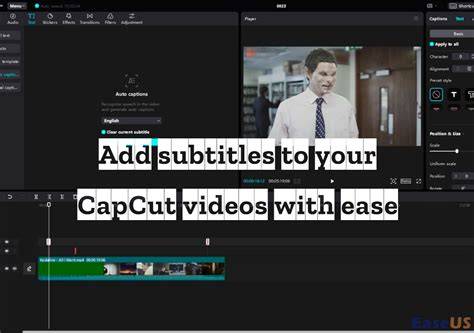
CapCut video editor is a premier choice for conveniently incorporating subtitles into videos. It offers auto-subtitles, a variety of styles, and easy export options. You can use CapCut to generate subtitles automatically and then import the edited video back into iMovie for further polishing, or you can keep CapCut as a dedicated subtitling step if your workflow prioritizes speed and multi-language support.
Practical Tips for Clear Subtitles
- Keep each subtitle concise and legible (short lines, around 2-3 lines max).
- Choose high-contrast text colors and a readable font size for small screens.
- Align subtitle timing with dialogue precisely, using the title duration handles in the timeline.
- Use a background box or semi-transparent backdrop if your video has busy visuals.
- Test readability on different devices and brightness levels.
Table: Summary of Methods to Add Subtitles in iMovie
| Method | Mac or iOS | Automatic? | Notes |
|---|---|---|---|
| Manual Title Method | Mac, iOS | No | Type captions, adjust timing, place above video |
| Importing SRT/VTT | Not supported directly | No | Use external tools; may require workaround |
| CapCut Auto Subtitles | Mac/Windows/iOS via CapCut | Yes | Generate captions, customize, then re-import if needed |
| Burned-in Captions | Mac/iOS | Yes | Open captions rendered onto video; not editable later |
Frequently Asked Questions
- Can I add text to iMovie? Yes, by selecting the Titles tab and choosing a text style to insert into your project.
- How do you add background subtitles in iMovie? Use a title with a background box or place a solid-color background clip behind the subtitle.
- How do you add moving subtitles in iMovie? Move the text box in the timeline to track the dialogue; adjust duration as needed.
- Can you import SRT files into iMovie? No direct import; you can use external tools or CapCut to generate captions and overlay them.
- Is automatic subtitling available in iMovie? Not built-in; consider third-party services or CapCut for automation.