The Adobe Admin Console is your organization's centralized hub for managing Adobe entitlements, from licenses and user accounts to deployment packages and security settings. If you administer multiple organizations, the organization selector lets you switch between them. The currently selected organization displays a checkmark next to its name. The Admin Console organizes its functions into distinct tabs, each focused on a specific aspect of administration. Features differ across tabs based on offering type. Enterprise, Teams, and Education each have unique options.
Overview of Core and Optional Services
Core services are required for Creative Cloud and are always enabled. Optional services can be enabled or disabled for each product profile. When assigning a plan with storage and services, you can configure which services are enabled for each product profile. Users assigned to multiple product profiles receive access to all services enabled across those profiles. A user is assigned to two product profiles. Acrobat services facilitate various operations within Adobe Acrobat. Access to desktop-only features. Enable all services unless your organization needs to restrict access for compliance or policy reasons.
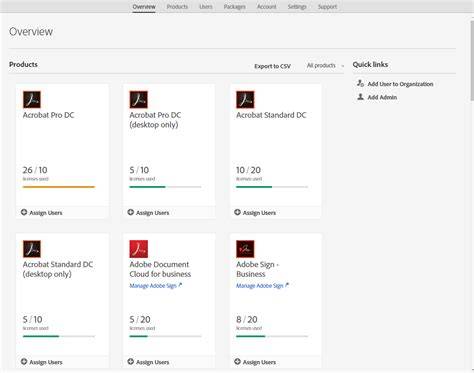
The Overview tab provides a dashboard view of your organization's Adobe licenses and setup status. It shows how many licenses you've assigned from your total available entitlements for each product, giving you an instant snapshot of license utilization. System administrators, Product administrators, and Product Profile administrators use this tab to assign Adobe apps and services to users and groups. The Users tab provides options for creating and managing user accounts. You can add individual users one at a time or upload CSV files to perform bulk operations. You can also assign administrative roles that determine what each administrator can do in the Admin Console.
Accounts, Contracts, and Billing
The Accounts tab (used by System administrators and Contract administrators) helps manage contracts, payment methods, and billing details. You can view contract status and anniversary dates, add or remove contract administrators, update payment information, and access invoices. The Insights tab lets you find the organization's reports and logs. License assignment reports show how many licenses are assigned to your purchased quantities, helping you plan deployments and improve license usage.
Storage, Deployment, and Packages
The Storage tab provides visibility into and control over your organization's storage under the Enterprise Storage Model. You can see how much storage your organization and individual users have consumed, manage individual and shared user folders, and reclaim content from users who have been removed. The Packages tab is where deployment administrators create and download software packages for desktop applications. You can build customized packages with the specific applications and configuration settings your organization needs or download pre-configured packages for standard deployments. The tab also provides access to deployment tools, including the Remote Update Manager and the Adobe Update Server Setup Tool.
Policy Configuration and Self-Service
The Settings tab is where system administrators configure organization-wide policies for identity, security, and content. Here you manage identity types and domains, set authentication and encryption policies, and control how assets are shared outside the organization. Adobe does not provide a native capability for top-level administrators to compare current Admin Console settings against Adobe’s recommended secure defaults. Self-service policies apply only to product profiles based on Creative Cloud products. Self-service policies are available only for Named User Licensing. As a system or product profile admin, you apply self-service policies at the product profile level.
User and Policy Management
User-managed policies grant users varying degrees of autonomy while giving you tools to control when and how updates occur. The self-service policy applies to all users in the product profile within 24 hours. Select User Managed to let users install and update applications themselves. Automatically update all applications makes the Auto-update toggle visible to end users in the Creative Cloud desktop app under Preferences. When users turn this on, their apps update automatically as new versions are released. Enable "show older apps" option in Creative Cloud desktop app to allow users to view, install, and update end-of-life apps such as Adobe Muse. These three checkboxes are not mutually exclusive, so you can select more than one. Select Restricted to disable the Apps panel in the Creative Cloud desktop app. Select Enforce Auto-update to prevent users from turning off auto-update. Users can still manually install or update any app.
App Deployment and Versioning
How app deployment works: Adobe Admin Console packages bundle applications with specific configurations that control which app versions users receive, when they receive them, and how much control users have during installation and updates. Package deployment options determine how updates and new features are delivered. Adobe delivers updates, new features, and app versions as they become available. Choose how to deploy and deliver apps and updates to end users based on your organization’s requirements. Users can install apps and updates from the package. The Creative Cloud desktop app allows users to install the latest apps and previous major versions of each.
Infographic illustrating the Admin Console tabs, user roles, and deployment workflow can help visualize navigation and responsibilities within the console.
Session 2 | IBM BAW Components Explained | Workflow Center, Process Portal, Admin Console
A short explanatory video showing how to switch organizations, manage product profiles, and deploy packages provides a practical walkthrough for new admins.
Team vs. Enterprise Licensing and Collaboration
Adobe Creative Cloud for teams is designed for businesses with enhanced collaboration and control. Each license is assigned to a single user on a team. Yes, Adobe is invested in helping your team successfully create high-quality content. Members of my organization already have individual Adobe Creative Cloud memberships. Yes, team members with individual Adobe Creative Cloud memberships can upgrade to Creative Cloud for teams with no cancellation fee. Part of Adobe Creative Cloud for teams, Photoshop is the industry standard for precision, AI-powered image editing, making it one of the best AI photo editors to help small businesses create images faster. With Adobe Creative Cloud for teams, small businesses have access to Firefly - a great option for text-to-video generation. The Firefly AI Video Generator lets teams instantly create high-quality video clips for social media or digital marketing, saving time and money.
Administration Roles and Access Control
Self-service policies apply only to product profiles based on Creative Cloud products. Self-service policies are available only for Named User Licensing. As a system or product profile admin, you apply self-service policies at the product profile level. User-managed policies grant users varying degrees of autonomy while giving you tools to control when and how updates occur. The self-service policy applies to all users in the product profile within 24 hours.
Deployment Mechanics and End-User Experience
Package deployment options: Users can install apps and updates from the package. The Creative Cloud desktop app allows users to install the latest apps and previous major versions of each. These deployment mechanisms ensure that organizations can control software versions, update timing, and configuration settings across the user base.
- Core services are required and always enabled; optional services can be toggled per product profile.
- Users in multiple product profiles receive access to all enabled services across those profiles.
- Admin Console tabs (Overview, Users, Storage, Packages, Settings, Insights, Accounts, Support) organize functions by administration area.
- Self-service and user-managed policies provide a graduated control model for updates and app installation.
- Package-based deployment enables precise control of software versions and configurations delivered to end users.