In this guide, you’ll learn how to create, edit, and optimize QR codes directly within Adobe InDesign, with best practices for print and digital layouts. We’ll cover the core workflow for generating QR codes, color and contrast considerations, testing, and how to handle changes after creation. The aim is to help experienced InDesign users leverage QR codes as a functional design asset rather than decorative pixels.
Generating QR Codes in InDesign: The Core Workflow
Hi there, in this video we're going to look at how to make this QR code, here in the top left. Awesome! So to create a QR code, I'm on my page 1, I'm going to go up to 'Object', 'Generate QR Code'. Now, by default it's going to be a web hyperlink, and that's the one that people use the most. These other ones are a bit weird, if you use a QR code, and it will give you some text. You could use it like, I don't know, a treasure hunt map thing. It could give you text clues, not sure why you would. Type in the URL, that it wants to go to. Then pick a color, I'm picking 'Paper' for mine because I want it to go on this dark background here, but you could pick any color, it works for most colors. When I say most colors, I mean, if I put black on this it's probably not going to get read by the camera of the cell phone. So black's going to be a nice good contrast.
Then you can just drag it out the size you need it to be. Now, give it some test before you go out to print. Just to make sure that it can be read by a QR Code Reader. You can select on him, and go to 'Object', 'Edit QR Code' to adjust it if you need to, or change the color.
The crucial point: place and size the Code in your layout with enough breathing room. Do not tuck it into a busy, low-contrast corner and hope for the best. The design must look good, and the code must do its job. Test Before You Print: scan it with a QR code reader and verify that it opens the correct destination. A wrong URL, poor contrast, or an overly small code can ruin a useful feature.
What Content Can a QR Code Hold?
InDesign opens the Generate QR Code dialog, where you choose the kind of information the code should hold. By default, InDesign sets the QR code type to Web Hyperlink. That is the important one, and probably the option you will use most often. Enter the full URL for the page you want people to reach. There are other content types available as well. Text QR codes could potentially work for something like a treasure hunt, where a scan reveals a clue. It is a slightly odd use case, but it is there if you need it.
For the vast majority of brochures, posters, flyers, and print layouts, stick with a web hyperlink. It gives the code a clear job: scan it, open the page. White on a dark background is generally a nice, safe option when contrast allows, but you can choose a color that can actually be scanned.
Color and Contrast: Choosing the Right Look
After entering the URL, choose the QR code colour. You are not limited to black, but contrast matters a lot. For a code sitting on a dark background, a light swatch such as Paper makes sense. It gives the camera a clear pattern to read. A dark code on a dark image, though, is asking for trouble. Use this simple rule: Choose a light QR code on a dark background. Choose a dark QR code on a light background. Avoid colours that blend into photographs, textures, or nearby type. Do not assume a code works just because it looks good on screen. White on a dark background is generally a nice, safe option.
Placement, Size, and Readability
Place and size the Code in your layout once you confirm the dialog; InDesign generates the code. Give the code enough room to breathe. Do not tuck it into a busy, low-contrast corner and hope for the best. The design still needs to look good, obviously, but the code also needs to do its job. Testing is essential when the code is printed over an image or color background. What appears perfectly fine at 100 percent on screen may not translate well in print.
Editing Existing QR Codes and Practical Considerations
If you need to change the link later, or decide the color was too ambitious, you can adjust the information stored in the code or choose a different colour. This is much nicer than deleting the original and building a new one every time the destination changes.
Should You Rely on a QR Code? Here’s the awkward bit: QR codes can be useful, but do not make them the only way someone can reach your content. Not everyone has or uses a QR code reader. Some people will scan it immediately, some will ignore it, and some may not have the right tool set up on their phone. If the QR code points to something important, include the web address as well. That gives people another route to the same destination and means the print piece still works even when the code is not scanned.
Use QR Codes as a Helpful Extra: a QR code can be part of the visual language of a modern brand, alongside social icons and web addresses. But make sure it is not there purely as a decorative element. Provide a useful destination, ensure readability, test, and supply a typed URL as a backup. The sensible approach is: generate, edit, and use QR codes in a way that serves real-world needs rather than simply looking cool on the page.
Frequently Asked Questions and Practical Notes
- Where is Generate QR Code in Adobe InDesign? Answer: Object > Generate QR Code. Select Web Hyperlink and enter the URL you want the code to open.
- Can I change a QR code after creating it in InDesign? Yes. Select the code and choose Object > Edit QR Code to change its content or colour.
- What colour should a QR code be? Use a colour that strongly contrasts with its background; a light code on a dark background or a dark code on a light background is safest.
- Should a QR code be the only link in a printed design? No. Include a readable web address too, particularly when the destination is important.
Supplementary Tools and Alternatives
Generate a custom QR code directly in your browser-no special software or app download is required. Enter your URL, customize colors and style to match your brand, and download in your preferred format. A QR code should be at least 2 x 2 cm for reliable scanning at close range, and you can scale it up proportionally for larger posters or signage. Dynamic QR codes let you update the destination URL without generating a new code, while static QR codes have a fixed destination. For broader branding needs, a tool like Adobe Express offers additional capabilities to create branded QR codes, including logo embedding and template-based designs. QR codes are versatile for business cards, menus, event signage, product packaging, and brochures to drive traffic, collect feedback, or share contact details, with codes that remain active over time when generated as static links or managed dynamically when supported.
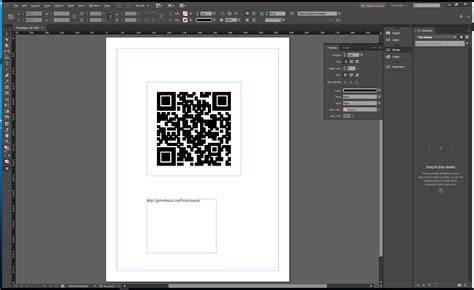
Images and diagrams can illustrate the placement and editing flow, helping readers visualize the exact steps in the Generate QR Code dialog and the Edit QR Code option.
How to create / GENERATE 5 different types of QR CODES in Adobe® InDesign® // Real life example 2024
A short video walkthrough reinforces the step-by-step process, including color choices and testing for print readiness.
Table: Quick Reference for QR Code Settings in InDesign
| Step | Action | Tip |
|---|---|---|
| 1 | Object > Generate QR Code | Default type is Web Hyperlink |
| 2 | Enter URL | Use full destination URL |
| 3 | Choose color | High contrast with background |
| 4 | Place and size | Ensure enough breathing room |
| 5 | Test | Scan with a reader to verify |
| 6 | Edit (optional) | Object > Edit QR Code to change content or color |