Many print documents contain multiple items, including text, photos and other graphic elements. Aligning items in a print document keeps it orderly and lends to its visual appeal. To select multiple items, press and hold your control key as you click each item. To import a photo, click File>Place from InDesign's Control panel. Navigate to the picture file you would like to import and double click the file name. Move your cursor to the location or frame where you want to place your picture and click your mouse. Adjust the size of your picture by selecting the picture using your Select tool and dragging a handle while holding the Control and Shift keys. This will adjust the picture's size proportionally.
To create another type of object, select the Line, Ellipse, Rectangle or Polygon tool from InDesign's Tools panel. Click the location in your document where you would like your shape to appear. With your newly drawn object still selected, click on your Swatches panel, which is located at the right-hand side of your workspace. Select the Fill box and then click a color for your object. To import text, create a text frame using your Text tool, which is located in InDesign's Tools panel. You may also import text from an existing word processing document by selecting File>Place, navigating to the file you wish to import and double clicking the file name. A loaded cursor will appear. Move your mouse to the location where you want your text to appear and click to place the text.
Large amounts of text may need to be threaded across multiple text frames. Do this by clicking the red plus sign in the right, bottom corner of your text frame, navigating to the new page or column where you want to place your text and clicking your mouse. InDesign also allows you to distribute objects across a pre-defined area. You may distribute objects by selecting the items you wish to distribute, opening the Align panel and clicking the button that corresponds to the type of distribution you desire. Tip: Drag the align panel to your windows panel to give you easy access to the alignment panel. Simply click on the Align Icon when you need to access the alignment panel. The top row has alignment options while the bottom row has distribution options. Before we go into every alignment and distribution option, there should be a menu on the bottom right corner that says Align To:. Make sure you’re on Align to Selection.
Here we have two squares and a circle placed randomly on the artboard. Vertical Distribute Top distributes the tops of the objects equally. Vertical Distribute Center moves the objects up or down to distribute the centers of the objects equally. Vertical Distribute Bottom distributes the bottoms of the objects equally. The objects are already vertically distributed so they haven’t moved. Now that we’ve gone through every alignment and distribution option, we can go through the Align To: menu. Change Align to Selection to Align to Key Object. With this chosen, instead of everything being relative to each other, your objects will now be relative to a key object. Finally, we’ll align and distribute to the artboard. This means that the objects align themselves relative to the artboard. The Align To: menu in InDesign is roughly the same.
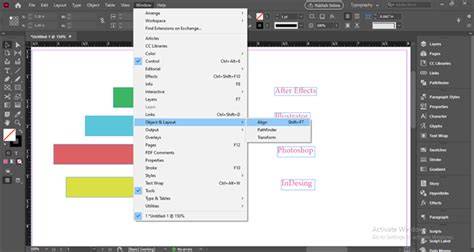
Want to use the Align panel in Illustrator more? InDesign allows you to easily and precisely align objects in a document. Open the align panel by choosing window, object and layout, align. If necessary click the double arrow next to the word align a few times to make sure you're seeing all of the options. Using the selection tool click on the art text frame. And in the align to drop down menu choose align to page. Click on the align horizontal centers button to align the text frame to the middle of the page. Using the selection tool click on the triangle shape, then Shift + Click on the vertical text to select both objects. Choose align to selection from the align to drop down menu. Click one more time on the triangle to define it as the key object. Now, all objects will align to it.
If you spend any time using Adobe InDesign or Illustrator, one of the tools you’re likely going to use (and probably often) is Align. When two or more objects need to be centered relative to each other, the Align tool is the way to go. Let’s start with InDesign, which in my opinion, acts more naturally when you use the Align tool. InDesign will move the pink rectangle while maintaining the position of the blue rectangle. Suppose, however, the pink rectangle is in a position you prefer, but want the wider blue rectangle to be moved relative to the pink one. That’s where the concept of a Key Object comes in. Like the second step above, you select both objects.
Okay, now on to Illustrator. A lot of the above is the same in Illustrator as its InDesign counterpart. But here’s where the important difference is. In Illustrator, the wider “encompassing” idea doesn’t exist. Once again, however, the Key Object concept comes into play and works just like in InDesign. Co-Founder & Technical Director Mike is Clockwork’s technology guy, preparing files for web and print, handling file management and archiving. He flightchecks and optimizes all projects before they are sent out in order to avoid any costly and time-consuming problems. We think he might be part robot.
One of the most underrated features in Adobe creative apps are the various object alignment tools (left align, right align, align top edges, horizontal align middle, etc.) If you’re anything like me, you use these tools regularly. And while they are conveniently - and sometimes even dynamically - located in multiple locations, you may find yourself moving your cursor back-and-forth from your artwork to the alignment panel more often than you’d like. This can slow down - or even disrupt - your workflow. The solution? In this guide we setup keyboard shortcuts for the most common alignment actions. Adobe apps come chalk full of keyboard shortcuts (see official keyboard shortcuts lists for InDesign, Illustrator, Photoshop and XD), so finding a combination of keystrokes that are not already designated to a shortcut can be tricky, and you’ll likely need to press several keys to employ any new shortcut. Note: for ease of research, writing and reading this tutorial, I’ll be using Mac keys only, Windows users willl need to adjust accordingly.
I.e. As much as I tried to get directly into the setup of these shortcuts, there is at least one more thing that needs clarification. Adobe uses different names for the same action, in different locations within the same app. Here’s what I mean. When you position your cursor over the first button in the Alignment panel, the tooltip says “Align left edges,” but, when you setup your keyboard shortcuts, the name for this action is “Horizontal Align Left.” Why Adobe would use two names for the same action is beyond me, but this is what we have to work with. And, if that isn’t bad enough, these same alignment actions get different names in different Adobe apps. I use the letter M for the Vertical Align Center shortcut to differentiate between C for Horizontal Align Center and M for Vertical Align Center Middle. Recommended but optional: Create a new set, just in case something goes wrong you can revert to the default set. Or, like in the case of the latest InDesign release, when settings don’t migrate, you can simply select your set to restore all of your keyboard shortcuts! And, you’re done! … Kind of.
Understanding that Adobe apps are developed by app-specific teams helps us understand why each app handles very similar tasks so differently. Organizations the size of Adobe cannot have an entirely flat org. structure, so silos exist, and this affects how we interact with their apps. Adobe InDesign doesn’t list the object alignment actions anywhere in the app’s menus, which is why, when setting up the shortcuts you must find them in Product Area: Object Editing. The Adobe Illustrator shortcut setup is a bit different than that of InDesign. You will be prompted to save the Set of keyboard shortcuts. Adobe Photoshop does allow you to use the Command key, but doesn’t allow you to use Arrow keys in keyboard shortcuts. So, similar to Adobe Illustrator, my solution is to use the first letter from each action’s directional component. I.e. C for Center, L for Left, R for Right, etc. Adobe XD doesn’t allow you to create custom - or modify existing - keyboard shortcuts. That’s not to say that XD is perfect. XD does its part in confusing all these alignment matters. XD also groups the horizontal distribution action with the vertical alignment actions and the vertical distribution action with the horizontal alignment actions. I really gotta think Adobe is just screwing with us in this case. But, it appears that XD is going by the wayside, so maybe I shouldn’t include this section at all. In InDesign, each of the alignment actions can be modified further by setting the Align to: option in the Align panel. We created our shortcuts based on the default option: Align to Selection, but you may find yourself aligning objects to Key Object, Margins, Page or Spread more often than Selection. In this case, you can change your designated actions and/or setup additional shortcuts for multiple Align to settings. I find I use Selection, Key Object and Page most often. Let’s address the elephant in the room. All these Adobe apps’ alignment panel also include Distribute Spacing actions. Remember, give yourself time and grace to learn these new skills. Some third party apps allow you to setup app-specific keyboard shortcuts, which allow you to create more consistent keyboard shortcuts for like actions across multiple Adobe apps. I have used BetterTouchTool for such. I have no affiliation with BetterTouchTool.