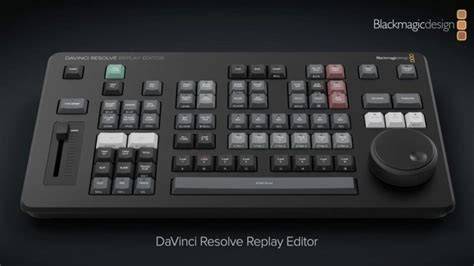
The Blackmagic Design DaVinci Resolve Replay Editor combines features for both replay and multicam editing in a single hardware control panel for live sports and news-cutting applications. Multiple keys toggle between inputs, set Point-of-Interests, and enable an auto stinger, among other functions. The panel connects to your preexisting network via Bluetooth 5.1 LE technology. A large internal battery keeps the panel going for long production days and can be turned on and off with an onboard switch.
DaVinci Resolve is the world’s only solution that combines editing, color correction, visual effects, motion graphics, audio post production and now photo editing all in one software tool! Its elegant, modern interface is fast to learn and easy for new users, yet powerful for professionals. DaVinci Resolve lets you work faster, at a higher quality, because you don’t have to learn multiple apps or switch software for different tasks. You can work with camera original quality images throughout the entire process. It’s like having your own post production studio in a single app!
High end professionals working on feature films and television shows use DaVinci Resolve more than any other solution! That’s because it’s known for incredible quality and creative tools that are light years beyond the competition. You also get the legendary quality of Fairlight audio processing for the best sound in the industry! DaVinci Resolve 21 introduces the Photo page, bringing Hollywood's advanced color tools to still photos for colorists and photographers! Plus there’s over 100 new motion graphic effects, 50 new features and hundreds of quality of life improvements. New AI tools include IntelliSearch for fast content searching, CineFocus for focal point adjustment, tools for facial refinement, and more.
The cut and edit pages have improved keyframing and greater graphic format support. Fusion includes the Krokodove toolset with over 70 new graphics, and Fairlight’s folder function simplifies audio track management. MultiMaster trim passes, layer list node graphs and group versions enhance color page workflow. DaVinci Resolve is the only solution that lets you grow and build your own multi user post production studio! The project libraries are built for real time local and remote collaboration. Now you can collaborate with editors, colorists, visual effects artists, and sound engineers all working together at the same time. Best of all, you no longer have to import and export files, translate projects, lose work, or conform and manage changes.
DaVinci Resolve is the only application in the world that lets everyone work together in parallel on the same project and at the same time! DaVinci Resolve is divided into "pages", each of which gives you a dedicated workspace and tools for a specific task. Editing is done on the cut and edit pages, visual effects and motion graphics on the Fusion page, color correction on the color page, audio on the Fairlight page, and media organization and output on the media and deliver pages. The Photo page introduces Hollywood's most advanced color tools to still photography for the first time. Whether you're a professional colorist applying your existing skills to fashion shoots and weddings, or a photographer ready to push the boundaries of dedicated photo apps, DaVinci Resolve unlocks the tools you need. Work with native RAW files from Canon, Fujifilm, Nikon and Sony cameras, reframing and cropping at source resolution. Manage and organize media with Albums and apply the full DaVinci color toolset to your images. Tether a camera for live capture and collaborate via Blackmagic Cloud. With all of DaVinci’s AI toolset, ResolveFX and FusionFX, the only limit is your imagination!
The edit page is the world’s most advanced professional non-linear editor. The familiar track layout, dual monitor design and traditional workflow makes it easy for new users to learn while still being powerful enough for professional editors. It’s perfect for larger projects such as feature films, television shows, streaming, commercials, documentaries and more. The edit page features drag and drop editing, context sensitive automatic trimming tools, fully customizable keyboard shortcuts so you can work faster, and a library full of hundreds of titles, transitions, and effects that you can add and animate. You also get complete media management, organization and timeline management tools. Designed for editors to turn around work fast!
The cut page is perfect for projects with tight deadlines that you have to turn around quickly. The streamlined interface is fast to learn and designed for speed. Features such as source tape, dual timelines, fast review, and smart editing tools help you work faster than ever. The sync bin and source overwrite tools let you quickly edit multicam programs. It’s also great for documentaries plus live broadcast editing and replay. Multi Source is the fastest way to see your cameras and edit to the timeline while the cameras are still recording! Everything on the cut page is action based so every click does something. That means you’ll spend more time editing and less time hunting for commands.
The DaVinci Resolve color page is Hollywood’s most advanced color corrector and has been used to color and finish more high end feature films and television shows than any other system! It’s also approachable with features designed to make it easier for new users to get great results while they continue to learn the advanced tools. For example, primary control sliders will be familiar to anyone who’s used image editing software, making it easy to adjust contrast, temperature, mid-tone detail, saturation and more. The Fusion page lets you create cinematic visual effects and broadcast quality motion graphics right inside of DaVinci Resolve! Fusion features a node based workflow that makes it faster and easier to create sophisticated effects and animations than you could ever create using a layer based approach. You get hundreds of 2D and 3D tools for visual effects and motion graphics, along with advanced animation curve and keyframe editors that allow you to create incredibly organic and realistic animations. Fusion has everything from point, planar and 3D camera tracking to rotoscope and keying tools for creating photorealistic composites, stunning animated titles, 3D particle systems and more!
The Fairlight page features hundreds of pro tools for audio post production. It’s like having a professional digital audio workstation (DAW) built into your editing and color system! The Fairlight Audio Core lets you work with up to 2,000 tracks at a time with realtime effects, EQ, and dynamics processing! You get sample accurate editing tools, advanced ADR and Foley, and Fairlight FX such as reverb, de-esser, and hum remover, plus AI effects like Voice Isolation and Music Remixer and more. IntelliTrack AI tracking lets you use video to track the Fairlight audio panner and you can mix and master stereo, 5.1, 7.1, and even immersive 3D audio formats including 5th order ambisonics!
The media and delivery pages have everything you need to import, manage and deliver final projects. The media page is a dedicated full screen workspace that lets you prepare footage, sync clips, organize media into bins and add metadata before you start editing. Use the clone palette to ensure every bit of data in the camera media cards is copied during backup. During edit or grading, stream video outputs to a remote client monitor via DeckLink. You can output and upload files to YouTube, Vimeo and X from anywhere page using the quick export tool. The deliver page gives you total control over all encoding options and formats, along with a render queue for exporting multiple jobs!
DaVinci Resolve Studio features over 100 GPU and CPU accelerated Resolve FX such as blurs, light effects, noise, image restoration, lens flare, stylize and more! Version 21 adds even more plugins such as UltraSharpen, which gives you extremely high quality sharpening of moving video images as well as fixing slight focus errors. Previously unusable footage can be turned into high quality content for use in your project. There are improvements to the face refinement box and profile handling, additional controls for skin refinements, smoother sub pixel animation and finer control for directional blur. The DaVinci AI Neural Engine uses state of the art deep neural networks and machine learning, along with artificial intelligence to power features such as facial recognition, object detection, smart reframing, speed warp retiming, super scale, auto color and color matching and more! The DaVinci AI Neural Engine is entirely cross platform, using the latest GPU innovations for AI and deep learning to provide unparalleled performance and quality. The DaVinci AI Neural Engine provides simple tools to solve complex, repetitive and time consuming problems. With all the different workflows and systems available, you need a post production solution that’s compatible and open enough to handle anything!
DaVinci Resolve can be used with any type of storage ranging from direct attached hard drives to NAS and SAN systems. You can extend DaVinci Resolve with third party Open FX and audio plugins, or add third party title and motion graphics templates. New workflow integration and encoding APIs let developers integrate workflow and asset management systems with DaVinci Resolve. DaVinci Resolve keyboards have been designed to edit much faster than a mouse because you can use both hands at the same time! The DaVinci Speed Editor features dedicated edit function keys and high quality search dial with transport controls. You can use the search dial and source tape buttons with your right hand to locate shots, while simultaneously marking in and out points, performing edits and live trimming. The DaVinci Resolve Replay Editor builds on these controls adding live to air camera selection and slow motion replay with stingers. The DaVinci Resolve Editor Keyboard adds a QWERTY keyboard with color coded shortcut keycaps, designed for editors who spend hours each day editing. DaVinci Resolve color panels let you adjust multiple parameters at once so you can create unique looks that are impossible with a mouse and keyboard. The incredibly small DaVinci Resolve Micro Color Panel is great for new colorists just getting started or anyone that needs a portable panel. It features 3 high quality trackballs, knobs for primary grading controls and buttons for accessing additional tools. The DaVinci Resolve Mini Panel features additional controls and screens for accessing virtually all palettes and tools. For the ultimate control, the DaVinci Resolve Advanced Panel gives high end professional colorists access to every single feature and command mapped to a specific button!
Designed in collaboration with professional sound engineers, Fairlight hardware consoles streamline your workflow, acting as a natural extension of the software. The intuitive, task based design adapts automatically, putting the controls you need right at your fingertips when you need them. That means you'll spend more time being creative and work faster than using just a mouse and keyboard! The Fairlight Desktop Console is a complete mixing console that’s ideal for use in home studios, small suites or on the road. You can also install Fairlight Studio Console components into your own desk or purchase a pre-configured multi bay Fairlight console for dedicated audio suites and scoring stages!
The best creative tools shouldn’t be limited to Hollywood. That’s why there’s a free version of DaVinci Resolve, so you can learn how to use the same tools that professional Hollywood artists use. DaVinci Resolve is designed to inspire creativity so you can focus on doing your best work. Once you learn the software and start using it for more work, you can purchase DaVinci Resolve Studio which adds tons of additional effects, 3D and more. DaVinci Resolve is the world’s only all in one solution for editing, color, VFX, motion graphics and audio! The free version works with virtually all 8-bit video formats at up to 60fps in resolutions as high as Ultra HD 3840 x 2160. Includes everything in the free version plus the DaVinci AI Neural Engine, dozens of additional Resolve FX, temporal and AI spatial noise reduction, text based editing, magic mask, film grain, optical blur and more. Hollywood’s most popular solution for editing, visual effects, motion graphics, color correction and audio post production, for Mac, Windows and Linux. Includes large search dial in a design that includes only the specific keys needed for editing. Editor panel specifically designed for multi-cam editing for news cutting and live sports replay. Includes buttons to make camera selection and editing extremely fast!
Full sized traditional QWERTY editor keyboard in a premium metal design. Featuring a metal search dial with clutch, plus extra edit, trim and timecode keys. Powerful color panel gives you all the control you need to create cinematic images. Includes controls for refined color grading including adding windows. Get incredibly fast audio editing for sound engineers working on tight deadlines! Used by Hollywood and broadcasters, these large consoles make it easy to mix large projects with a massive number of channels and tracks. Fairlight studio console legs at 0º angle for when you require a flat working surface. Fairlight studio console legs at 8º angle for when you require a slightly angled working surface. Get quick access to virtually every Fairlight feature!
Blank 1/3rd wide bay for building a custom console with the extra 1/3rd section. Introducing a new generation of live action replay! Blackmagic Replay is totally unique because it uses multiple HyperDecks to record into shared storage, while DaVinci Resolve is connected to the same shared storage as a powerful playback engine. This means you can add additional record channels by connecting more HyperDeck recorders. However, the true power comes from having DaVinci Resolve handle the playback. That’s because it’s not just replay, but an extremely powerful editor with multi user collaboration features. Plus color correction, visual effects and audio post production! Now you don't need to throw away a replay after it’s gone to air! That's because you can convert the replay into an edit timeline for posting to social media. Blackmagic Replay is more powerful than a traditional replay system because it’s built into DaVinci Resolve. This means you can load exciting camera angles into the timeline to edit, color correct and add visual effects. These edits can then be posted to social media in seconds. With Blackmagic Cloud, you can have more than one DaVinci Resolve system working on the job. Imagine every replay at a sporting event being transformed into a social media post.
DaVinci Resolve lets you do replay in a few simple steps. It can be as simple as watching the input view in the viewer and then pressing the POI button when an exciting event happens. Pressing the POI, or point of interest, button will switch you from the input view to playback media, where you can see the different camera angles you have in a multi-view. Now you just scroll back a little, select a camera and you're ready to play by pressing the run button. While playing you can review other angles in the multi-view and play that angle to air using show sequencing. When your replay is done, press the dump button and your replay will load into the timeline. Select input view. Mark the POI when something happens. DaVinci Resolve will switch to the playback media and cue to the POI, then you can review and select a camera. Once running, the multi-view lets you review other camera angles. Select a new shot by pressing a time key and a camera key. The time between run and dump is the replay and it can be automatically added into the timeline.
Building a high end replay system is easy as it's storage centric, where multiple HyperDecks record and DaVinci Resolve handles the playback. That lets you customize as many channels as you need. Just add extra HyperDeck recorders! That means you can build a replay system in HD, Ultra HD or even 8K. Then add more storage when you need extra space and higher speed. Plus, you can add more than one DaVinci Resolve system and they will collaborate globally using Blackmagic Cloud shared projects. Anything done on one system will automatically update on the others. Add multiple HyperDeck recorders to a Blackmagic Cloud Store Mini or Max to record as many channels as you need. Blackmagic Cloud Store Max has been designed for replay because it's fast and has a large capacity. So it easily handles multiple record channels. DaVinci Resolve is connected to storage to manage the playback. You can play all camera angles in a multi-view and then select shots for playout. While some DaVinci Resolve systems are working on replay, others can perform post production tasks.
The replay controls are accessed using the replay palette above the viewer, plus there are also dedicated buttons on the DaVinci Resolve Replay Panel. The cue button is good for replaying edit timelines, as it will cue to the start. The run button will start replay and change the video output to the selected camera while the viewer will change to a multi-view so you can review the next shot. Plus it will open the hardware key output to enable playback on the switcher. It will also run the auto stinger if enabled. Dump stops the playback, reverts the hardware output to a multi-view and runs the auto stinger if enabled. Because replay is built into DaVinci Resolve, you can arrange the specific views you want for replay simply by loading them into the bin. For example if you wanted to record 8 cameras but just do replay off 4 cameras then you only need to load those 4 cameras into the bin. Different users can load in different cameras and do replay customized for each workstation.
This means more than one DaVinci Resolve can be used for replays. DaVinci Resolve builds its multi-view based on the media that's loaded into the bin, however with shared projects, you can create different folders in the same project with different cameras loaded. To start working with replay, you simply load the HyperDeck recordings into the bin. One of the reasons DaVinci Resolve can be used for replay is it can edit media files even while those files are still being recorded on disk. The viewer will automatically advance as the files grow in length, so you can scroll forward and get to the latest media being recorded. It updates fast and you can get to media recorded less than a second ago. The ‘go to end button’ lets you see the latest action. Then you can scroll and play to see your angles. There are even record indicators on the clips in the bin to show they are still being recorded.
Multi source is where DaVinci Resolve automatically lines up all your recordings that match in time and displays them in a multi-view. This allows you to visually browse your media and see all the angles matched in time. As the clips are all being recorded on HyperDecks at the same time, you see events all aligned in time. The best way to get aligned recordings is to connect all the HyperDecks to a switcher so they get the same timecode. Now you can see all your angles and you can select different cameras to view full screen. You can also append and insert edits from the multi source. Most of the time you want to watch the action and wait for an exciting event to occur so you can set it up for replay.
If you are connected to Blackmagic Desktop Video hardware then selecting the input view will show a live view of the SDI or HDMI input into the DaVinci Resolve viewer. This gives you a live view without latency. A good input is a multi-view output from an ATEM switcher. Plus input view will snapshot the video input timecode when setting the POI. Once you set the POI, the viewer will change over to the multi source media and cue to the POI point as it comes in from the storage. It's almost instant! The point of interest or POI is a very important feature that makes replay possible. The POI is like a time based bookmark and it shows up on any clip, timeline point or bin icon when there is a match to the POI time and date. It’s not a marker because its time based and not connected to any particular clip or timeline. With a POI set, DaVinci can preroll back to play a new camera angle because it knows where an event happened in time. You can also use the POI for editing using the time and camera keys. Edits using the POI will appear in the timeline centered around the POI time. So you don't need in and out points.
Shot sequencing allows you to play multiple camera angles during the same replay. It allows the single DaVinci Resolve system to handle complex replays. When playing the first camera angle to air using the run button, the view switches to a multi-view, even though the video output is the selected camera. This lets you review all the angles as you play for the first camera, and look for the next angle to use. This means you only need to get the first shot on air fast. You can review the other angles while playing the first. Then press a time key and second cam button and the playback will jump back to that timed number of seconds before the POI and keep playing.
An important part of replay is slowing the action down so viewers can see what happened in detail. The DaVinci Resolve Replay Panel has a dedicated fader control that can be used to slow down playback speed. It will slow down all playback, even when not playing to air, so there's a speed enable button to prevent you from accidentally applying a speed change! The speed change is great when doing shot sequencing because it will hold the same playback speed as you change cameras. Speed changes will also be added to replays that are added to the timeline. This means your social media post will also get the speed changes!
Live productions often use complex automation for stingers. However DaVinci Resolve has built in auto stingers! These reduce workload as it’s like having automation built in. DaVinci does everything! Select auto stinger and DaVinci Resolve will then play the selected stinger when the run and dump buttons are pressed. It will also output the alpha channel in the stinger on the hardware key SDI output. Selecting run starts the stinger and then plays the clip. Dump runs the stinger again and then stops playback. The dump can be slightly delayed if an edit has just occurred, however double pressing the dump button stops playback immediately. Markers are better in DaVinci Resolve 19 and can be used to log events when you will be editing the replay media later. Markers are very different to the POI as you can have multiple markers and they are attached directly to clips or the timeline. Markers are also remembered in the project when saved or shared. You can select custom colors for markers and also add titles and notes for each marker. With markers, it’s like having metadata tags on your clips and timeline so you can find shots. Plus there's a dedicated add marker key on the DaVinci Resolve Replay Editor so you can add markers as often as you like!
The add to timeline selection will automatically add your entire replay into the timeline. Replays append at the end of clips already in the timeline, or create new timelines for each replay. This means each replay can become a separate social media post. Everything you did during the replay is remembered and added into the timeline, including transitions and speed changes. If you have a shared project, then other editors can get these timelines and add color correction and titles. This means your replay system can be integrated into a global network of post production! Even sports that have less local appeal can have a massive audience if you can engage viewers worldwide. The key to this is posting replays as social media content. The replay system is best for this because it has all the best camera views! Plus you get multiple angles with transitions and even speed changes. Then you could add a graphic, a sponsor logo and even a score card at the end to build a professional social media post. Each social media post can be sold to advertisers to help fund the production! It's so fast, you can post every few minutes. By posting just the highlights you will have fans waiting for the next social media update!
With replay built into DaVinci Resolve, you get access to a post production network that includes some of the world’s most talented editors, colorists, visual effects artists and audio engineers. This adds a level of creativity to replay that's never been seen before. Editors can build promo videos and documentaries right from the replay media. Then add professional color correction. Then VFX artists can use the Fusion tools for exciting transitions, or even tracking graphics and all kinds of futuristic designs. Plus each person in the post production network can collaborate using Blackmagic Cloud. DaVinci Resolve lets you do basic replay using the software's user interface! The replay palette above the viewer has lots of controls for replay right from within DaVinci! The top right of the replay palette also has the input button so you can switch the viewer over to monitoring the video input of the connected hardware. There is an Add POI button located at the lower left of the viewer which when selected will snapshot the timecode from the video input and transfer you to that time in the source media. Now you can scroll to your camera, click the camera view you like, and press the run and dump buttons to do your replay. The video input button changes the viewer to a direct input from video hardware such as a switcher multi-view! If you enable the multi source button, your viewer will show you all your cameras lined up in time in a multi-view. Just click a view to select a camera!
DaVinci Resolve will display only the media you load into the bin. This means you can load in as many camera ISO folders as you need. Clips for replay are being recorded live, so DaVinci Resolve handles files that are growing constantly in length. To mark an event, press the add POI button or the space bar when input view is selected. It's normal to move back before the POI so you can show the viewer what happened in the lead up to an event. Before you start a replay, you might want to enable an auto stinger. This automatically rolls a stinger when starting or stopping a replay. The add to timeline selection lets you add a replay into the timeline as an edit. It's automatic and when enabled will add the clips after the replay has finished. The run button starts the replay. It will replay from the current position. It can also trigger an auto stinger. You can click on the camera views to cut between cameras when playing to air. Then the selected camera will be output to the video output. The Dump button stops replay and then adds the shots to the timeline if selected. Plus it can run the auto stinger.
The DaVinci Resolve Replay Editor is a hardware control panel that combines features for both replay and for multicam editing. Its affordable design has the same high quality keys that gaming keyboards use, so it's reliable and feels nice to use. With features for both replay and editing, it means the same operator can work on replays while loading them into the timeline with the keyboard’s editing features. This makes it incredibly fast to use. Plus the buttons have been spaced so you can locate them by feel. Even the trim keys work with the large search dial for greater speed and accuracy. The live input button changes the viewer to a direct input from video hardware such as a switcher multi-view! To mark an event, simply press the POI button or the space bar when input view is selected. If you get distracted while editing and miss an event, then just press GO TO END! It takes you to the end of the media which was just recorded. Then you can scroll back to see what happened. You can scroll back and see all the camera angles, because DaVinci Resolve can play them simultaneously into a multi-view. That makes it easy to find and select the best angle for your replay!
Before you start a replay, you might want to enable an auto stinger. This automatically rolls a stinger when starting or stopping a replay. When rolling a replay, the cut and dissolve buttons let you select the type of transition you want when sequencing shots. The RUN button starts a replay and enables the key ... With its DaVinci Resolve Replay Editor, Blackmagic Design provides a reliable solution for professional slow motion footage in live productions. A complete workflow for replays can now only be realized with Blackmagic Design products. DaVinci Resolve Replay Editor is a compact hardware device designed to precisely control professional live replays. Specifically developed for sports broadcasts, eSports events and live productions, the Replay Editor enables efficient and intuitive real-time replays. With Replay Editor and several other Blackmagic Design products, workflows of different scales can be realized. Date: 13. 03.
tags: #blackmagic #davinci #resolve #replay #editor