Historical context roots the modern workflow in a perpetual quest for interoperability among 3D tools. The challenge of moving 3D models between different software applications is as old as computer graphics itself, and it has shaped how artists collaborate across studios and disciplines-from film production to game development and architectural visualization. Blender’s open-source nature amplifies the need for robust import capabilities as artists frequently collaborate with Maya, 3ds Max, Cinema 4D, ZBrush, and other tools. Over successive releases, Blender expanded its built-in importers to cover formats such as OBJ, FBX, glTF, and USD, equipping users to make informed format choices and anticipate common pitfalls.
Core Principles of Model Importing
Before diving into Blender’s tools, knowing how 3D data travels between applications is essential. Every 3D file is a structured container for geometry, transform data, materials, and textures. When any category fails to translate, you may see pink or grey models, missing normals, or flat unshaded surfaces.
- File Format Fidelity - Not all formats carry the same data. OBJ stores geometry and basic materials but cannot hold animation or PBR shaders; FBX carries richer data but uses a proprietary specification; glTF standardizes PBR materials and is highly portable.
- Texture Path Resolution - Textures are often referenced by file paths. Absolute paths break when moving to a new machine; relative paths kept with the model are the most effective prevention.
- Material Model Translation - Renderers use different shading models. Blender must map source materials to Principled BSDF; mismatches yield incorrect color, roughness, or metallic values.
- Coordinate System & Scale - Up-axis and unit conventions vary (Y-up vs Z-up, centimeters vs meters). Import settings for axis conversion and scale are critical to alignment.
- Embedded vs. External Resources - Some formats embed textures; others reference external files. Understanding this helps diagnose missing textures as path problems or genuine absence.
Think of a 3D file as a moving box: geometry is the furniture, materials are the utility connections, and textures are the family photos. A self-contained format like glTF binary (.glb) seals everything in one crate, ensuring intact delivery across journeys.
The Import Pipeline in Blender: Visual Explanation
This pipeline outlines how Blender processes a source file through the importer into the viewport. Common failure points include broken texture paths, shader model mismatches, and coordinate/scale discrepancies. The workflow reconstructs mesh geometry, translates materials into Blender-ready node trees, and locates referenced textures on disk. Any broken link in these channels leads to incomplete or incorrect viewport results.
Common failures and actions:
- Path textures are absolute or broken - locate missing files or relink textures.
- Shader model ≠ Principled BSDF mapping - rebuild or adjust shader networks to Principled BSDF equivalents.
- Axis or unit mismatch - set correct forward/up axes and adjust scale factor.
In practice, a quick checklist helps when import results look off: ensure textures sit in the same folder as the model, verify import scale and axis settings, use File → External Data → Find Missing Files, and rebuild Principled BSDF nodes if shader fidelity is compromised.
Visual Explanation - The Import Pipeline (Detailed)
The diagram traces a model from its source file through Blender’s importer into the viewport. The three color-coded areas highlight the most frequent failure points: broken texture paths, shader model mismatches, and coordinate/scale issues. The bottom checklist condenses the first steps to diagnose and fix issues when imports are not visually correct.
Key takeaway: Blender reads a source file by reconstructing geometry, translating materials into node trees, and locating referenced textures. If any channel fails, the viewport result may appear incomplete or incorrect.
How Import Formats Encode Materials & Textures
Formats encode materials and textures differently, with two axes: material model (legacy Phong/Blinn vs modern PBR) and resource packaging (external references vs embedded data). This intersection predicts likely import issues.
OBJ + MTL: The Legacy Pair
The Wavefront OBJ format stores geometry separately in a plain-text file and materials in an MTL file using a Phong-like shading model. Texture references are external file paths, so imports often yield washed-out materials lacking roughness or metallic data. Blender maps Kd to Base Color in the Principled BSDF, but there is no direct equivalent for PBR channels in MTL.
FBX: Rich but Proprietary
FBX carries skeletal rigs, blend shapes, animation curves, and scene graphs, but material handling is inconsistent. It may support legacy Phong/Lambert or newer Stingray PBS materials, depending on exporters. Blender’s importer relies on reverse-engineered parsing, so complex shader setups can be reduced to flat colors. FBX files can embed textures as binary blobs, removing path issues but increasing file size.
glTF / GLB: The PBR Standard
glTF 2.0 is designed around a metallic-roughness PBR model that maps well to Blender’s Principled BSDF. The binary variant .glb packs textures, meshes, and data into a single file, typically yielding the most faithful imports. glTF is recommended when you have a choice.
USD: Scene Description at Scale
USD is a scene description framework rather than a single format. It supports UsdPreviewSurface materials (PBR-compatible), but studios layer proprietary MaterialX or RenderMan shaders. Blender’s USD importer handles UsdPreviewSurface well but may simplify non-standard shaders, so verify material fidelity after import.
Tip: Choosing the Right Format - When exporting, prefer glTF 2.0 (.glb) for static PBR models, FBX for rigged/animated characters, and USD for large multi-asset scenes. OBJ or STL remain suitable for geometry-focused, non-textured workflows.
Troubleshooting Missing Materials & Textures
When a model appears flat or magenta-pink, diagnose using a systematic decision tree rather than guesswork. The guide connects symptoms to likely causes and actionable Blender steps. A few core techniques repeatedly prove effective:
- Find Missing Files - File → External Data → Find Missing Files to locate textures on disk.
- Report Missing Files - File → External Data → Report Missing Files to log unmatched textures in the console.
- Shader Editor inspection - Check the node tree for missing Image Texture nodes or incorrect color spaces.
- Pack All Into .blend - Embeds textures inside the Blender file to prevent future path breakage.
- System Console - Window → Toggle System Console to view import warnings in real time.
These steps guide you from symptom to fix, ensuring a robust import workflow regardless of the source format.
Worked Example - Importing an FBX Character with Missing Textures
Imagine an FBX character from Maya with a separate textures/ folder containing multiple texture maps. The process begins by organizing the project so the FBX and textures directory share a common parent. Relative paths are more reliable for automatic resolution. The practical steps involve ensuring textures exist in the expected folder, relinking them in Blender if needed, and validating material fidelity in the Shader Editor. Common challenges include opacity settings, missing skinning data, or rigging quirks. While some users turn to add-ons for advanced rigging workflows, most issues reduce to correctly realizing texture maps and shader networks after import, followed by adjusting transform hierarchies to align with Blender’s coordinate system. The goal is a faithful visual presentation with correct skinning, rigging, and texture application.
Note: Importer implementations evolve, including efforts to optimize Python-based workflows and, more recently, faster C++-based pipelines. The community continues refining both importer robustness and performance, particularly for large or animation-heavy files.
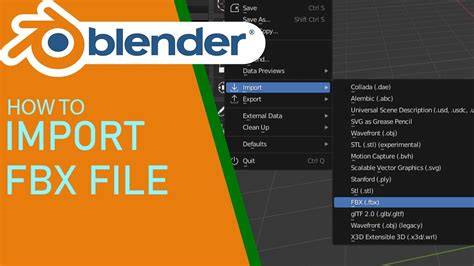
How to Import FBX File With Textures In Blender in 1 Minute
Throughout, the emphasis remains on preserving geometry, materials, textures, UV mappings, and shader networks across applications without data loss. The latest best practices favor standardized formats like glTF/GLB for static assets, careful texture management, and vigilant material translation to Blender’s node-based shading system.