Photoshop users often rely on quick keyboard combinations to resize brushes, adjust hardness, and control opacity on the fly. Since late May 2023 updates, many artists reported changes or conflicts with the classic shortcut for brush size and hardness, notably the control+alt+drag gesture on Windows and the control+option+drag gesture on Mac. This article compiles the most relevant notes from user discussions and practical workarounds to help you regain precise brush control and customize shortcuts to your workflow.
What the hotkey does and how it changed
The traditional method to resize and adjust brush hardness involved holding Ctrl (or Cmd on Mac) + Alt (Option on Mac) and dragging left/right to shrink or widen the brush, with vertical drag affecting hardness. In newer Photoshop releases, users reported conflicts where the same key sequence opened other tools (such as the Eyedropper) or stopped working entirely. Some threads also note that the same sequence began to adjust opacity instead of size, particularly in the beta or 2024 versions, depending on the Tool and OS configuration.
Common issues reported by users
- Shortcut conflicts: the Ctrl/Cmd + Alt/Option + click-and-drag sequence can trigger the Brush panel or other tool behaviors if keyboard shortcuts have been remapped or if OS-level accessibility features are interfering.
- Version-specific changes: updates in Photoshop 2024 and later sometimes repurpose or override older modifier-key behaviors, causing unexpected Brush Size/Hardness adjustments.
- Keyboard layout differences: non-US keyboards may map bracket keys or modifiers differently, leading to ineffective shortcuts.
- Tool focus requirements: the brush tool must be selected for the shortcuts to work; otherwise, shortcut changes may affect other tools or the Opacity controls.
- HUD and preferences: a setting such as “Vary Round Brush Hardness based on HUD vertical movement” in Preferences > Tools can influence how drag actions affect hardness versus opacity.
How to verify and restore shortcut behavior
- Verify the shortcut assignment: go to Edit > Keyboard Shortcuts, select Shortcuts For: Tools, and confirm that the intended key combination is mapped to Brush Size or similar actions. If you customized shortcuts, consider restoring the default set.
- Test with a standard keyboard layout: use the On-Screen Keyboard to confirm Photoshop is receiving the expected modifier keys, especially on non-standard layouts.
- Reset preferences or safely test: temporarily boot into Safe Mode and launch only Photoshop to rule out interference from other apps or OS-level utilities.
- Check for HUD-linked behavior: in Preferences > Tools, review the setting Vary Round Brush Hardness based HUD vertical movement. If enabled, drag gestures may affect hardness differently; try disabling it to see if drag controls revert to size/opacity as expected.
- Inspect tool focus: ensure the Brush tool is active before attempting the shortcut; otherwise, the sequence might open the Brush panel or affect another control.
Practical workarounds frequently shared by users
- Use the dedicated brush size/hardness controls via keyboard shortcuts: Edit > Keyboard Shortcuts > Shortcuts For: Tools.
- To change brush opacity quickly, number keys can set percentages (e.g., 2 then 7 for 27%), and two-digit sequences yield exact values (e.g., 5 then 4 for 54%).
- For users with inconsistent hotkeys, rebind the brush resize function to a different combination that doesn’t conflict with other tools in their workflow.
- Some artists pair tablet buttons with the shortcut (e.g., a Wacom button configured to CTRL+ALT+Right Click) to resize the brush without keyboard input.
- If you upgraded from an older version and the key combo now affects opacity or other attributes, reconfigure the Tools shortcuts to separate the actions (size/hardness vs. opacity) for clarity and reliability.
Notes on opacity, hardness, and related brush behaviors
Opacity and brush size are separate attributes that can be controlled via shortcuts or pen pressure. The Opacity can be adjusted by numeric keys (1-9 and 0 for 10%-100% in combinations), while Size is typically adjusted by bracket keys or the CTRL/ALT drag gesture. The brush hardness is usually tied to the same drag gesture but can be influenced by HUD settings and preference toggles that relate to the vertical movement of the HUD. If opacity shortcuts interfere with size controls, turning off the “Vary Round Brush Hardness based on HUD vertical movement” setting may stabilize the expected drag behavior.
Tables and quick references
| Action | Default Shortcut / Method | Notes |
|---|---|---|
| Resize Brush | Ctrl + Alt + Drag (Left/Right) on Windows; Cmd + Alt + Drag on Mac | May conflict with Eyedropper or Open Brush Panel in newer versions |
| Adjust Brush Opacity | Number keys (1-0) to set 10%-100% | Two-digit sequences yield exact percentages |
| Adjust Brush Hardness | Ctrl + Alt + Drag vertically (per original behavior) | Depends on HUD/Preferences; can be disabled by HUD settings |
| Open Brush Panel | Brush Tool specific behavior when shortcuts conflict | Verify shortcut assignments to avoid conflicts |
Регистрация в настройках и персонализация (для англоязычных пользователей)
Open Keyboard Shortcuts and go to the Tools section. Scroll down to find the brush size and hardness controls, then customize to your preference. If you’ve migrated from a previous version, consider restoring the default set to avoid conflicts introduced by custom mappings. For non-standard keyboards, validate keys with the On-Screen Keyboard and rebind as needed.
Визуальные материалы
Infographics and diagrams illustrating brush size/hardness workflows, modifier key mappings, and conflict-resolution steps can enhance understanding.
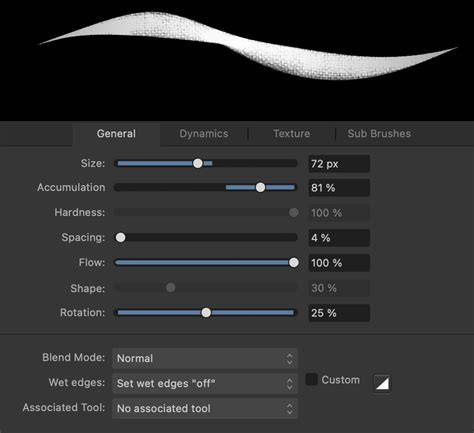
Basic Photoshop Brush Shortcuts
Дополнительные советы по рабочему процессу
- Experiment with different shortcut schemes to find a configuration that remains stable across updates.
- Keep a small, controlled set of shortcuts for frequently used actions to minimize conflicts during bursts of painting.
- When updating Photoshop, recheck keyboard shortcuts to ensure they remain aligned with your workflow.