DaVinci Resolve is a powerful video editing application that’s widely used by professionals for color grading, video editing, and audio post-production. Can Davinci Resolve export GIF? In this article, I’ll explore whether DaVinci Resolve can export GIFs, how to export GIFs using the software, and an easy alternative method using a different tool. Let’s dive in.
Can DaVinci Resolve export GIF?
The answer is yes. As of version 18.5, DaVinci Resolve supports exporting GIFs directly. This is great news for users who want to create animated GIFs directly from their video projects. However, if you are using an older version, such as 18.1, 18, 17, or 16, the GIF export feature is unavailable.
How to Export GIF from DaVinci Resolve?
- Before you export a GIF, make sure your video editing is finished. You can adjust color grading, trim the video, or add any effects you need. Once your video is ready, move on to the export process.
- In DaVinci Resolve, the Deliver page is where you set your export settings, so you need to click on the Deliver tab at the bottom of the screen.
- In the Render Settings section, select the Custom Export option.
- In the Format dropdown menu, select GIF.
- Go to the Codec section and choose the Animated GIF option. Then you can adjust settings like resolution, frame rate, and looping options.
- After adjusting the settings to your liking, click Add to Render Queue and click on the Render All button to begin the export. Once the render is complete, the GIF will be saved to the destination folder you specified.
Yes, you can export animated GIFs from DaVinci Resolve. Just make sure you’re using version 18.5 or higher and follow the steps above to set the GIF as the output format with Animated GIF as the codec.
An Easy Alternative to Export GIF
While DaVinci Resolve is an excellent tool, it may not be the best option for everyone. Some users may find the steps a bit complicated, or they might prefer a simpler solution for creating GIFs. In that case, a great alternative is MiniTool MovieMaker.
- Download and install MiniTool MovieMaker on your computer. Once installed, open this software.
- Click on New Project to start your program, then click on Import Media Files to import your video file. After that, drag and drop this video into the timeline at the bottom of the screen.
- Drag the beginning or end of the clip inward to leave the desired part you want to as the final GIF.
- Once you’ve trimmed the video, click the Export button in the top-right corner. In the export settings, choose GIF as the output format. Finally, click Export again to save the GIF.
Other features of MiniTool MovieMaker include supporting a wide range of formats, enabling image-to-video creation, allowing multi-track projects, and providing overlays and effects to enhance GIFs.
Bottom line: DaVinci Resolve can export GIFs in version 18.5 and later, making it straightforward to create high-quality GIFs. If you prefer a faster or simpler solution, consider using an alternative tool like MiniTool MovieMaker. Both options can help you achieve the perfect GIF for your needs.
Note: Depending on your workflow, you may encounter notes about GIF handling in newer updates or presets. You can also use online converters if you export to MP4 first, then convert to GIF with a web-based tool.
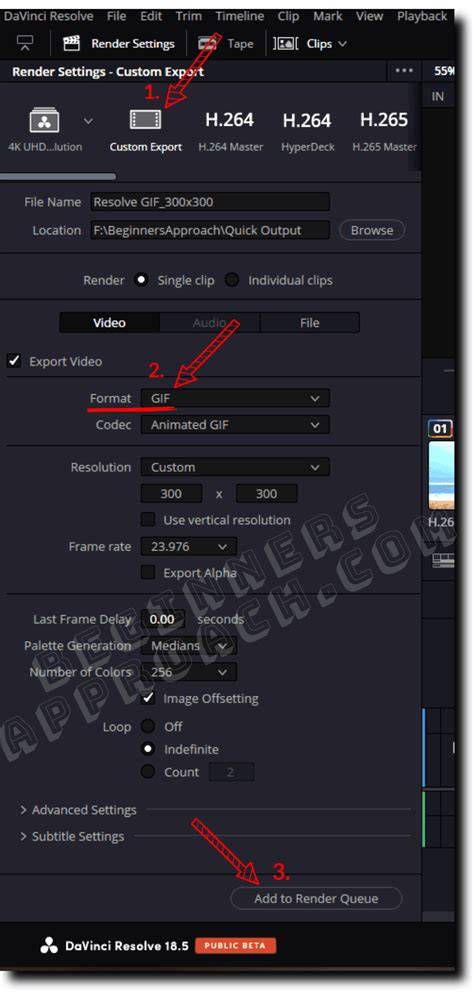
Figure: Workflow overview for export settings and codecs in DaVinci Resolve.
For users looking to extend GIF capabilities beyond Resolve, third-party tools and presets exist to simplify looping and optimization, such as GIF loop presets and dedicated GIF editors.
How to create a Gif in DaVinci Resolve Studio 18.5 - Video to Gif Tutorial
Video cue: A concise walkthrough showing the Deliver page, choosing GIF, adjusting resolution, frame rate, and rendering.
In case you’re curious about alternative workflows: you can create an MP4 in Resolve and use a converter to turn it into a GIF, or use dedicated GIF software to manage looping and optimization more granularly.
| Option | Version | Pros | Cons |
|---|---|---|---|
| Direct GIF export in Resolve | 18.5+ | One-step GIF creation; native controls | May require tweaking for large GIFs; limited advanced GIF controls |
| MP4 then online converter | Any | Simple; flexible hosting/ sharing | Quality trade-off; additional upload step |
| MiniTool MovieMaker | Standalone tool | User-friendly; fast GIF export | Requires separate software installation |
If you’re using Resolve 18.5 or newer, follow the Deliver page steps to export directly as GIF. If you’re on an older version, consider updating or use an alternative like MiniTool MovieMaker to generate GIFs efficiently.