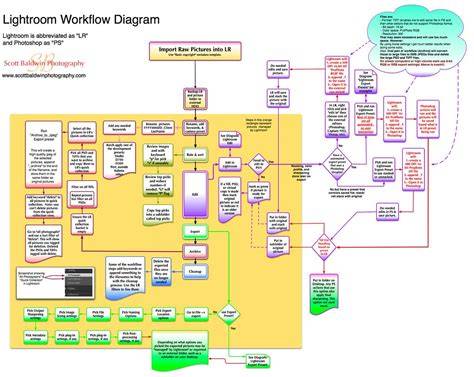
Lightroom handles the vast majority of photo editing tasks beautifully, and for most photographers, it's the only tool they need in their day-to-day workflow. But there are specific situations where Photoshop isn't just useful - it's the only way to get the result you're after. One small but useful detail worth knowing: Lightroom now lets you choose the file format it creates when sending a photo to Photoshop. Previously, TIFF was your only option. Now you can choose PSD (or other formats) under Lightroom > Preferences > Edit in Photoshop, or by right-clicking a photo and selecting Edit in Photoshop Settings.
Choosing the right format for Edit in Photoshop
The ability to select between formats is more than a convenience: it can affect the fidelity and flexibility of your edits in Photoshop. PSD keeps layers and smart objects intact, enabling non-destructive editing when you open the file back in Photoshop. TIFF remains a robust option for broad compatibility, but PSD is often preferred when you expect to continue extensive layer-based work in Photoshop.
Orton effect: a case where Photoshop-based blending shines
The Orton effect gives photos a soft, luminous glow - the kind that works especially well on waterfalls, misty landscapes, and golden-hour scenes. It works by blending a blurred version of your image with the original, and that blending is exactly why you can't do it in Lightroom.
- Step 1 - Duplicate the layer. Right-click your layer and select Duplicate Layer.
- Step 2 - Apply a Gaussian Blur. Go to Filter > Blur > Gaussian Blur.
- Step 3 - Set the blending mode. Change the blur layer's blending mode to Soft Light for the most natural result.
- Step 4 - Dial down the opacity. Start at 0% and build up slowly.
- Step 5 - Add a layer mask (optional). If the effect is too strong in certain areas, add a layer mask and paint with a low-opacity black brush to reduce it selectively.
Focus stacking for landscape clarity
Focus stacking is a technique used when a single shot can't keep everything sharp from foreground to background - a common challenge in landscape photography with wide-angle lenses at close focus distances. The solution is to take multiple photos focused on different planes and blend them in Photoshop.
- Setting up your brackets. Use your camera's focus bracketing feature if it has one, or manually shift focus between shots. Your camera needs to stay completely still - use a tripod.
- Bringing them into Photoshop. Select all your focus-bracketed photos in Lightroom, right-click, and choose Edit in Photoshop > Open as Layers in Photoshop.
- Auto-Align. Select all layers, then go to Edit > Auto-Align Layers. Even on a tripod, small shifts can happen between shots - this corrects for that.
- Auto-Blend. Go to Edit > Auto-Blend Layers, select Stack Images, check Seamless Tones and Colors, and click OK. The result is a merged layer with everything in focus.
Editing in 32-bit HDR: expanding tonal range
Editing in 32-bit HDR in Lightroom opens up a lot of tonal range, especially in highlight-heavy scenes. The plugin is WebSharp Pro, made by Greg Benz. The workflow: Edit your photo in Lightroom in 32-bit HDR mode, then send it to Photoshop. Confirm it's a 32-bit document (you'll see "/32" in the title bar).
Each of these three techniques requires something Lightroom currently can't do: layer-based blending, multi-frame depth compositing, or fine-grained gain map control. Lightroom remains a capable all-in-one editing environment, but knowing when to reach for Photoshop is part of building a well-rounded workflow.
Practical workflow tips for seamless integration
If you enjoyed this topic and want to learn how to get the most out of Lightroom's cloud-based ecosystem on the desktop, smartphone, and tablet, then you should check out my Lightroom Everywhere course!
To reproduce the workflow: open Lightroom CC Classic, select images, and right click then select Edit inAdobe Photoshop CC 2019. Once the image is opened in Photoshop, the options under Image and Layers are all greyed out. The workaround is: open Lightroom CC Classic, open Photoshop CC 2019, select images, and right click then select Edit in Adobe Photoshop CC 2019. Once the image is opened in Photoshop, the options under Image and Layers are now available. Bug - Image and Layer options are greyed out if and only if Photoshop CC 2019 is launched from Lightroom CC Classic.
Yes, Lightroom CAN do this but it was designed for a more efficient workflow. Lightroom was designed to keep all edit adjustments in the catalog and organize images using Keywords and Collections. Derivative copies are rarely needed on the local computer but are created (via export) for web use, sending to third parties, printing etc. However, if you insist upon a complicated image management scheme. On Export, simply check the box labeled "Add to this Catalog".
Asset management and external editors
As for Photoshop Elements (PSE), Lightroom has a function Called "Edit-In" where you can designate external editors such as PSE. By default Lightroom sets up Photoshop as the primary External Editor. If PS is not available PSE can become the default editor or you can add it as a secondary External Editor. Lightroom is an Image Management tool as well as a prettier interface to the Adobe Camera Raw engine. Using the file system as you are doing for image management is an inefficient way to manage images. It was for this reason that Adobe developed Lightroom as a replacement for Bridge. For example an image file can not be in two or more folders while it can be assigned to tow or more collections. Using folder names instead of keywords slows thing down too as you can't use the efficient search tools built into Lightroom.