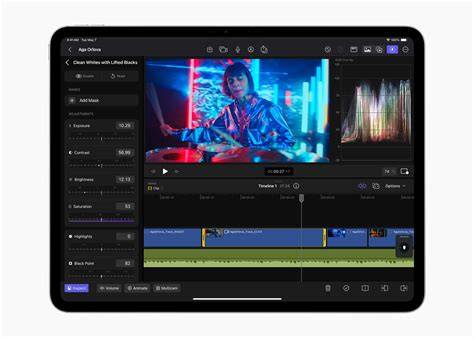
This guide examines external hard drives and SSD options for Final Cut Pro, tailored to four main editor types: Mobile Disorganized, Mobile Organized, Stationary Disorganized, and Stationary Organized. It covers drive categories, performance considerations, and concrete recommendations to help editors balance capacity, speed, and reliability.
Understanding drive types for Final Cut Pro workflows
First, there’s INTERNAL HARD DRIVES. Whether you edit on a laptop or desktop, you’re going to have an internal drive. Most are SSDs today, though some still use older Fusion Drives or larger configurations in towers. For external editing workflows, this article focuses on EXTERNAL HARD DRIVES.
Next, there’s PORTABLE, BUS-POWERED EXTERNAL DRIVES. These are powered by the connected computer and don’t require wall power. They vary in interface (USB-C, USB 3.x, Thunderbolt) and in spindle vs. solid-state designs. Thunderbolt connections generally offer the best performance for high-resolution footage, while USB-C/USB 3.x solutions cover many hobbyist and professional needs.
Then there are PLUG-IN EXTERNALS. These require AC power and are often inexpensive due to spinning-disk interiors. They’re useful for backups and large photo stores but are generally not ideal for demanding video editing due to slower performance.
For larger multi-editor environments, RAID enclosures and networked storage (like LumaForge Jellyfish or similar) exist, but this article centers on individual editors working alone on their projects.
Types of video editors and their drive needs
There are four basic editor archetypes commonly seen in practice: Mobile Disorganized Editor, Mobile Organized Editor, Stationary Disorganized Editor, and Stationary Organized Editor. Each type benefits from different drive configurations based on mobility, organization, and 4K+ workflow needs.
The Mobile Disorganized Editor typically edits on the go and benefits from high-capacity, fast, bus-powered drives. A solid SSD with USB-C 3.1 or Thunderbolt 3 (or higher) is ideal to handle 4K+ footage when on the move, minimizing the risk of data loss from mishandled drives.
The Mobile Organized Editor prioritizes a balance of speed and portability. For 4K from prosumer cameras, 2TB options like high-speed SSDs are desirable. If budget allows, a faster Thunderbolt-equipped drive can provide a noticeable speed advantage.
The Stationary Disorganized Editor tends to keep a workstation setup but may require more storage space and robust backup options. RAID-enabled externals or dock-style drives with large capacities and multiple interfaces can help manage large timelines and archive media without sacrificing speed.
The Stationary Organized Editor seeks maximum capacity, speed, reliability, and quiet operation under a desk. A high-capacity RAID array or an SSD-backed RAID solution like Promise Pegasus, LaCie 6big/12big, or G-Technology G-RAID Pro can deliver sustained performance for 1080p to 4K workflows and beyond.
Practical recommendation by editor type
Mobile Disorganized Editor: go for high-capacity bus-powered SSDs to minimize offloading pressure and use a drive with fast read/write speeds for 4K. Options discussed include Samsung T5/T7 series, SanDisk Extreme Portable, and, for a budget-friendly upgrade, a modified LaCie Rugged with a larger SSD inside. If you’re comfortable with DIY upgrades, consider replacing a spinning-disk inside a rugged enclosure with a 4TB SSD for better performance.
Mobile Organized Editor: prioritize speed and reliability with portable SSDs. The Samsung X5 Portable SSD (2TB) stands out for speed, followed by fast USB-C/Thunderbolt-connected options like the LaCie Rugged SSD Pro. If price is a constraint, a 1TB option (e.g., Samsung T7) can work, with 2TB models for 4K projects.
Stationary Disorganized Editor: consider larger, capable enclosures that can act as a central media hub. Thunderbolt 3/4 or USB-C interfaces with RAID configurations such as 2big, Pegasus, or G-Speed provide higher throughput and multi-project flexibility. In many cases, a dual-disk RAID in a desktop enclosure offers significantly better real-time playback for 1080p-4K timelines.
Stationary Organized Editor: the strongest setups involve high-capacity RAID arrays with SSDs for speed and reliability. Promise Pegasus, LaCie 6big/12big, or G-Technology Pegasus Pro lines are recommended for their performance and expandability, especially when editing multiple streams or working with 4K/6K footage.
Speed and capacity considerations
4K and above workflows demand faster read/write speeds and sufficient bandwidth. USB-C 3.1, USB 3.2, Thunderbolt 3/4, and NVMe-based interfaces offer the best performance. RAID configurations can dramatically improve throughput but come at a higher cost and complexity. A balance between capacity and speed is essential: plan for extra cache, proxy, or optimized media as Final Cut Pro can generate heavy data in the background.
For many editors, it’s also important to separate media, libraries, and backups. Consolidating media in Final Cut Pro can help when moving projects between Macs or external drives, but plugins and fonts may require separate handling when moving libraries between machines.
Important practical tips
- Keep media on fast external drives rather than the system boot drive to avoid bottlenecks and improve scrubbing performance.
- Consider using proxy or optimized media for heavy 4K timelines if your workflow becomes sluggish.
- Plan for backups with at least two forms of backup: a constantly-connected drive for Time Machine-like backups and a separate drive for project media and exports.
- When possible, use RAID configurations with SSDs for higher sustained performance, especially for stationary editors or those working with multiple 4K streams.
- Ensure drives are properly formatted for cross-platform use if working on multiple operating systems (exFAT is commonly used for Mac/Windows compatibility).
Concrete drive recommendations by scenario
Mobile Disorganized Editor: Samsung T5 2TB or SanDisk Extreme Portable 2TB, with the possibility of upgrading a rugged enclosure by swapping in a 4TB SSD. If you edit 4K on the go, a USB-C 3.1 or Thunderbolt-equipped drive is strongly recommended.
Mobile Organized Editor: Samsung T7 1TB or 2TB options, or Samsung X5 2TB for higher speeds. LaCie Rugged SSD Pro is another strong contender for fast, portable, reliable editing in various environments.
Stationary Disorganized Editor: A high-capacity RAID external such as LaCie 2big with RAID configurations, or a larger Promise Pegasus system, can provide both fast performance and ample space for multiple projects. Consider RAID0 for speed, or RAID5/6 for redundancy depending on risk tolerance and data protection needs.
Stationary Organized Editor: A robust RAID array like Promise Pegasus series (e.g., Pegasus2 R8) or LaCie 6big/12big with SSD upgrades for maximum speed. If space and noise are concerns, place drives under the desk or in a dedicated rack to keep the workspace clean and quiet.
Notes on library management and Final Cut Pro
In Final Cut Pro, you can consolidate media to ensure that all referenced files reside with the library you move. This helps when moving libraries between Macs or external drives. It’s important to locate the library in the Finder and adjust the Library Properties to control where media and renders are stored. If you’re moving libraries between machines, be aware that third-party plug-ins and fonts may require separate installers on the destination Mac.
Final Cut Pro generates render files, optimized media, and proxy media in the background. The next time you open a project, those files may be regenerated. For efficient editing, keep the media on fast external drives and only keep essential render files on the active drives.
In typical setups, even high-end systems can benefit from an external RAID or SSD-based solution to handle the I/O demands of 4K and higher-resolution timelines, while keeping the system drive relatively free for the OS and applications.