Welcome, Figma enthusiasts! Today, we're unraveling the mysteries of the scaling and selection tools. If you've ever found yourself scratching your head over their quirks, fear not. We're here to guide you through it all.
The discussion draws from practical insights about the Scale tool, its relationship with the Selection tool, and how grouping interacts with resizing. We’ll cover shortcuts, how to preserve aspect ratios, and the specifics of working with layers, constraints, and anchors to ensure proportional adjustments across objects and groups.
The Selection Tool: Click, Drag, and Move
Let's start with the trusty selection tool. It's your go-to for clicking, dragging, and moving elements around your canvas. Click on any object with the selection tool, and you can easily move it to your heart's content. Simple, right?
Click on any object with the selection tool, and you can easily move it to your heart's content. Simple, right?
The Scale Tool: The Secret Power of Proportional Resizing
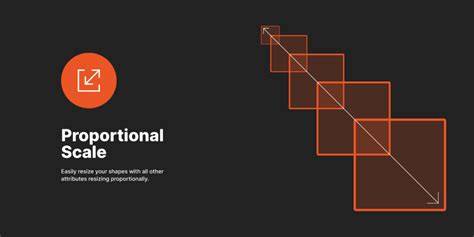
Now, what if you want to resize an object, but you also want to adjust its stroke, font size, or other attributes proportionally? That's where the scale tool comes into play. It's hiding right beneath the selection tool, ready to unleash its magic.
Here's the catch: if you try to resize an object using just the selection tool, you'll notice that the stroke remains unchanged. But fear not! Switch to the scale tool (shortcut: 'K'), click and drag the corner of your object, and behold the proportional resizing wonder.
Proportional Resizing and Constraints
Use the scale multiplier, in the Scale panel of the right sidebar. Dimensions fields: Use either the width or height fields, in the Scale panel of the right sidebar. Type a number in either field and press Enter / Return to apply. You can scale any object, with the exception of locked layers and layers nested inside a component instance. The anchor box sets the object’s anchor point and tells Figma which side to keep fixed during resizing.
You use the anchor box to set the object’s anchor point, which tells Figma which side of the object to stay put. For example, if the anchor point is set to center, the object’s center stays put and resizes in all directions.
Shortcut Reminders
Shortcuts help you work fast: V for Selection, K for Scale. While it might seem intuitive for 'S' to stand for scale, in Figma's world, it's 'K'. And for the selection tool? It's 'V'.
Grouping Objects: The Scale Tool's Best Friend
But wait, there's more! Even if you've grouped objects together, you'll still need to switch to the scale tool to resize them proportionally. Don't be fooled by grouping - it won't change this behavior.
Working with Nested Layers and Constraints
Scaling preserves aspect ratios and ignores constraints of nested layers in order to scale them proportionally. You can scale any object, with the exception of locked layers and layers nested inside a component instance. The anchor point directs how resizing behaves, especially when dealing with complex groups or nested structures.
Practical Workflow: When to Use Which Tool
- Use the Selection tool (V) to move elements without changing their size or proportions.
- Use the Scale tool (K) to resize with preserved aspect ratio, affecting related dimensions and potentially stroke or typography when applicable.
- When objects are grouped, still switch to the Scale tool to resize proportionally.
- Employ the anchor point to control the fixed side or center during resizing.
Additional Tips for Efficient Figma Scaling
- Hover over the object’s bounding box to reveal the cursor for quick scaling.
- Adjust size using the Scale panel in the right sidebar for precise control.
- For exact dimensions, type numbers directly into width or height fields and press Enter.
What’s Next? Dive deeper into Figma and related design topics with BYOL’s expansive catalog. As a BYOL member you gain access to this course as well as 30+ additional courses on Photoshop, Illustrator, Lightroom, Premiere Pro, Webflow, and more, along with personalized support, certificates, and active community challenges. Explore 30+ Essentials and Advanced courses in Figma, and beyond. Ask us anything!
How to Use The Scale Tool in Figma | Anchor Points, Resizing, and Scaling Objects
Example: Proportional Resize with Anchor Center
The anchor point being set to center keeps the object's center fixed while resizing in all directions, ensuring consistent proportions across designs and layouts.
Use the scale multiplier in the Scale panel to apply uniform growth or shrinkage, while keeping constraints of nested layers in mind.