Designers know how important it is to effectively communicate their designs to stakeholders. High-fidelity prototypes are a great way to do this, providing a realistic representation of final designs. With Figma, designers have a tool that allows them to create these prototypes quickly and easily. Scrolling is an important aspect of designing user interfaces for digital products. In this article, we’ll explore how to configure scrolling in a Figma prototype to create interactive and realistic experiences for stakeholders.
Understanding overflow scrolling in Figma
In Figma, designers can configure overflow scrolling for frames to ensure that their designs scroll properly. To enable horizontal overflow scrolling in Figma, ensure that content extends past the width of your frame. You can enable horizontal overflow scrolling in the Prototype panel under Scroll Behavior by selecting “Horizontal”. Similarly, vertical scrolling is configured by selecting “Vertical” in the same panel. Now you have a fully scrollable prototype!
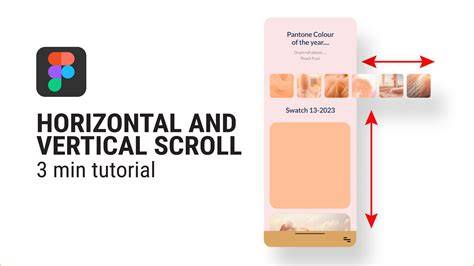
Prototype overflow scrolling property is responsible for the children layers of the selected frame. Please check that the content of the page is contained within the bounds of the viewport. If any content is overflowing beyond the boundaries of the viewport, that may cause the page to scroll. To check for overflow, select the artboard in Figma, and check the properties panel to see if the overflow property is set to “scroll” or “auto”. If it is, change it to “hidden” or “visible” to prevent scrolling.
Clipping content and its impact on horizontal carousels
In many cases, your design will have multiple elements within a frame. To give the appearance of a “window,” select the frame that you want to clip and check the Clip Content option in the Design panel. You’ll notice that your frame has now clipped any overflow content and only shows the content within its bounding box. Don’t worry, though - your objects haven’t been deleted. Now your prototype features a scrollable, clipped frame.

Preserving scroll position and realistic interactions
When creating a prototype that uses scrolling, you might not want every element to scroll along with the screen. For example, to show a card within a carousel changing state upon being clicked, you can preserve scroll position. With Preserve scroll position checked, Frame 2 will load from the last scroll position of Frame. The user can see the intended interaction as a result of selecting the card. Note that Preserve scroll position is available for certain animations. If Smart Animate is selected, Figma will preserve your scroll position by default. This helps maintain context during navigation between frames.
Responsive design and device scaling
Keep in mind that responsive design is crucial for cross-platform experiences. After you’ve selected a device, your prototype will automatically scale your designs to fit the device screen in presentation view. This ensures that horizontal carousels and vertical scroll areas behave consistently across devices.
Practical setup for a vertical page with a horizontal image carousel
Let’s consider a mobile page with vertical scrolling and a child component that has horizontal overflow scrolling. First, ensure the outer frame uses vertical scrolling. Then, within that frame, place a child frame dedicated to the carousel and enable horizontal overflow on the child frame. The content of the carousel should extend beyond the width of the child frame to trigger horizontal scrolling.
Designers often make the mistake of using groups instead of frames. When you use a group instead of a frame, the elements within the group will adapt to the group’s bounding box. Create a frame around the selected objects by right-clicking and selecting Frame selection from the context menu. Once your frame is set, click on the frame to reveal the bounding box. You want to adjust the width of the bounding box so that the content overflows past it. Think of the bounding box as a window that displays the content within it.
To test out your scrollable prototype, click on the Present button on the right side of the toolbar to enter presentation view. In presentation view, place your cursor within the bounds of your frame and scroll from side to side. Vertical scrolling in prototypes is often used to reveal hidden content that lies below the fold. Enabling vertical overflow scrolling is much the same as horizontal scrolling. With your frame selected, select the Vertical scrolling option from the Overflow scrolling dropdown. Now it’s time to test your prototype. Enter presentation view and place your cursor within the bounds of your frame and scroll up and down.
Troubleshooting the “sticky rubber band” feel in horizontal carousels
If you experience a strong resistance or bounce when trying to scroll a horizontal carousel to its full width, consider these checks: ensure the parent frame has proper overflow settings and is not clipping content in a way that interferes with child scrolling; verify that the carousel content truly extends beyond the child frame’s width; ensure there are no conflicting interactions or constraints that cause the content to snap back; check that the horizontal overflow is enabled specifically for the carousel frame and not overridden by nested frames or groups.
Advanced techniques for realistic horizontal scrolling within vertical pages
Advanced scrolling techniques can enhance realism when stakeholders view the prototype. For example, preserve scroll position across frames to demonstrate a card’s state change within a carousel. You can also enable both horizontal and vertical overflow scrolling at the same time to allow complex interactions like charts or maps within a single frame. When testing, place the cursor within the frame bounds in presentation view and use both axes to demonstrate multi-directional interactions.
| Feature | How to configure | Typical use |
|---|---|---|
| Horizontal overflow | Prototype panel → Scroll Behavior → Horizontal | Carousel, image strips |
| Vertical overflow | Prototype panel → Scroll Behavior → Vertical | Long pages, content below fold |
| Clip Content | Design panel → Clip Content | Window-like frame |
| Preserve scroll position | Frame interactions → Preserve scroll position | Stateful transitions in prototypes |
| Smart Animate | Animation type in Prototype | Default scroll position preservation |
Prototype overflow scrolling property is a key factor in how children layers of the selected frame behave. Check that content stays within the viewport bounds, and that overflow is set to the desired behavior. If you need to prevent scrolling, set the overflow to hidden or visible as appropriate. Additionally, understand that only frames can have overflow behavior applied, and that the Scroll behavior section provides the required controls for Position and Overflow.
Note: Preserving scroll position is a type of prototype state management and can be essential for presenting interactive elements that rely on user-initiated changes without resetting the scroll context.
Practical tips for debugging horizontal carousels within vertical pages
- Ensure the inner carousel content extends beyond the width of its frame to enable horizontal scrolling.
- Use a dedicated frame for the carousel, not a group, to avoid binding content to the group’s bounding box.
- Test in presentation mode to verify real-user scrolling behavior across devices.
- Check Clip Content on the carousel frame to control what is visible within the window.
- Consider using Preserve scroll position for nuanced interactions when navigating between screens.