Generative Fill not showing up in Photoshop can be frustrating, especially after updating to the latest beta. This guide consolidates step-by-step instructions to ensure the Generative Fill tool appears under your lasso selection and works as intended.
Update to the latest Photoshop Beta version
If the Generative Fill tool isn’t showing up, it is likely you need to properly upgrade your current version of Photoshop to version 24.6. This tool only functions with the latest version. Below are the steps to efficiently update Photoshop Beta:
- Click “Help”, then “Updates…” to Open Adobe Creative Cloud.
- Click on “Check for updates” in upper right corner.
- Click on Beta Apps on left navigation bar.
- Click Install button to the right side of Photoshop (Beta).
- Once installed click on 3 dots again to check it says Photoshop (Beta) (24.6).
(Note, you don’t have to uninstall the current version. However, if you don’t, you might encounter a small glitch where Adobe Creative Cloud tries to open a newer Photoshop while an older version is already running.)
Ensure you are actually running the latest Generative Fill-enabled build
In the newest release of Photoshop Beta, the Generative Fill UI block shows up automatically soon as you create a selection anywhere on your image. If you’ve upgraded but Generative Fill still doesn’t appear after making a selection on your image, try the following:
- Open the Creative Cloud window and click Check For Updates to ensure you’re on the latest available patch that includes Generative Fill.
- Make sure you have a raster layer selected and a selection drawn with the lasso or selection tool before expecting the Generative Fill option.
Sometimes the Generative Fill button remains hidden if the app loaded an older version or if the selection context is not correct. The contextual bar is crucial: you must be in a state where Generative Fill is eligible to appear.
Verify your context and tool visibility
To verify visibility of Generative Fill, follow these steps carefully:
- Launch Photoshop and open or create a document.
- Enable the Contextual Task Bar from Windows > Contextual Task Bar so the Generative Fill option can appear when a selection is active.
- Draw a selection with any selection tool (lasso, marquee, etc.) to activate the contextual options.
- Click the Generative Fill button on the Contextual Task Bar and enter a prompt to generate fill content.
If the Generative Fill button remains gray or absent after these steps, ensure you are on the absolute latest Photoshop Beta (24.6) and that you are not still running an older version of Photoshop in parallel.
Titling and settings that can block Generative Fill
A number of non-obvious factors can block Generative Fill from appearing or functioning properly. Consider these checks:
- Confirm you are logged into the Creative Cloud desktop app with an active subscription that includes access to beta features.
- Confirm your internet connection is stable, as Generative Fill requires online processing.
- Reset Photoshop preferences if needed: hold Option + Command + Shift (Mac) or Alt + Ctrl + Shift (Windows) while launching Photoshop, then confirm reset.
- Check that the Generative Fill feature is enabled in the app’s settings under System Info to confirm the installation is complete.
In some cases you may need to log out of your Adobe account and log back in to refresh credentials, or restart Photoshop after enabling a new feature. Additionally, ensure you are not trying to access Generative Fill with a version of Photoshop that predates the 24.6 beta build.
Special considerations and tips
Generative Fill uses text prompts to fill selected areas with content generated by AI. In some tutorials you may encounter steps that involve sharing information with Adobe Behance cloud services. If you’re uncomfortable sharing personal information, be aware that some guides describe a workaround involving Behance login to unlock features; however, this is not required for all users and can depend on your account setup and regional policies.
To maximize success, use a clean selection and a visible raster layer. The tool performs best when there is an active selection and a robust prompt describing the desired fill. If the image contains complex reflection, perspective, or occlusions, Generative Fill results may vary in quality.
Practical workflow for using Generative Fill
A practical sequence to enable and use Generative Fill effectively:
- Update Photoshop to the latest Beta (version 24.6) via Creative Cloud.
- Open your document or create a new one, then enable the Contextual Task Bar from the Windows menu.
- Make a selection with the lasso or any selection tool to trigger Generative Fill options.
- Click Generative Fill on the Contextual Task Bar and input your prompt to generate fill content.
- Refine results as needed with further prompts or additional selections.
If you still encounter issues after following these steps, consider resetting preferences or contacting Adobe Support for guidance specific to your system configuration.
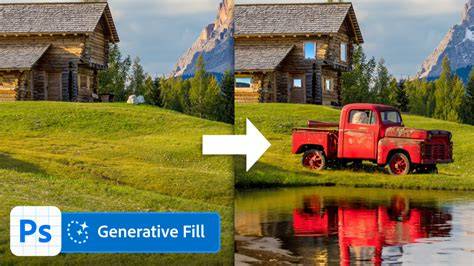
How To Fix Generative Fill Not Working in Adobe Photoshop
Photoshop’s Generative Fill represents a shift in how AI features integrate with traditional photo editing workflows, enabling content-aware and prompt-driven adjustments directly within the application.
tags: #generative #fill #not #showing #up