When you’re editing your movie project in the timeline, you can add the following types of background music: Soundtracks and theme music, songs from the Music app, and imported songs. Background music clips are colored green in the timeline, while shorter clips under 1 minute behave like sound effects and appear blue. This article compiles how to add each type of music in iMovie across devices and workflows.
Soundtracks and theme music
iMovie comes with a collection of soundtracks that dynamically adjust to fit the length of your project. Soundtracks include the music from iMovie themes, which you can add separately from themes. For more information about themes, see Work with themes in iMovie on iPhone.
To add a soundtrack on iPhone: open a movie project, tap the Add Media button, then tap Audio. Tap Soundtracks. Soundtracks that need to be downloaded appear with a Download button next to them. Tap a soundtrack to download it, then tap it again to preview. To download all soundtracks, tap the Download button in the upper right. To add a soundtrack, tap it, then tap the Add Audio button that appears. To add theme music, scroll down to the Theme Music section of the Soundtracks list.
Songs from the Music app
You can add songs from the Music app that have been synced to your device using Music on your computer. Note: To use a song you purchased from the iTunes Store in your project, you must be the copyright holder of the song or have express permission from the copyright holder. For more information, see the iMovie for iOS and iPadOS software license agreement.
On iPhone: to find music previously synced to your device, tap My Music in the Add Media > Audio menu. To listen before adding, tap the item. To add, tap the item, then tap the Add Audio button. If you’re creating a music video and want to align video clips to specific points in the music, add background music to your project first.
On Mac: with your project open in iMovie, you can import songs from your music library via the media browser. Click Audio, then Music in the Libraries list, browse selections, preview with the play button, and drag the chosen song from the media browser to the timeline. You can drag a song under a video clip so a connecting bar appears, or drag songs to the background music well for nondestructive editing.
Imported songs
You can add songs that you created in GarageBand, Logic Pro, or another app and imported into iMovie using iCloud Drive or the Music app on your computer. To import background music from iCloud Drive, see Add background music or other audio from iCloud Drive, below.
In iMovie for Mac, you can drag audio files like M4A, MP4, MP3, WAV, and AIFF from the Finder into the timeline. If a song is longer than one minute, it behaves like a song in the project. If it’s shorter than a minute, it will behave like background music (for alignment with video edits).
iCloud Drive and file-based audio
To add background music or other audio from iCloud Drive on iPhone: open a movie project, scroll the timeline to place the playhead where you want to insert the audio, tap Add Media > Audio > iCloud Drive, locate the audio, and tap Add Audio. Songs may appear dimmed or unavailable if they need to be downloaded; use the Music app or Finder/iTunes to sync or download as needed. If a song cannot be found, learn more about why it might not be available.
On Mac, you can also add background music by selecting Audio & Video above the browser, then choosing Music, Apple TV, or Sound Effects in the sidebar. Drag the clip to the background music well and position, trim, and edit independently of other clips. If Trim background music is enabled in movie settings, the audio in the background music well is automatically trimmed to match the project duration.
General notes and tips
To use a song you’ve purchased from the iTunes Store in your project, you must be the copyright holder or have express permission from the copyright holder. You can add sound effects and music to your movies, and iMovie provides a library of sound effects as well as the option to use audio from your Music library. Background music plays along with the video's audio and any voiceovers you add; audio placed as background music is edited in its own timeline area and is not affected by edits to other clips.
If you want to attach a song to a specific video clip, drag it under the video clip so that a connecting bar appears. You can also select a range in the waveform to use only a portion of a song. You can use multiple songs in a single project, and you can adjust the length like any other clip.
Both Mac and iPhone workflows at a glance
- Download and preview soundtracks, then add to your project from the Soundtracks list.
- Use My Music to access songs synced to your device and add them to the project.
- Import songs from iCloud Drive or the Finder to include in your timeline.
- Drag audio into the background music well for nondestructive editing and easy length control.
- Align music with video for music video projects by placing the music first, then editing clips around it.
Картинки
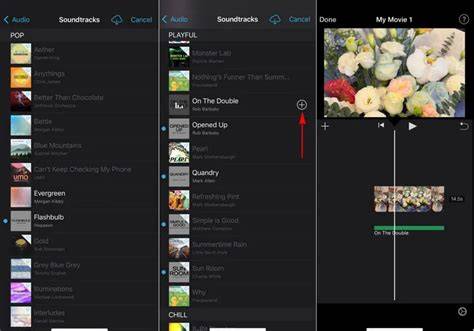
Image caption: Soundtracks list with download indicators and theme music section.
Видео
How to Import Apple Music to iMovie [Working 2024]
Video caption: Step-by-step guide to adding soundtrack and music from Music library in iMovie.
To add a song to a project in iMovie across devices, follow these steps: locate the song, preview as needed, and use Add Audio to place it in the timeline. For longer audio clips, place them in the background music well; for shorter clips, attach them to individual video clips or use them as soundtracks depending on your editing goal.
| Scenario | Type of Music | Key Action |
|---|---|---|
| Background music that fits entire film | Soundtrack / Theme music | Add to background music well, ensure duration matches project |
| Music aligned to specific moments | Music from Music app or imported | Place playhead, add audio, trim as needed |
| Short clip under 1 minute | Short audio clip | Behaves like sound effect; may be blue in timeline |