Image compression is a way to reduce file size to make images best suited to their intended use. The golden rule of file compression is: don’t compress photos or images any more than you need to. Image compression is a method of reducing the size of an image file by means of a specific algorithm. Different image file types such as JPG, TIF, and PNG use different algorithms to change how image data is stored and to produce smaller-sized files (measured in bytes). File compression is your friend - especially if you tend to run out of storage space on your phone or hard drive, or post lots of pictures online. There are plenty of ways you can make your images smaller without impacting the quality too much. By following the steps below, you can find the right balance between file size and image quality.
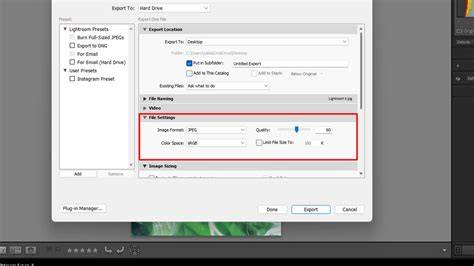
You can use any software that converts image file types as your own personal image compressor. In Lightroom, you can compress your original photos by turning them into a JPG or a TIF file. Change the dimensions and quality to reduce the size of your file. Compression works similarly in both Photoshop and Lightroom, but in Photoshop, you have the added option of exporting your file as a GIF.
File formats and their impact on size and quality
JPGs are a tried-and-true option because they can maintain relatively good image quality at a small size. And even at that size, JPGs can still capture up to 16.8 million colors, making them especially useful for photographs in all their multicolored glory. The format is compatible across a large swath of software and devices. JPG is a lossy file format, which means that you’ll lose some image quality when you convert. PNG files are popular in graphic design and offer the unique ability to save images with transparent backgrounds. Like TIFF files, PNGs offer lossless compression - meaning that you don’t lose any of your data when you convert a file to a TIFF or PNG format. GIFs are known for animations but can also support single images and offer lossy compression for smaller file sizes.
Lossy compression reduces data, often removing colors or pixels that are barely perceptible to most viewers. Lossless compression, by contrast, reduces file size without losing any data. In practice, most images you share online will tolerate a certain amount of lossy compression without noticeable quality loss. Lossless formats are preferred when preserving exact colors and details is critical, such as logos or technical visuals.
Resizing vs. compression: two paths to smaller files
Image compression and resizing are similar concepts-both can make your file sizes smaller. As you learned above, image compression reduces the amount of visual information in a file. Think of it like a fluffy down blanket - you can reduce its size by packing it into a box. Or, if you need to make the blanket even smaller, you could remove some of the feathers before packing it up. With image resizing, think of it as tailoring your blanket from a king size to a twin size. The aspect ratio-the dimensions of length and width-will be different than before. Oversized images can slow down your site, mess with SEO, and even affect sales. But shrinking an image the wrong way? That can leave you with a blurry, pixelated mess.
Photoshop: quick start for resizing and exporting with quality control
If you want a quick and easy way to resize images in Photoshop, follow these steps: open your image via File > Open, or use the shortcut CTRL + O (COMMAND + O on a Mac). Then go to Image > Image Size to adjust dimensions. The Image Size dialog shows a preview and a final file size estimate. A good rule of thumb is to keep images around 1000px wide (2000px wide if they are to fill the screen). In the Resample dropdown, choose a method that suits the image type: Bicubic Sharper (reduction) preserves detail when downsizing; Bicubic smooths gradients for smoother skin; Nearest Neighbor emphasizes artifacts and is rarely preferred. Click OK, then save via File > Export > Export As… for further compression control.
Photoshop’s Export As… tool provides granular control over file size and quality. In the Export As… window, you can select JPEG for good compression with quality control, PNG for transparency (with options for 8-bit or 24-bit), or GIF for animations. For JPEG, adjust Quality to balance size and visual fidelity. For PNG, decide whether to enable Transparency and whether to export as PNG-24 or PNG-8 depending on the need for color depth and transparency. You can also set exact dimensions or scale by percentage. The Resample option affects how Photoshop rebuilds image data during resizing and influences the final file size and quality.
Practical tips for common scenarios
- For ecommerce product photos, target dimensions around 1000×1000 px, with a maximum file size under 200 KB for fast loading. Use Bicubic Sharper when downsampling to preserve details.
- Headshots and portraits can tolerate higher ppi and slightly larger dimensions, such as 1200×1200 px, but still aim for under 100 KB to keep pages responsive. Use JPEG with high-quality compression or PNG-24 for transparent backgrounds if needed.
- When you need a balance between quality and performance across the web, start with a JPEG export at quality 60-80 and adjust while comparing previews. If transparency is required, choose PNG with appropriate settings to minimize size.
Cloud and third-party tools for additional optimization
Bulk Web Resizer, Canva, ImageOptim, Kraken, Pixlr, pngquant, TinyJPG/TinyPNG, Let’s Enhance, Squoosh, and Upscale.media offer various approaches to resizing, compression, and metadata management. Plugins for content management systems (WordPress, Shopify, etc.) can automate image optimization within your workflow. If you work with many images, outsourcing to a professional service can save time while maintaining quality and consistency.
Best practices for different use cases
- Common dimensions: 1000×1000 px for product images; 2000×2000 px if zoom is needed; 1080×1920 px for vertical stories; 1200-1600 px for standard blog images.
- Aspect ratios: 1:1 for product photos; 16:9 or 4:3 for banners and hero images.
- Color and compression: aim for file sizes under 200 KB for fast loading; JPEG at high quality or PNG for transparent graphics.
- Resampling choice: Bicubic Sharper for downsizing; other options for upsampling depending on the image type.
Quick reference: step-by-step workflow in Photoshop
- Open the image (File > Open or CTRL/CMD + O).
- Resize with Image > Image Size, set desired dimensions, and choose a downsizing method (Bicubic Sharper for reduction).
- Estimate final size in the dialog and adjust dimensions accordingly to stay under target limits.
- Export with File > Export > Export As… to fine-tune format and compression (JPEG best for general use; PNG for transparency; GIF for animations).
- Review the Preview and file size, then save the optimized version.
Информативные примеры и объяснения
Converting your image file to another format will compress the image data in each of your pictures so you can post, publish, share, or save them. The average viewer isn’t likely to tell the difference after lossy compression, while lossless options preserve data without quality loss. A balanced approach combines resizing, format choice, and compression settings to achieve fast loading times without noticeable degradation.