Opacity, transparency, see-through-ness-these concepts are central to creating visually engaging documents in InDesign. This article distills practical steps and concepts from a real-world course narrative to help you master adjusting opacity for both graphics and text, with attention to how transparency interacts with color spaces and layered objects.
Understanding the role of opacity in print design
Opacity refers to the amount of light that travels through an object. In print design, opacity is sometimes referred to as transparency and may be adjusted for both graphic elements and text. Adjusting opacity allows you to draw attention to items or use them as a background element.
Opacity is applied to entire objects or to specific parts such as the fill, stroke, or text. When you use transparency, InDesign blends colors and detail from different objects, and this blending is governed by the document’s color space.
Getting started: preparing your document
The first step is to ensure you are working with the appropriate tools and panels. You can import images via File > Place, create shapes with the Shape tools (Line, Ellipse, Rectangle, Polygon), and draw text with the Text tool. For opacity, you’ll primarily interact with the Opacity control in the Control panel or the Effects panel.
Setting up a simple shape as a background with lowered opacity
To begin, draw a rectangle over a section of your layout. Ensure the Stroke is set to None and the Fill is Black (avoid Registration). Place this shape above or behind other elements as needed, then select it and locate the Opacity control at the top of the workspace. Lower the opacity to achieve a see-through effect that allows underlying text or images to show through.
Applying opacity to multiple elements
Opacity can be applied to an entire object or to specific parts (fill, stroke, text). To apply to a group, select the group and adjust the opacity; the group will be treated as a single unit. If you need to copy opacity settings between objects, use the Eyedropper tool-double-click to configure which properties it copies.
Practical workflows for opacity in common tasks
- Place an image and create a text frame on top. Lower the image’s opacity to create a watermark-like background so the text remains legible.
- Draw a black box behind white text and reduce the box’s opacity to blend with a background image, ensuring the text stays readable.
- Use a watermark logo by shrinking an asset and lowering its opacity in the bottom corner of a page.
- Experiment with opacity on shapes, text fills, and strokes to achieve layered, cohesive compositions.
Transparency effects and the nine preset options
InDesign offers nine effects for adjusting transparency: drop shadow, inner shadow, outer glow, inner glow, bevel and emboss, satin, basic feather, directional feather, and gradient feather. These effects work in concert with the opacity settings to create nuanced depth and emphasis.
Understanding the technical backbone: the Transparency Blend Space
The magic of InDesign’s effects relies on Adobe’s transparency technology, which blends colors and detail from different objects. For this to work reliably, objects on a spread must share a consistent color space, known as the Transparency Blend Space. In practice, InDesign converts all objects on a spread to the selected blend space when transparency is applied, which helps achieve consistent blending without altering the original placed files.
It’s important to verify the blend space in your document-check whether it is Document CMYK. You can test color shifts by adjusting opacity (for example, from 100% to 99%) and observing how colors respond. This nondestructive process ensures you can experiment with transparency while preserving original assets.
How to access and adjust opacity efficiently
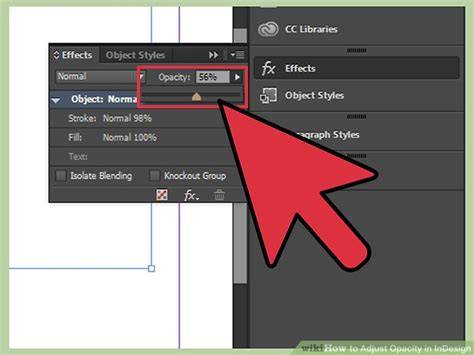
- Object-level opacity: select the object, then drag the Opacity slider in the Effects panel or the Control panel, or type a percentage value in the Opacity field.
- Group opacity: select a group and adjust the Opacity; the entire group will blend as a single unit.
- Eyedropper: use the Eyedropper to copy transparency settings between objects; double-click to configure copy options for Stroke, Fill, and Object settings.
- Color space awareness: be mindful of the document’s blend space to avoid unexpected color shifts when applying transparency to multiple objects.
Practical tips for polished results
- Test opacity with real content: place text over a shape or image to ensure legibility at the desired transparency level.
- Use transparency deliberately: lower opacity to create subtle backgrounds, watermark effects, or emphasize foreground elements without overpowering the composition.
- Leverage multiple transparency effects: combine opacity with shadows and glows to create depth while maintaining readability.
By mastering opacity and its interplay with the document’s color space, you can craft professional layouts where graphics and text work together harmoniously rather than competing for attention.