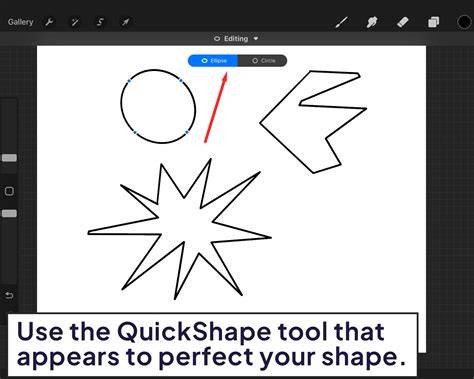
Open Procreate and select a canvas size that suits your project. For geometric shapes, a basic hard brush works best. Draw a rough version of any shape, then keep your Apple Pencil or finger held down when you finish drawing your shape. Procreate will auto-correct and give the shape more consistent lines or curves. After a moment, QuickShape will invoke automatically.
To draw a perfect circle, hold down your stylus after drawing a rough circle. Procreate will auto-correct it; use the same technique for other shapes. If the shape you create is unequal, keep holding it, and place a second finger on the canvas to refine it. To scale or rotate a shape you’ve made, don’t lift your finger from the canvas yet. To rotate your shape in precise increments, hold a second finger on the canvas while dragging your shape.
Optional: Touch another finger to the screen while your Apple Pencil or finger is held down and the shape will be converted to a more regular or standard form. With the edit shape menu activated, you can switch your shape type, e.g., change a circle to a square. You can access the QuickShape edit menu immediately after making a shape. In Edit Shape mode, the available options are determined by your initial shape. Transform nodes appear on your shape, allowing you more precise control.
Experiment with different shapes. For more complex shapes, use Procreate’s shape tool, which offers a variety of pre-set shapes that you can customize. If you’re aiming for vector-like precision in your shapes, you might find the tutorial on how to create vector shapes in Procreate particularly useful. Remember, layers are your allies; use them to manage multiple shapes, colors, and effects. Creating perfect geometric shapes in Procreate isn’t just for math wizards or graphic design gurus; it’s for anyone armed with the right techniques. From circles that actually look like circles to polygons that pop, mastering these shapes opens up a whole new world of digital art possibilities.
If you’re ready to take your shapes into the third dimension, don’t miss our guide on how to draw 3D shapes in Procreate.
- Start with a rough sketch on a new layer for control and editing.
- Hold after drawing to trigger QuickShape and auto-correct.
- Use a second finger to constrain proportions or to rotate during editing.
- Access Edit Shape mode to switch shape types and fine-tune nodes.
- Leverage shape tool presets for complex or vector-like shapes.
- Draw a rough shape with any brush.
- Hold to activate QuickShape for auto-correction.
- Optional: add a second finger to standardize or refine.
- Enter Edit Shape to adjust nodes and transform controls.