No matter your situation, resizing images on a Mac is a lot easier than resizing images on an iPhone. In this article, we’re going to review all these methods and a few extra ones. We’ll also provide an overview of the pros and cons of each method.
1) Resize with Preview: the built-in, easiest method
One of the easiest ways to resize images on Macbook without using Photoshop is to use the Preview app. It is conveniently installed on your Mac by default.
First, open the Finder app, and navigate to the image you want to resize. Select it and open it using the Preview app. In most cases, that should be the app by default, meaning that the image will automatically open using Preview.
You’ll now see the image’s current size (in our example it’s 4000×6000 pixels). You can click on the drop down menu that currently shows “pixels” to show the image dimensions using other metrics (inches, centimeters, points, millimeters and percentages). Enter custom dimensions for the image, using the Width and Height fields. There are several additional options here; for now we’ll just explain what the “Scale proportionally” checkbox means. If that checkbox is checked, changing the width automatically changes the height so that the picture’s proportions stay the same.
Choose predefined dimensions from the “Fit into” drop-down menu. It shows standard dimensions in pixels such as 640×640, 800×800 and 1024×1024. Note that the dimensions that show up in the drop-down menu are for squared pictures (width is equal to height). So what happens if you try to Fit a rectangle into a square?
The Preview app provides the best way to batch resize images on Mac. This can be really useful if you are preparing a long-form article for which it’s often recommended to include an image every 150 to 350 words. If your article is 3000 words, that’s a total of 12 images that you’d need to resize to the recommended blog image size.
Let’s see how to do this in Preview. Click on your Mac’s Finder app and open the folder that contains all the images you want to resize at the same time, select all those image files by clicking on them while holding the Shift key. Preview will now open and all the images you’ve previously selected should be visible in the left sidebar. If that’s not the case, select View > Thumbnails in the menu bar.
Resampling an image means changing the number of pixels in the image as you resize it. First you’ll notice that you can no longer resize the image according to Pixels. Let’s take a step back and understand what we just did: we’ve basically asked Preview to keep the same amount of pixels in the picture, while reducing its size by almost 50%. This means that the number of pixels per inch (PPI) will be increased since we have to squeeze the same amount of pixels in a smaller area. Resampling should be used if you’re trying to prepare images for the web or for print as you’ll fit your image’s number of pixels per inch (PPI) into specific PPI targets. Another situation where you’d want to use resampling is if you’d like to reduce the size of the image file. If you leave the box unchecked, the file size of the image will not change. If you check the box, the size of the image file will be reduced upon reducing the size of the image, to reflect the decrease in the total number of pixels in the image. Keep in mind though, that resampling is irreversible.
The Preview app makes it easy to resize images without losing quality. All you need to do is to uncheck the option “resample image” to prevent Preview to reduce the number of pixels per inch, which is likely to decrease the quality of the image.
Within the Size sub-section, enter new dimensions for your image; make sure to check the box “Constrain proportions” in case you want to keep the image’s proportions.
We’ve previously seen how difficult it was for older iOS versions to resize photos in the Photos app on an iPhone. On Mac, you won’t need to crop the image.
Choose to resize the image according to Width, Height or Dimension. Note that the Photos app gives you good control about the output image: you can choose the type (JPEG, TIFF, PNG), the image quality (Low, Medium, High, Maximum) and the color profile such as aRGB or AdobeRGB.
According to Apple, the ColorSync Utility app on Mac allows you to create color profiles to make sure that the colors of your photos appear to be the same across all your devices and upon printing. But apart from this main purpose, the ColorSync app also allows you to change the size of images and gives you some control over the quality of the resized image.
First, let’s open the ColorSync Utility app by searching for it in your Mac’s Finder. You’ll be presented with several options to change the size of your image. Resize gives you the ability to resize according to width, height and scale. Quality allows you to set the quality level to low, medium or high but unfortunately it doesn’t provide us with more details. Finally, the Set DPI allows you to define the resolution of the image. Let’s say you chose to resize according to Width. You’ll need to enter a value for the new Width (here we chose 2000px), a Quality level (we chose high) and the DPI value (we set the resolution to be the same as the original picture).
In short, Preview supports straightforward resizing and batch resizing, with additional controls for resampling, proportions, and file size. For more automation, you can create quick actions or explore other apps for specific needs.
2) Resizing with Photos app and other built-in tools
On Mac, you can crop or resize without cropping using the built-in Photos app. The Photos app gives you good control over the output image: you can choose the type, quality, and color profile. You can resize by exporting with chosen dimensions, or crop to adjust framing before exporting.
Another approach is to crop a photo to reduce its file size. Cropping can be done with Preview, Photos, or other editors, and works across most formats like JPEG, TIFF, and PNG. The quickest way to resize a photo, if you need to make it smaller, is to crop it. Cropping not only cuts into your image but also makes the overall size smaller. You can also use more advanced programs like Apple Photos or Luminar Neo to crop your images, but their crop tools work the same way as Preview.
If you plan to print or distribute professionally, you may adjust the color profile and export settings to maintain quality. For example, exporting a resized image from Photos lets you choose the format and quality during export.
3) Automating resizing with Automator and Shortcuts
Resizing multiple images efficiently can be achieved by creating a Quick Action in Automator. Automator is an application that is pre-installed on your Mac. It helps you automate tasks. Think about any repetitive task that you constantly do, such as renaming files, changing an image format, resizing an image, or creating a PDF from images, etc. Chances are, you can easily program it by selecting pre-built tasks and creating a custom workflow in Automator that replaces all the manual tasks you’d need to do.
If you’re using MacOS 12 Monterrey or later versions, the Shortcuts app comes pre-installed on your Mac and you access your Shortcuts from the menu bar, spotlight, and in finder. It works pretty much in the same way as the Automator app, so you may use any of these Mac apps to resize your images. However, Automator comes with more functionalities than Shortcuts but is somewhat less user-friendly than Shortcuts.
Steps 1-7 show you how to create an image resizing task on Automator. Open the Automator app. Upon doing so, you will be prompted to add an additional task to your workflow which allows you to keep a copy of your original picture. Next, choose an image size (in pixels) that this Quick Action will resize your images to. The pixel dimension will be applied to the longest side of your image. Choose the image size wisely as it will be applied to all the images that you’re going to resize using the Quick Action. Finally, go to the menu bar, click on File > Save and pick a name you can easily remember for this action. Congrats your automated task is now ready to be used!
4) Third-party apps for advanced resizing
If you want more control over the resizing options, you’ll probably need to use a third-party app. Built by a specialist in image apps, this app offers a lot of functionalities in the free version compared to similar apps and supports about 500 image formats. It comes with batch resizing, resolution settings and allows you to resize your photos to preset dimensions or to custom dimensions. Boasting strong ratings, PhotoResize Pro app can be used for free and allow you to convert images in any format (pdf, gif, heic, jpg, jp2, exr, png, tiff, tga, psd, webp and bmp). If you’re looking to quickly resize a photo, you may choose one of the popular resolutions such as 1024×768 pixels, 1280×720 pixels HD and 1920×1080 pixels HD. This app offers a lot of functionalities in its free version compared to similar apps. Apart from resizing photos in different preset or custom dimensions, and saving them in PNG, TIFF and JPEG formats, you can also change your resized image’s aspect ratio, flip it, apply sophisticated masks and choose among the 100+ free image adjustments offered by the app.
Luminar Neo is another app you might find handy when working with photos. Just like Permute, this solution focuses on AI-enhanced image editing but can also handle resizing. The resize works through export once you are done editing your shot. Luminar Neo resize tool lets you set the pixel length of each side of the pic individually, as well as by long or short edge. The app offers AI-enhanced looks and a variety of tools to improve image quality. To resize, Find File > Export… in the app’s menu bar at the very top of your Mac’s screen (not the app window). In the Resize dropdown menu, choose Long Edge, enter the desired size in pixels, choose a color space and format, then Save. Luminar Neo provides multiple resampling options and can resize during export or via Crop AI.
Other tools like Permute or bigger toolsets from Setapp can help convert formats, batch resize, adjust DPI, and optimize for web or print. The right tool depends on your specific workflow: batch processing needs, desired output formats, and whether you need automated workflows or fine-grained image quality control.
5) Quick tips and common questions
The fastest, built-in method to make an image smaller is Preview. If you need to keep maximum detail while reducing file size, consider reducing resolution or cropping judiciously rather than aggressively resizing. Cropping and resizing lead to drastically different outcomes. Preview helps you crop images easily and adjust their dimensions without having to install additional software. If you plan to print or publish, consider the DPI targets (300 DPI for prints, 600 DPI for high-quality posters) when exporting or saving.
Another practical route is to change the wallpaper to tune your workspace; resizing an image to fit the screen can be done with simple steps in Preview or via the Display settings. For frequent resizing with the same settings, Automator or Shortcuts automation saves time and ensures consistency across many images.
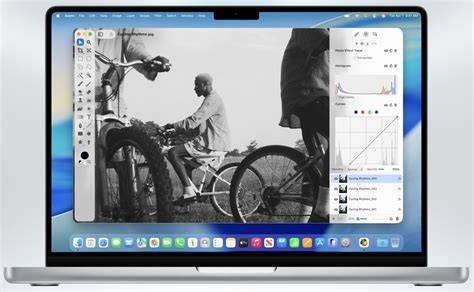
Crop, Resize and Export an Image With Preview
In short, macOS provides multiple reliable routes to resize images: Preview for quick edits and batch operations, Photos for basic export-driven resizing, Automator and Shortcuts for automation, and third-party apps for advanced control. Depending on your needs-speed, batch processing, or high-precision output-you can mix and match these tools to maintain image quality while achieving the desired size.