A mockup is perhaps the best way to present a product or brand. Having a suitable package of mockups in your designer arsenal is essential, but they won't do you any good if you don't know how to use them. In this short guide, we will exploit the Smart Objects of Adobe Photoshop or "special" layers or intelligent layers, which allow you to modify these files by inserting your graphics while preserving the original content of the mockup scene.
In a nutshell, at a specific level, you apply your image and as if by magic, the program applies it to the object's surface in question. Smart Objects do not require excellent design skills or complete knowledge of the software, so don't be afraid if you don't know how to use Photoshop in all respects. The mockup models are files that present a specific three-dimensional object inserted in a scene on which a particular design can be inserted.
Foundations of a Photoshop mockup
Mockup file in PSD format. Software to decompress compressed files (WinRar, WinZip etc.). Basic knowledge of Adobe Photoshop. After downloading the template, you should find it on your computer in a compressed folder, which means that to open it, you will need to unzip it. Open the compressed folder and search for the file with the .psd extension.
Remember! Always remember to read the license information regarding the use and distribution of the file, especially if you need to use it commercially. Opening the mockup, you will see an example graphic that acts as a "placeholder". What you will have to go to do is change that graphic, inserting your own.
Locating and editing the Smart Object
To locate them, you have to look at the Layers panel on the right of the screen. They are usually labelled with a placeholder name such as "add your design here"; that is the layer on which to place your graphics. To do this, you will need to double click on the Thumbnail preview of the Smart Object layer. By doing so, the object will open in a separate tab, where you will find the placeholder graphic presented to you of the mockup.
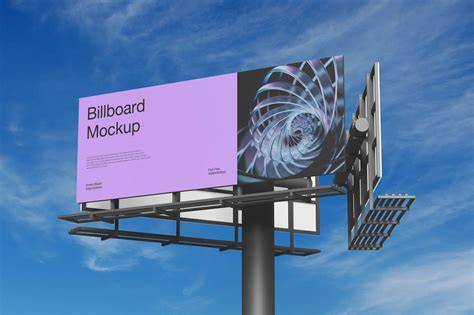
Now it's time to insert your design. You have to go to the File menu (top left) > Insert Embedded. Once you have selected your file from your computer folder, it will be inserted into the Smart Object. Resize and position it correctly to fit the size of the board. After inserting your design, you can delete the placeholder or hide it by clicking on the 👀 icon next to the layer to disable its visibility. After that, go back to the mockup tab (the tabs are located at the top of the screen). As you can see, our graphics inserted in the Smart Object have been applied to the model. However, remember that if you do not save the changes in the Smart Object, they will not be used in the primary model.
Another editable element is the background colour; just double-click on the layer thumbnail to the right of the Background Color layer name. There may be one or more special levels containing advanced items; the more complex the mockup model, the more customizable surfaces will be. Each surface is equivalent to a specific Smart Object linked to it.
Saving, exporting, and additional tips
Now that your design has been applied to the mockup template, the next step will be to save and export your work. Our advice is to permanently save an editable copy so that you can also put your hand to it at a later time. So, go to File> Save As and choose the .psd extension. With the same procedure, you can also save a copy as an image in .png or .jpg format to use or share elsewhere. Remember, if your mockup contains a transparent background that you want to keep, you will need to choose .png because the .jpg format does not support transparency.
As you can see, editing and customizing a mockup template in Photoshop isn't as complicated as you think. Whether you’re launching a product, designing a brand, or simply elevating your presentation game, using a Photoshop mockup is a quick and beautiful way to showcase your work professionally. If this is your first time using one-don’t worry. We’ve created this to feel intuitive and easy.
Double-click to open the .psd file you downloaded. You’ll notice a folder or layer named “Add design here” (or similar). This is the Smart Object. This will open up a new tab. Go to File > Place Linked, then select your design file from your computer. Then return to the original mockup tab-your design will now appear perfectly placed within the scene, with all lighting, angle, and texture effects applied. Resize your image to fit the designated screen area. For the most accurate result, refer to the measurements highlighted on the “Add Design Here” layer-these dimensions are provided to ensure a perfect fit. Alternatively, you can scale the design proportionally by eye for a balanced visual result, as we have done here (above). Once its placed where you want it, hit ‘done’ then file and save. You should now have two tabs open in Photoshop. Once you’ve placed and saved your design, return to the first tab-this will take you back to your main mockup file. Our main image tab is labelled; ‘iphone_mockup_01’ (see above image).
If your mockup has any shapes or items like a table or vase/item you should be able to change the colours of those too. Please see above for customisation options under the ‘design’ layer tab. With and without the screen ‘glare’ option (above). Mockups are made to make your life easier-and your work shine. Or if you are stuck on anything or need help with this, please get in touch and let us know!
Create high-quality product mockups for your business in Photoshop, from merchandise, marketing collateral or products. With Adobe Photoshop, everyone can create designs for any style of merchandise, products, or other marketing collateral. There are a range of benefits to using Photoshop to create your mockup. With the Creative Cloud Library, you can insert branding elements from previous designs into your mockup to ensure your assets share a consistent look and feel. Mockups are a way of visualising what a design will look like in its physical form. Mockups are also an easy way to help stakeholders visualise your ideas. As a representation of the final product, mockups help your stakeholders immediately understand the form of the product. For example, you can show what your final designs will look like on a digital platform or physical advertising space without spending the money on producing or building them.
Using high-quality photos is the best way to visualise your designs in a mockup. Adobe Stock photos are easy-to-use, layered files that are a great match for the nondestructive editing features in Adobe Photoshop. You can also access templates from Adobe Stock from the New Document dialogue box in Photoshop. To do this, when you create a new document in Photoshop, choose from the templates that include stock images instead of beginning with a blank canvas.
Practical tips and quick methods
Tip: Nondestructive editing (NDE) is when you make changes to an image without overwriting the original image data. Once you have selected the image you want to mockup with your design, open the image in Photoshop as your background layer. To do this, use the Object Selection Tool from the toolbar and click on the object within the image you want to select. Once you are happy with your object selection, create a group and title it. Then, within that group, create the layer mask by clicking the mask button in the layers panel. Bring your design or logo into the group and scale it to the desired size. To create a more realistic look, you will need to warp the design or logo to look like it is a part of the image you are overlaying it on. To do this, select the design or logo, CTRL+T on PC or CMD+T on a MAC to Transform > Right Click > Select Warp. To ensure your mockup is professional looking and on-brand, you can make further edits to the colour and texture. In the layer mask group, add a new adjustment layer with a solid colour fill, pick the brand colour, and change the layer blending mode to be Multiply.
In this very short tutorial you will find few hints on how to use PSD mockups. To begin using mockups you will need any PSD mockup that can be downloaded from the web. The most popular program for such operation is WinRar - we use it for years and it works well. In the PDF there is a mockup license. Now let’s take care of the PSD file. What you will need to do, is to change this project and customize background color. Notice that for in most cases you should use light colors, as the Background_Color layer is put to Linear Burn (or sometimes Multiply) blend mode. Of course the most important part of the mockup is the project of the material that you want to customize. Fortunately, it’s very easy to change it. To do this we have to find Smart Object Layer that contains the project. Remember the layer panel? Layers with projects usually have names that easily allows to identify themselves - i.e. „project here”, „design” etc. If you will have any problem with finding this layer, look for the small icon that indicates that this layer is „Smart Object”.
After you`ve localized the Smart Object Layer you need to double click on it’s thumbnail. When you do this, new window will appear, and this is the place where you should paste your new design. Your project should be done in another file (for example in Photoshop or Illustrator), and all you need to do is paste it into this smart object. That’s it! You have done it. If you’re new, you will be confused. So this guide is written simply, based on real questions, real mistakes, and real problems beginners face. Skip Photoshop. Skip manual Photoshop mockups. A mockup is a preview of your design on a product or scene. Adobe Photoshop makes it easy for anyone to design realistic mockups. Use the Creative Cloud Library to pull in logos, colors, or fonts from your past projects. Photoshop lets you layer your design onto photos of products. Drag your image into Photoshop. Select your design layer with a right-click in the “Layers” window. For Layer 1 Copy: Change the blend mode from “Normal” to “Linear Burn“. Press “Ctrl + L” to open the “Levels” adjustment. For Layer 1 Copy 2: Change the blend mode to “Linear Dodge (Add)“. For Layer 1 Copy 3: Change the blend mode to “Screen“. Group the 3 copy layers. That’s it. You now know how to create a mockup in Photoshop. These Photoshop tutorials will show you how to make mockups that highlight your products in the best way. 1. 2. 3. 4. Go to Filter > Distort > Displace.
Easily Create Box Mockup Photoshop Tutorial
Creating a product mockup is super simple with Mockey AI! Their free online tool simplifies template customization, surpassing Photoshop. There are more than 20,000 templates. Start by uploading your image. Once uploaded, you can place your design on different products. Like to witness your design on a hoodie? Or maybe on a phone case, banner mockup, or even a tote bag mockup? After placing your design, Mockey AI shows you exactly how it’ll look. Not happy with the placement or size? No problem! Skip Photoshop. Skip manual Photoshop mockups. That’s it, everyone! We have learned how to make a mockup in Photoshop and create different types of mockups. Mockey AI gives you ready-made templates that are easy to use, even if you’re just starting out. To create a mockup in Photoshop, start by choosing a good photo that fits your project. Crop the picture to the proper size in Photoshop after opening it. Then, add your design or logo to a new layer. You can adjust the colors and textures to match your style. To make your own mockups on Mockey.ai, start by logging in and picking the type of product. Next, choose a unique template that matches your idea. Then, upload your photo and adjust the template however you like. If your goal is to show a design on a product, using pre-made PSD mockups is much faster.