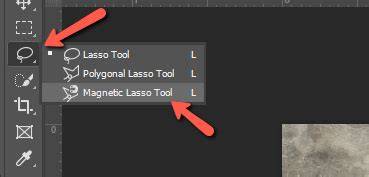
The Magnetic Lasso Tool is one of three lasso tools in Photoshop. Like the Polygonal Lasso Tool, the Magnetic Lasso Tool can be found nested behind the standard Lasso Tool in the Tools panel. Once you've selected the Magnetic Lasso Tool, it will appear in place of the standard Lasso Tool in the Tools panel. The lasso tool you selected last appears in the Tools panel. You can cycle through the three lasso tools from your keyboard.
Why is it called the Magnetic Lasso Tool? Does this mean that Photoshop actually recognizes the object in the photo that you're trying to select? It can certainly appear that way, but no. Of course, if the Magnetic Lasso Tool was forced to always look at the entire image as it tried to find the edges of your object, chances are it wouldn't do a very good job, so to keep things simple, Photoshop limits the area where the tool looks for edges. The problem is that by default, we have no way of seeing how wide this area is, and that's because the mouse cursor for the Magnetic Lasso Tool doesn't really tell us anything.
For a much more useful icon, press the Caps Lock key on your keyboard. This switches the icon to a circle with a small crosshair in the center. The circle represents the width of the area that Photoshop looks for edges. Only the area inside the circle is looked at. Everything outside of it is ignored.
Here's a photo I have open in Photoshop of a Chinese sculpture. The edges of the sculpture are well defined, so I could try to select it by tracing around it with the standard Lasso Tool. At least, I could do that if I was looking for an excuse to pull my hair out in frustration.
To begin a selection with the Magnetic Lasso Tool, simply move the crosshair in the center of the circle directly over an edge of the object and click once, then release your mouse button. This sets a starting point for the selection. Once you have your starting point, move the Magnetic Lasso Tool around the object, always keeping the edge within the boundaries of the circle. You'll see a thin line extending out from the cursor as you drag, and Photoshop will automatically snap the line to the edge of the object, adding anchor points as it goes along to keep the line fastened in place.
To zoom in on the image as you're dragging around the edges, press Ctrl++ (Win) / Command++ (Mac). Press Ctrl+- (Win) / Command+- (Mac) later to zoom out. To scroll the image around inside the document window when you're zoomed in, hold down your spacebar, which temporarily switches you to the Hand Tool, then click and drag the image around as needed.
You can adjust the width of the circle, which changes the size of the area that Photoshop looks at for edges, using the Width option in the Options Bar. If the object you're selecting has a well-defined edge, you can use a larger width setting, which will also allow you to move faster and more freely around the object. The only problem with the Width option in the Options Bar is that you have to set it before you click to begin your selection, and there's no way to change it once you've started dragging around the object. A more convenient way to adjust the width of the circle is by using the left and right bracket keys on your keyboard. This gives you the ability to adjust the size of the circle on the fly as you're working, which is great since you'll often need to adjust its size as you pass over different parts of the image.
You’ll find the Edge Contrast option in the Options Bar to the right of the Width option. For areas with high contrast between the subject and its background, you can use a higher Edge Contrast value, along with a larger Width value (larger circle). Like the Width option, the Edge Contrast option in the Options Bar can only be set before you click to begin your selection, which doesn't make it very useful. To change it on the fly as you're working, press the period key ( . ) on your keyboard to increase the contrast value or the comma ( , ) to decrease it.
As you make your way around the object, Photoshop automatically places anchor points (little squares) along the edge to "anchor", or fasten, the line in place. If you find that there's too much of a gap between anchor points, making it difficult to keep the line clinging to the edge, you can adjust how often Photoshop adds anchor points with the Frequency option in the Options Bar, although again, you'll need to set this option before you click to begin the selection. An easier way to work is to simply add an anchor point manually whenever you need one. If an anchor point gets added in the wrong spot, press the Backspace (Win) / Delete (Mac) key on your keyboard to remove the last anchor point that was added. If you continue pressing Backspace / Delete, you'll remove additional points in the reverse order they were added, which is helpful for times when the selection outline starts acting a little crazy and unpredictable, as it sometimes does.
With a much smaller circle width, you may have better luck. The Magnetic Lasso Tool can often do an amazing job of selecting an object on its own, but it also gives us easy access to Photoshop's other two lasso tools if needed. To temporarily switch to either the standard Lasso Tool or the Polygonal Lasso Tool, hold down your Alt (Win) / Option (Mac) key and click on the edge of the object. If you continue to hold your mouse button down and begin dragging, you'll switch to the standard Lasso Tool so you can draw a freeform selection outline around areas where the Magnetic Lasso Tool is having trouble. If you release your mouse button after you click with the Alt / Option key held down and move your mouse cursor away from the point you clicked on, you'll switch to the Polygonal Lasso Tool which is handy for selecting areas where the edge of the object becomes straight. Keep Alt / Option held down as you click from point to point to add straight line segments. Once you've made your way around the entire object, click back on your initial starting point to complete the selection.
To remove an area from the selection, with the Magnetic Lasso Tool still selected, hold down Alt (Win) / Option (Mac) to temporarily switch to Subtract from Selection mode, click once to set a starting point, then release the mouse button and drag around the edge of the area you need to remove. Photoshop will keep you in Subtract from Selection mode until you click back on the initial point to complete the selection. Once you finish, the sculpture is selected and everything you do next will affect only the sculpture while the rest of the photo is ignored.
When you're done with your selection outline and no longer need it, you can remove it by going to the Select menu and choosing Deselect, or by pressing Ctrl+D (Win) / Command+D (Mac). The Magnetic Lasso Tool is without a doubt one of the best selection tools we have to work with in Photoshop, giving us much better results than we could get with the standard Lasso Tool in less time and with less effort and frustration. For best results, use the Magnetic Lasso Tool as a great way to begin a selection, since it can usually do 80-90% of the work for you. Drag the Magnetic Lasso Tool around the object once, creating your initial selection, then zoom in and scroll around the selection outline looking for any areas where the Magnetic Lasso Tool messed up. Use the standard Lasso Tool, along with the Add to Selection and Subtract from Selection modes, to fix up any problems.
Another note: you can temporarily switch to the Lasso Trio and combine tools to handle different edge types. The Lasso Tool, the Polygonal Lasso Tool, and the Magnetic Lasso Tool together offer flexibility for complex textures, low contrast edges, or high-precision requirements. The shortcut cycling through them is Shift + L, and Shift + L again cycles back, with each tool identified by a distinct icon in the toolbar.
What’s Next? Practice with hands-on selection and refine areas where the tool struggles. For more in-depth tutorials and courses, consider resources that extend beyond this guide to sharpen your Photoshop skills across related features and workflows. See you in class!
Practical tips and quick references
- Start by placing the crosshair over an edge and click once to set the starting point.
- Hold the left bracket key to shrink or the right bracket key to enlarge the circle on the fly.
- Use period and comma to adjust Edge Contrast while working.
- Press Backspace/Delete to remove the last anchor point if needed.
- Hold Alt/Option to temporarily switch to the other Lasso tools as you work.