ComfyUI is the most powerful and modular stable diffusion GUI and backend. It fully supports the latest Stable Diffusion models including SD1.x, SD2.x, SDXL, Stable Video Diffusion and Stable Cascade through an intuitive visual workflow builder. With ComfyUI, you can chain together different operations like upscaling, inpainting, and model mixing all within a single UI. The node-based workflow builder makes it easy to experiment with different generative pipelines for state-of-the-art results. In this guide we will walk you through installing ComfyUI on Windows 11 so you can have Stable Diffusion up and running quickly.
System requirements and installation overview
System Requirements: GPU: A decent NVIDIA GPU with at least 8GB of VRAM (e.g., RTX 3060 Ti or higher). CPU: A modern processor (Intel Xeon E5 or i5 or Ryzen 5 or higher). Operating System: Windows 10/11 or Linux. Sufficient storage space on your PC for models and generated images. The easiest way to install ComfyUI on Windows is to use the standalone installer available on the releases page. The standalone installer comes bundled with common dependencies like PyTorch and Hugging Face Transformers so you don’t have to install them separately. It’s an all-in-one package that lets you get up and running with ComfyUI quickly on Windows without any complex setup. Just download, extract, add models and run!
1) Prepare download and prerequisites
Step 1: After downloading the latest comfyui-windows.zip file and extracting it with a tool like 7-Zip or WinRAR. Step 2: You need a checkpoint model to start using ComfyUI. Download a checkpoint model from here or Hugging Face. Put the model in the folder: ComfyUI_windows_portable\ComfyUI\models\checkpoints. Note: You also can share models with other Stable Diffusion GUI such as AUTOMATIC1111. Step 3: Now simply run the run_nvidia_gpu.bat (recommended) or run_cpu.bat. ComfyUI should automatically start on your browser. You can select the model via the Load Checkpoint node, this should show all the model/checkpoints you download and placed in the checkpoint folder. Simply click on Queue Prompt to generate images. The output images will be placed in the ComfyUI/outputs folder.
2) How to generate an image with ComfyUI
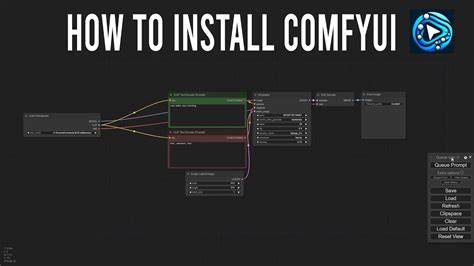
After starting ComfyUI for the very first time, you should see the default text-to-image workflow. It should look like that screenshot above. If this is not what you see, click Load Default on the right panel to return this default text-to-image workflow. Step 1. Selecting a model. First, select a Stable Diffusion Checkpoint model in the Load Checkpoint node. Click on the model name to show a list of available models. Step 2. Enter a prompt and a negative prompt. You should see two nodes with the label CLIP Text Encode (Prompt). Enter your prompt in the top one and your negative prompt in the bottom one. Step 3. Generate an image. Click Queue Prompt to run the workflow. After a short wait, you should see the first image generated. Step 4. Save an image. Move the mouse over the picture, right-click to bring up the SaveImage menu, and select Save Image to download the picture. Select Open Image to open the image in the browser.
What ComfyUI is and how it works
ComfyUI is an open-source, node-based graphical interface built to streamline the creation and execution of complex generative AI workflows, especially for tasks like image, video, and audio generation. Its modular design lets users build and manage AI pipelines through a visual interface, reducing the need for deep coding skills while still providing powerful capabilities.
However, ComfyUI can be a bit tricky to install due to the large number of installation methods and the differing system requirements between the methods. In this tutorial, we provide a comprehensive step-by-step guide to the following: First, how to install ComfyUI on any modern computer using the desktop application, Windows portable version, or manual installation. Second, how to run ComfyUI on cloud platforms. Third, how to choose the installation method based on OS, GPU, and preferences.
Which installation method should you use?
ComfyUI installation methods by use case:
- Desktop app - Best for Windows, macOS Apple Silicon; Beginner to intermediate; Fastest install for supported machines.
- Windows portable - Latest ComfyUI with bundled Python; Beginner to intermediate; Quick start for Windows users.
- Manual install - Full control over Python, PyTorch, CUDA, ROCm, Windows, macOS, Linux; Intermediate; Suits power users needing custom setups.
- Cloud GPU - Larger models, video, upscaling, repeatable production jobs; Intermediate; GPU acceleration via cloud platforms.
ComfyUI System Requirements recap: ComfyUI supports Windows, Linux, and macOS. For practical performance, a supported GPU is recommended. NVIDIA GPUs with CUDA are best on Windows and Linux; AMD GPUs via ROCm on Linux; Apple Silicon via Metal acceleration. CPU-only mode is possible for testing but generation will be much slower. For most image workflows, 8GB VRAM is a comfortable starting point, with larger workflows needing more.
Windows-specific installation paths
How to download ComfyUI Portable for Windows: ComfyUI Portable is a self-contained Windows package with its own embedded Python environment. This does not mean ComfyUI is hosted publicly. 127.0.0.1 is your own machine, and 8188 is the local port used by the ComfyUI server. If the page does not load, check that the terminal process is still running and that another app is not already using port 8188.
Local installation and three main methods are described here in a Windows-focused sequence: Desktop Application (Windows/macOS) and Windows Portable (standalone), plus Manual Installation for full control. Each method has similar system requirements but differs in setup complexity and portability. The Windows Portable version is the quickest way to get ComfyUI running on Windows if you want a self-contained environment without system-wide Python changes.
Windows Desktop App
1. Install the Windows version from the ComfyUI downloads page and open the installation package. 2. Select the GPU setup (NVIDIA is highly recommended). 3. Choose installation location (prefer an empty directory on an SSD with at least 15GB). 4. Optional: Migrate from an existing installation if needed. 5. Adjust desktop settings (Automatic updates recommended, mirror settings with a green check). 6. Click Install!
Note: The desktop app requires a compatible Python environment and may include automatic updates and telemetry options which you can adjust during setup.
Windows Portable
1. Download the zip from the installation guide or GitHub. 2. Extract with 7-Zip or Windows extractor. 3. Launch by selecting your hardware and running run_nvidia_gpu.bat or run_cpu.bat. 4. Full instructions are available in the official documentation and GitHub for troubleshooting and updates. Local GPU is recommended for best performance, CPU mode is possible but slow.
Manual Installation (Windows, macOS, Linux)
1. Clone the repository from GitHub. 2. Install dependencies: navigate to the ComfyUI directory and run pip install -r requirements.txt. 3. Start the application with the appropriate launch script (launch_windows.bat on Windows). The manual path offers maximum customization and is best for advanced users needing exact Python, PyTorch, CUDA, or ROCm configurations.
Running ComfyUI remotely or in the cloud
Running ComfyUI on cloud platforms such as Google Colab or Beam can significantly reduce local hardware requirements. Colab provides notebooks with GPU access under free or paid tiers, while Beam offers streamlined deployment with a free trial for compute time. In either case, ensure you stop the container or session when finished to avoid ongoing charges.
Common troubleshooting and tips
- GPU or accelerator not supported typically indicates a mismatch between PyTorch, CUDA, and your GPU drivers. Update drivers and install a CUDA-compatible build for NVIDIA GPUs, or use ROCm paths for AMD GPUs on Linux.
- Missing models or checkpoints are common; download required .safetensors or checkpoint files and place them in ComfyUI/models/checkpoints.
- CPU-only mode is useful for testing but not practical for typical workflows; prefer local GPU or cloud GPU for larger tasks.
- If you have AUTOMATIC1111 installed, you can share model files between the two interfaces by adjusting paths and restarting ComfyUI.
From installation to workflow
Once ComfyUI starts, you can load a checkpoint model, enter a prompt and a negative prompt, and generate images by queuing prompts. The default text-to-image workflow provides a starting point, and you can expand it by adding nodes for upscaling, inpainting, or more advanced processing as needed.
| Method | Best For | Difficulty |
|---|---|---|
| Desktop app (Windows/macOS) | Fastest setup on supported machines | Beginner to Intermediate |
| Windows Portable | Quick start with embedded Python | Beginner to Intermediate |
| Manual install | Full control over environment | Intermediate |
| Cloud GPU | Large projects, scalable GPUs | Intermediate |
Install ComfyUI in 5 Minutes | 2026 Tutorial
What you gain with ComfyUI
ComfyUI offers a unique, node-based approach that is very configurable and transparent about what each step does. It loads only what is necessary, supports a wide range of open-source models, and allows building and sharing custom workflows. The ecosystem of community extensions expands capabilities beyond the core product, enabling cutting-edge techniques to be integrated rapidly.
Practical notes for Windows 11 users
Windows 11 users can leverage the same paths described for Windows, with the portable version often delivering the fastest initial setup. Ensure your GPU drivers are up to date and consider using the NVIDIA CUDA path for best performance. If you plan to reuse models across different Stable Diffusion GUIs, organize your models in a central checkpoints folder accessible by each interface.