Your iPad model determines your maximum canvas size in Procreate. Canvas size impacts the number of layers you have available. e.g. Each device has a maximum number of pixels for either height or width. The maximum width and height dimension limits are also based on the maximum total pixels your hardware can support. 134 megapixel maximum total pixel size. 16,384px longest edge. 67 megapixel maximum total pixel size. 16,384px longest edge. 33 megapixel maximum total pixel size. 16,384px longest edge. 134 megapixel maximum total pixel size. 16,384px longest edge. 67 megapixel maximum total pixel size. 16,384px longest edge. 52 megapixel maximum total pixel size. 16,384px longest edge. 67 megapixel maximum total pixel size. 16,384px longest edge. 52 megapixel maximum total pixel size. 16,384px longest edge. 67 megapixel maximum total pixel size. 16,384px longest edge. 52 megapixel maximum total pixel size. 16,384px longest edge. 33 megapixel maximum total size. 16,384px longest edge. 33 megapixel maximum total size. 8,192px longest edge.
Choosing the Right Canvas Size. When it comes to creating art, choosing the right canvas size can make all the difference. Whether you’re painting with oils or acrylics, or in our case using digital art, the right canvas size can help your artwork stand out and make an impact. There are several factors to consider when choosing the right canvas size, including the style of your digital artwork. In with digital art software was it made is a good quesdotn to ask for example. In this blog, we will discuss how to understand canvas sizes, ideal procreate canvas sizes, and how to enhance your artistic vision with the perfect canvas dimensions. We will also talk about common mistakes and what not to do.
Understanding Canvas Sizes. To better understand canvas sizes you must understand the difference between pixels and inches and resolution and DPI. Pixels, the more pixels you have the more details your image will portray. Its important to pick the right size otherwise you might loose the quality of your artwork On the other hand, inches are commonly used to specify the size of printed materials, such as photographs, posters, and documents. Extremely important if you want hight quality print. However, the relationship between pixels and inches depends on the resolution of the digital image and the size at which it is printed.
So, we come to the question of what is resolution exactly? Well, it is the amount of details that you can find in an image. That is to say the overall clarity. Resolution is in fact crucial for digital displays and is often used to describe the quality of digital images. Like for example, those displayed on computer screens or smartphones. Now we have to mention DPI to better understand the canvas sizes. The DPI or (dots per inch), is a measure of the printing resolution or the density of dots in a printed image. Therefore a high DPI will result in a more detailed print.
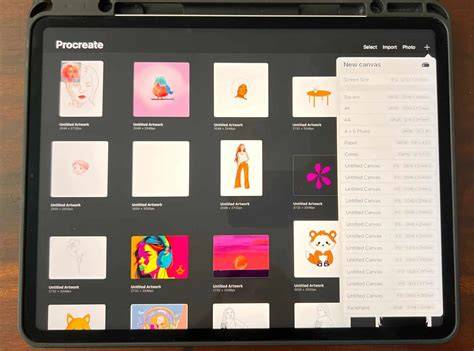
Procreate Canvas Sizes. Most importantly, procreate offers a variety of canvas sizes to choose from, each with unique dimensions to suit different needs. Like for example, illustrations, graphic design or digital art work, like painting. It depends on what you want to use it for. See more tips and tricks of procreate. So, whether you’re working on a small-scale project or a large-scale piece, Procreate has a canvas size that can accommodate your vision. Some of the most popular canvas sizes include square, portrait, and landscape orientations. Each with different dimensions to ensure that your final piece looks as intended. Additionally, Procreate allows you to customize your canvas size to fit your specific needs, ensuring that you have complete control over the dimensions of your digital canvas. With Procreate’s diverse range of canvas sizes, you can create artwork that is precisely tailored to your vision.
Ideal Canvas Size for Procreate. So more importantly, procreate offers a range of canvas sizes to accommodate various types of artwork, from sketches and illustrations to digital paintings and designs. One can say that the ideal canvas size depends on factors such as the intended use of the artwork, the level of detail desired, and personal preferences. Let’s look at some Procreate canvas sizes and their recommended uses:
Screen Sizes: 2048 x 2732 pixels (12.9-inch iPad Pro): This canvas size is suitable for creating artwork directly on an iPad Pro with a large screen. It offers ample space for detailed illustrations, digital paintings, and designs. 1668 x 2224 pixels (11-inch iPad Pro): Similar to the larger iPad Pro size, this canvas size is ideal for creating artwork on the 11-inch iPad Pro model.
Print Sizes: 3000 x 3000 pixels (10 x 10 inches at 300 DPI): This canvas size is suitable for creating artwork intended for printing at a medium size, such as art prints, posters, or greeting cards. 4500 x 5400 pixels (15 x 18 inches at 300 DPI): For larger prints or artworks with more intricate details, this canvas size provides higher resolution and more space for creativity.
Social Media Sizes: 1080 x 1080 pixels (Square): Ideal for creating artwork for social media platforms like Instagram, where square images are commonly used for posts or profile pictures. 1080 x 1920 pixels (Vertical): Suitable for creating artwork for Instagram Stories or other platforms that favor vertical orientation. Custom Sizes: Procreate allows you to create custom canvas sizes to fit your specific needs. Whether you’re working on a unique project or require dimensions tailored to a particular display or printing requirement, custom canvas sizes offer flexibility and versatility.
When choosing a canvas size in Procreate, consider factors such as the level of detail you want to achieve, the intended display or printing format, and any specific requirements for the project. Experimenting with different canvas sizes can help you find the ideal dimensions for your artwork and creative process. Additionally, Procreate’s seamless integration with iPad devices provides a responsive and intuitive drawing experience across various canvas sizes.
Enhancing Your Artistic Vision with the Perfect Canvas Dimensions. Enhancing your artistic vision with the perfect canvas dimensions involves considering various factors such as the subject matter, composition, intended display location, and personal preferences. Here’s how you can use these considerations to guide your choices:
- Consider the subject matter: the subject of your artwork can influence the ideal canvas dimensions. For example, a landscape painting might benefit from a wide horizontal canvas to capture the expansive scenery, while a portrait might require a taller vertical canvas to emphasize the subject’s height.
- Think about composition: visualize how you want to compose your artwork and how different canvas dimensions can enhance or detract from the composition. Consider focal points, balance, and negative space when choosing the canvas size.
- Reflect on Display Location: if you have a specific location for displaying your artwork, consider the available space and how different canvas dimensions will fit within that space.
- Explore Standard Sizes and Ratios: standard canvas sizes and aspect ratios can provide a starting point. Common aspect ratios include 4:3, 3:2, and 16:9. Standard sizes range from small squares to large rectangles.
- Experiment With Custom Sizes: don’t feel limited by standard canvas sizes-customize the dimensions to fit your artistic vision. Many art supply stores offer custom canvas stretching services.
- Account for Frame and Matting: if you plan to frame your artwork, account for the frame’s dimensions and any matting, which affects presentation and chosen dimensions.
- Trust Your Intuition: ultimately, trust your artistic instincts and select dimensions that feel right to express your vision and impact viewers.
Common Mistakes. Choosing the right canvas size for your digital art is crucial for achieving the desired outcome. Avoid these typical missteps:
- Choosing arbitrary sizes instead of matching project needs and final output requirements.
- Ignoring resolution, which can lead to quality loss, especially when printing.
- Overestimating detail, increasing file size and processing demands unnecessarily.
- Ignoring aspect ratio, risking distortion or cropping across devices or platforms.
- Forgetting margins and bleed when planning for printing, risking unwanted cutting.
- Not testing different sizes, missing the optimal dimensions for the composition.
Last Few Words. When creating your digital art, the perfect canvas size is really important. Just like the optimal logo dimensions are crucial for custom logos, it’s essential to consider resolution, pixels, inches, DPI, and how every aspect of your artwork should be portrayed. Your iPad model plays a crucial role in determining the maximum canvas size you can work with comfortably. Newer models can handle larger canvases and more layers. There’s no one-size-fits-all answer to the best canvas size in Procreate. It’s a dance between the needs of your project, the capabilities of your device, and the end use of your artwork.
Can I change my canvas size after I start my project in Procreate? Yes, you can! Go to the Actions menu (wrench icon), select Canvas, then tap on Crop and Resize. The maximum canvas size depends on your iPad model and its memory capacity. Does a larger canvas size mean more layers in Procreate? Actually, it’s the opposite. Opt for a larger canvas (6000 x 6000 pixels or more) to ensure enough room for details. Is there a recommended canvas size for printing my artwork? For printing, focus on resolution. A resolution of 300 DPI (dots per inch) is ideal. How do I know if my canvas size is too small? If your artwork looks pixelated or blurry, especially when zoomed in or printed, your canvas might be too small. Can I create custom canvas sizes in Procreate? Absolutely!
How To Pick the Right Size/Resolution for your Art - Beginner Illustration Tips
Practical Guidelines and Quick Start
To balance detail, print readiness, and performance across iPad models, start with a sketch on a smaller canvas to maximize layers, then scale up for the final high-resolution piece. For vertical compositions aiming at licensing, begin with a small sketch like 8 x 10 inches at 300 DPI, then resize to a larger canvas such as 24 x 30 inches as needed. If scaling up, note that some details may become less sharp, so plan to ink and finalize on the larger canvas after refining on the smaller one.
Remember: the larger the canvas, the fewer layers you may have. If working with a large final piece, you might need to trade off some layers during the workflow and rely on duplicating stages to preserve flexibility. Always test different sizes and DPI options before committing to a final print or display format.