Are you someone who loves editing pictures? The best thing about the Generative Fill is that it keeps your original image intact. Mihael Trifonov, Co-Founder of MConverter says, we regularly use Photoshop’s Generative Fill to clean up backgrounds in our marketing visuals; what used to take 20 minutes now takes under two.
What Generative Fill does and where to find it
You can select an area within an image and provide a text prompt to describe the desired addition or replacement of objects. Tap on the Generative Fill option in the Contextual Task Bar. When you choose Generative Fill, a legal dialogue box will appear. Describe the object or scene you want to generate in the prompt box that appears. Click “Generate” in the Contextual Task Bar to see previews of the variations created based on your description.
If you want, click “Generate” again to generate more variations or modify the text prompt for different results. The feature also allows you to expand the canvas of an image. Without prompts, it automatically extends the scene. You can select an object for removal. Generative Fill is incredibly versatile and flexible.
Practical steps to start using Generative Fill
- Select the Rectangular Marquee tool and create a selection around the edges of the canvas, including the white areas. Use the Shift key to add multiple selections if necessary.
- The Generative Fill taskbar might display a text prompt input box. For this instance, leaving the box empty lets Photoshop AI examine and extend the pixels in the selected area within the image.
- After applying Generative Fill, you’ll have three variations available in the Generative layer properties. Each variation provides different results.
- If you’re unsatisfied with the results, click “Generate” to get new variations. You can repeat this process until you achieve the desired outcome.
- If you intend to add something in place of the removed object, input a description in the text prompt. Observe the image to see the removal of the selected object.
- To remove elements, use the tool without entering any text prompt. Create selections that closely match the size and shape of the element you want to add or remove. When using text prompts, employ descriptive nouns and adjectives rather than instructive words for more effective results.
Tips from practitioners and real-world use
Keep track of the Generative Layers created and organize them effectively. Say goodbye to the struggle of turning ideas into designs. Whether it’s adding a sun or fields of flowers, Generative Fill makes it easy. Photoshop's Generative AI tool is hit or miss. If you are having trouble with getting decent results with larger areas, focus on using Generative AI in smaller sections, eventually building up until you get desired results. Don’t be afraid to reprompt several times to see what options you can get. Also, sometimes using no prompts at all may yield better results. It’s all about trial and error.
We'll use AI to build up this image element by element. It is, quite simply, a masterpiece of art and design, extraordinarily culturally relevant, somewhat cheeky, and philosophically deep, providing life-changing inspiration to all who view and contemplate its many nuances.
How Generative Fill fits into the broader AI image landscape
When it comes to generative AI that produces images, there seem to be two main approaches. Tools like Midjourney and Stable Diffusion create entire images based on AI prompts (although they can, with mixed results, sometimes incorporate an existing image into their scene). Adobe Photoshop is pioneering the second approach: Adding an image and fitting it into an existing scene.
In 2023, Adobe added a powerful feature to Adobe Photoshop it calls Generative Fill. When the feature was in beta, users could generate as many images as they wanted. But now, Adobe uses what it calls "Generative Fill Credits." Some are free with your Creative Cloud license, but if you use too many, you may be billed. For more details, check out the Photoshop section of this article.
What makes Generative Fill useful in practice
As a professional lead marketing artist, I use it quite a bit on a daily basis. If you are having trouble with getting decent results with larger areas, focus on using Generative AI in smaller sections, eventually building up until you get desired results. The lighting and shadow on generated elements blend with the scene, and the AI can extend backgrounds convincingly when prompted correctly. The selection size and placement tell the AI your intentions, which greatly influences results.
Common workflows and prompts
Use the Generative Fill prompt to describe the object or scene you want to generate. For example, to place a sun, fields of flowers, or a refinery, one-word prompts can dramatically shift the outcome. When prompting for non-tangible effects like motion blur, the results may vary, but you can still achieve convincing composites by iterating prompts and accepting multiple variation previews. If you’re aiming to insert an object into a scene, ensure your selection is appropriately scaled to the target object.
Creative caveats and licensing
Adobe claims all images produced are derived in part from stock materials, providing licensing safety for many uses, though licensing specifics should be verified for commercial applications. Be mindful that AI-generated images could raise copyright considerations, so proceed with caution when using generated content commercially.
Comparisons and insights from reviewers
Reviews note that Photoshop’s Generative Fill can be hit or miss, but with careful selection, prompt design, and iterative refinements, it can deliver highly convincing composites. The approach differs from standalone AI art generators by integrating generated content into an existing scene, preserving the original image and enabling seamless blending.
Practical example: a step-by-step demo outline
To illustrate: enlarge the canvas to create space, then select the edges with the Rectangular Marquee tool, and use Generative Fill with no prompt to extend the scene. Observe how the AI fills in trees, buildings, and mountains with appropriate lighting and shadows. For a more complex prompt, describe a specific element (for example, a refinery) and watch the AI generate it in the designated area, ensuring it sits naturally within the scene. Repeat as needed to refine the composition.
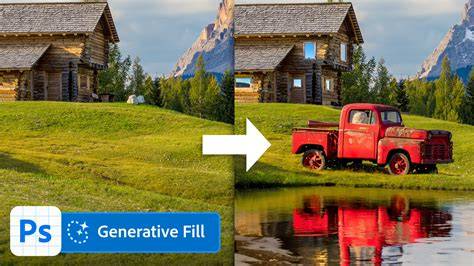
As you experiment, you’ll notice the importance of consistent lighting, perspective, and shadow. The tool is designed to integrate new elements so that the final image maintains a cohesive look, rather than appearing pasted on top. It’s this capacity for blending that makes Generative Fill a powerful asset for marketing visuals, creative projects, and rapid ideation.
Photoshop Generative Fill - Your Ultimate Guide To AI
Table: quick reference for Generative Fill workflow
| Step | Action | Tip |
|---|---|---|
| 1 | Open image and extend canvas | Create space around main subject to allow room for expansion |
| 2 | Make a selection | Use Rectangular Marquee to define target area; scale matters |
| 3 | Open Generative Fill | Leave prompt empty for automatic extension; or enter a descriptive prompt |
| 4 | Generate variations | Review multiple previews and select the best one |
| 5 | Refine | Adjust prompt or re-run Generative Fill for additional variations |