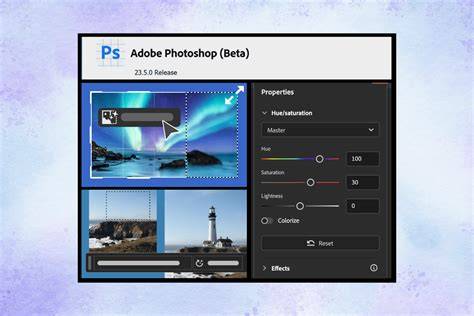
If you are facing any of these problems, this tutorial is your fix. Launch the Creative Cloud app and make sure you are logged in. This will check the server for the up to the second update. Make sure all versions of Photoshop are closed and then click update. If you are running the beta, make sure that the beta version is running and not the mainline build. (On Mac you can run beta and mainline (shipping version) at the same time. See the tool is not selected. Sometimes when you are running a saved workspace, that workspace was created before the new tool existed, so this new tool won’t be part of that saved workspace. Here is a tutorial that you can use for layered collaging.
Identify the Core Issue: Beta Not Visible or Missing
The first step is to verify that you are using the correct version of Photoshop, especially if you rely on the beta release for new tools and features. Launch the Creative Cloud app and ensure you are logged in, then check for updates to confirm the latest beta build is installed. If the beta is installed but not visible, confirm that the beta build is running and not the mainline shipping version. On Mac, you can run both beta and mainline concurrently, which helps compare tools and workflows.
Step-by-Step Troubleshooting
- Update and Re-launch - Close all Photoshop instances, open Creative Cloud, sign in, and perform an update. Re-launch Photoshop after the update completes. This ensures the latest beta components are loaded.
- Verify Beta Activation - If you are using the beta, ensure that the beta program is active and that the beta executable is selected in the launcher rather than the mainline build. This is crucial for tool availability.
- Workspace Compatibility - If a saved workspace predates a new tool, the new tool may not appear in that workspace. Consider resetting or creating a new workspace to access the latest tools.
- Cross-Platform Considerations - Mac users can run beta and mainline side by side, which helps validate feature availability and avoid conflicts with saved preferences or tool configurations.
- Tool Not Selected - If the tool you expect isn’t active, re-check that you selected the correct tool from the toolbar and that no custom workspace is masking it.
Practical Approach: Layered Collaging with the Beta Tools
Here is a tutorial that you can use for layered collaging. Begin by preparing your assets, then experiment with the beta tools to create multi-layer compositions. Ensure each layer is strategically organized so you can adjust blending modes and masks effectively as you build the collage.
Tips for Maximizing Beta Tools in Collaging
- Use distinct layers for each element to simplify edits and reordering.
- Leverage non-destructive adjustment layers to fine-tune color and contrast.
- Employ layer masks to blend edges smoothly and create seamless transitions between images.
- Save workspace presets frequently when trying new tools to prevent loss of layout configurations.
Following these steps will help you resolve “Photoshop Beta Missing” scenarios and enable you to take advantage of the latest experimental features in a safe, controlled manner. Remember to keep your Creative Cloud app up to date and to confirm that the correct beta instance is active if you’re testing new capabilities.