With the right Photoshop Elements tutorials you can do much of what you can achieve with the full version of Photoshop CC, at a fraction of the cost (read our review of Photoshop CC if you're not sure whether you need it). Photoshop Elements contains many of the features of the professional version, and it's a great choice for creatives who don't need all those heavyweight options. These Photoshop Elements tutorials cover versions from 7 upwards, and they'll take you through from basic tools through to more advanced effects.
Getting started
01. Get to grips with the basics: If you're new to Photoshop Elements, watch this video by from Jan Kabili of Lynda.com. It'll help you understand the main workspaces - eLive, Media, People, Places, and Events - and also explains how to organise, edit, create, and share your photos.
02. Take control of your photos with this guide: To help you find your way around, this guide will take you on a tour of the Elements Organiser and show you how to view, organise, search, and tag photographs. It'll also teach you about the workspace, layout, views, and how to quickly find photos.
03. Sort and organise images: Elements team member Philip Andrews talks through how to sort, manage and find photos really quickly in this video-based Photoshop Elements tutorial.
Treat images
04. Lose unwanted photo elements with ease: With more recent versions of Elements you have plenty of useful options for cleaning up photography. In this tutorial for Elements 13, you'll learn how to remove unwanted parts of a photo using Content-Aware Fill, which replaces selected elements with content from elsewhere in the photo.
05. Here's a way to ensure that your selections are absolutely perfect: When you're trying to make selections around intricately-shaped objects, it can be really fiddly to get things exactly right. This tutorial demonstrates how you can modify an existing selection using the Refine Selection Brush to get the best results possible.
06. Recompose your photos to make them easier on the eye: If a photo almost looks good but the composition isn't quite right, Elements makes it easy to move things around until it's all a bit more aesthetically pleasing. Watch this tutorial for Elements 13 and you'll learn how to use the Recompose tool to shift everything about, keeping important elements while getting rid of unwanted parts.
Image cleanup and correction
07. Clean up your scene: The intuitive scene cleaner tool was introduced in Photoshop Elements 7. In this video-based Photoshop Elements tutorial, learn how to add to or remove objects from your image.
08. Fix image exposure and lighting: Is your image over exposed? Or are details lost due to poor contrast? Many photos look better with corrected brightness and contrast, learn how to adjust both here.
09. Airbrush and remove blemishes: In just 10 minutes this useful Photoshop Elements tutorial covers user interface, airbrushing and smoothing skin, layers and removing blemishes.
Special effects
10. Create pop art: This video-based Photoshop Elements tutorial discusses how to make pop art effects using the Pop Art edit function. For Photoshop Elements 9 and above.
11. Use Guided Photo Edits: In Guided Edit mode, you can create eye-catching special effects. From basic photo editing to awesome VFX, this video walks you through the fundamentals of working in this mode. This Photoshop Elements tutorial is for versions 10 and above.
12. Create sophisticated blur effects: In this tutorial, the Photoshop Elements team talk through features that allow you to create sophisticated blur techniques, such as tilt shift and lens blur, with ease.
13. Create a Copyright watermark brush: Want to protect your work? This 20-minute Photoshop Elements tutorial walks you through how to watermark your images with one click of the mouse.
14. Master the pen and ink filter: The pen and ink filter cleverly takes a photograph and gives it a drawn or cartoon look.
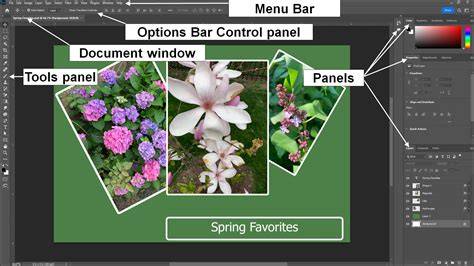
Практическое применение и организационные советы
Эти уроки объединяют базовую организацию, редактирование и применение эффектов в рамках одной экосистемы Elements, что позволяет пользователю быстро перемещаться между рабочими средами и инструментами.
- Учимся управлять медиаданными: организовать, найти и пометить фотографии.
- Осваиваем базовые и продвинутые инструментальные функции: выборы, исправления, ретушь и фильтры.
- Применяем эффектные обработки: от поп-арта до боковых эффектов размытия и инструментов Guided Edit.
- Используем Content-Aware Fill для удаления элементов.
- Применяем Refine Selection Brush для точной подгонки краев.
- Применяем Recompose для улучшения композиции без потери важных элементов.
- Добавляем водяной знак для защиты контента.