Many of our clients request “raw” footage that we have captured so that it can be used in a variety of different ways. Most often, clients wish to use that raw footage to create their own social media videos or reels. Raw footage tends to look “bad” to untrained editors at first glance. Desaturated, soft, and low-contrast is how raw footage looks when it comes straight out of the camera.
This is because most of our raw footage is shot in a professional format called LOG that is meant to be “color graded” in the editing suite. Color grading means applying various tools to the footage to make it look beautiful and cinematic. But most non-professional editors don’t know where to begin with color grading.
The best free video editor with grading capabilities is Da Vinci Resolve. Even though it’s free, this is one of the most powerful color grading apps on the market. However, the learning curve is steep. For those that own the Adobe suite, Premiere Pro has the color grading tools you need within the Lumetri panel.
Why is the footage not graded as part of your workflow? Since color grading can be a time-consuming process, no, we do not grade all of the raw footage by default. With any editing workflow, much of the raw footage gets left on the cutting room floor, so it would be a waste of resources and budget to grade every single clip if many of those aren’t being used in a final deliverable. I’m not doing that.
Yes, we can. We can create a basic grade for your raw footage and export the files for you in a format that’s ready for further editing as part of your social media workflow. However, it does take time and labor and expertise and subscriptions and other resources to get this done, so we do charge our standard hourly rates to prepare raw footage into graded footage. Feel free to reach out to us if you need a price quote for this service that is not typically included in most project budgets unless specifically requested in advance.
I edited this event highlight video and the client is a production company that always shoots and edits the video this way. I used to color the video shot in RAW or LOG & apply a typical color grading workflow but what about a video like this shot using a standard color profile? does it still need some tweaks in coloring? The grading tools still work as they should.
The first principle I use is to manage my expectations, aiming for "good enough", and "if it looks good, it IS good" (as a forum member here taught me). In terms of matching shots between cameras/profiles I aim to make them feel like they're "from the same universe" rather than matching completely.
In terms of how to setup the project, I've found that grading seems to work a lot nicer if I do a CST from 709/2.4 to Davinci’s Wide space, then grade, then CST back to 709/2.4 (or CST to Arri and then a PFE if you want that workflow).
350Tb = The reason I don't shoot RAW and 4k. TO me, that's a non-starter, might as well shoot film. One of the doc's I'm working on, also shot over the last 3 years, but it's all 1080p Pro Res HQ, so the total amount of storage is around 8TB so far. We're not done shooting, so maybe another 4TB when we're done?
Of course, I'm working on what.. 2 feature doc's, 5 30 minute training videos and 1 narrative feature. Yea, I basically eat, sleep and work. Worst part is, three of those projects are deferred payment, they went through their primary editing budget already. So the only money I'm getting is for the training videos and I'm sharing that work with an assistant editor because it's so much. The life of a freelance editor kinda sucks. I miss the ol' days when I could wake up at the crack of whenever, wonder in to the office for 6hrs and go home to do whatever I wanted, stress free because there was a paycheck in my bank account every other friday. It's too bad the industry has collapsed in on itself and there is a bigger divide from the haves and have not's then there has been for a while. I preyed for a good year this year and I got it. Too much work for one person to do, but still for some reason, not enough money.
In this article we explore how raw footage in LOG space is transformed through color grading workflows, what tools are most effective, and how to set up projects for consistent results across cameras. We also discuss practical considerations like storage, budget, and the balance between delivering graded footage and maintaining efficient production pipelines.
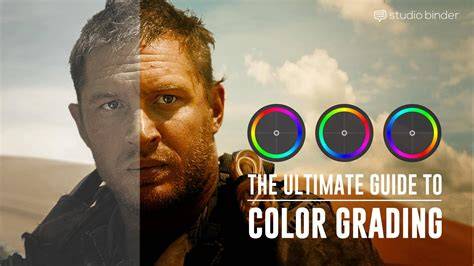
The choice of software often hinges on the editor’s ecosystem. DaVinci Resolve provides a comprehensive, free path with advanced grading controls, while Premiere Pro offers integrated Lumetri workflows for those in the Adobe environment. When time and resources are limited, a basic grade can still deliver strong social media-ready assets, though it won’t replace a full color science pass on every clip. A pragmatic approach is to grade selectively-prioritize clips that will be used in the final cut and deliver ready-to-edit files for the rest of the library.
Key steps to a practical raw-to-graded workflow include: selecting the right color space for your master project, applying a neutral baseline such as a CST to a wide color space, performing primary corrections (lift, gamma, gain), and then refining with secondary color corrections to balance skin tones and overall mood. The specific targets-contrast, saturation, and color balance-should align with the final deliverables and platform constraints, whether long-form content or short social media spots.
For agencies and freelancers alike, transparency with clients about processing times, deliverables, and pricing is essential. We offer a basic grade service for raw footage as part of social media workflows, with pricing proportional to time, expertise, and resource usage. Clients can request quotes for more extensive grading pipelines that include LUT-based looks, custom color pipelines, and cross-device validation to ensure consistency from phone reels to cinema-grade outputs.
Color Grading 101 - Everything You Need to Know
Practical considerations and best practices
Managing expectations is critical: “good enough” can be a valid outcome when the final deliverable fit is achieved, especially for social media formats. When matching shots from different cameras or profiles, the goal is to create a cohesive look rather than perfect pixel-for-pixel parity.
Storage is a real constraint. High-resolution RAW or LOG footage can require substantial disk space, and decisions about whether to shoot and store RAW vs. standard profiles should consider project scope, budget, and distribution plans. In some productions, long-form content may benefit from a mixed approach: grade the most important scenes, archive RAW for potential future re-edits, and provide lighter proxies for ongoing editing needs.
Workflow setup matters. A typical CST to a wide color space, followed by grading, and then a CST back to the original space, can yield cleaner color transitions across scenes. This approach helps maintain consistency when footage originates from multiple cameras or profiles and reduces the appearance of jarring shifts in tone or contrast.
Educational and logistical notes: while DaVinci Resolve is widely regarded as the best free option for grading, professionals may still rely on paid licenses for additional features and support. For teams entrenched in the Adobe ecosystem, Premiere Pro’s Lumetri tools remain a robust alternative, with familiar keyboard shortcuts and a familiar node-based workflow in some contexts.
Ultimately, raw footage is a starting point for creative expression, not a final product. By structuring a clear grading plan, communicating expectations, and balancing resource constraints with client goals, editors can deliver compelling, social-media-ready assets without overspending on time or storage.
| Aspect | Recommendation |
|---|---|
| Color space | Start with 709/2.4 or wide space for grading, CST back to target |
| Footage type | LOG/RAW for grading potential; standard profiles for quick edits |
| Delivery format | Ready-for-edit files for social media workflows; archival RAW remains optional |
| Storage planning | Estimate 2-4 TB per major project; plan backups and offloads |