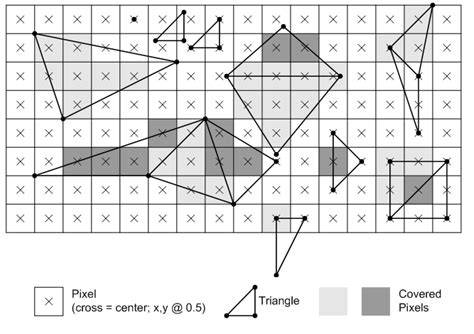
Rasterizing in Photoshop is the process of converting vector-based objects, such as text, shapes, or a Smart Object, into pixel-based images. Raster graphics are made of countless tiny squares called pixels, which become visible when you zoom in, turning smooth lines into jagged edges. Vector graphics, on the other hand, are shapes mathematically programmed to remain sharp at any size.
Why rasterize a layer
Rasterizing unlocks a wider range of editing tools and effects that only work on pixel data. Some tools like the brush, eraser, paint bucket, and certain filters require raster layers to function. While rasterizing provides new editing possibilities, it is irreversible: you permanently lose the original vector data and the ability to scale without quality loss.
In practice, you might need to rasterize when you want to apply specific filters or brushes to text or vector shapes, or when you want to paint directly on a vector layer. Before rasterizing a vector layer, it’s wise to duplicate it to preserve an exact vector copy for future use.
What happens when you rasterize
Once you rasterize a layer, it becomes a normal pixel layer. If you zoom in on rasterized text or a rasterized shape, edges appear as jagged pixel blocks. Similarly, after you rasterize a Smart Object, Photoshop flattens its contents so that you can edit it only as pixels. You can’t revert to the original vector data after rasterizing.
Rasterizing is especially relevant for text and shapes created on vector layers. To paint directly on a vector layer, you can instead add a new layer above it and paint there, or use a layer mask with the Brush Tool for non-destructive edits.
How to rasterize in Photoshop
There are several practical steps and checks to rasterize safely and effectively:
- Open the Layers panel. If it’s not visible, press F7 to reveal it.
- Duplicate the vector layer before rasterizing to preserve a copy of the original vector data.
- For shapes, select the vector layer in the Layers panel, then go to the Properties panel (Window > Properties) to adjust color or other attributes before rasterizing if needed.
- For text, double-click the T icon in the Layers panel to highlight all text, then apply edits after rasterization.
- To apply color changes on a vector layer without rasterizing, you can use the Color Picker in the Properties panel on the vector layer.
- To edit parts of a rasterized image non-destructively, consider using a Layer Mask and painting on the mask rather than erasing on the rasterized layer itself.
- When prompted with a warning such as “This type / shape layer must be rasterized before proceeding,” you typically have to rasterize to continue with the requested tool or effect.
In some workflows, rasterizing is a strategic step to enable certain edits or effects. However, if preserving vector data is important, consider non-destructive alternatives or keep a vector copy for future adjustments.
Raster vs. vector in Photoshop workflow
Photoshop uses two broad types of graphics: raster and vector. Raster graphics are composed of pixels and are ideal for detailed image editing and pixel-level adjustments. Vector graphics are defined mathematically, which keeps lines sharp at any size but may limit some editing capabilities that require pixel data. Shapes and text often start as vector layers, while filters and some brushes require raster layers to function.
For logos or brand elements, vectors maintain crispness at any size. Yet, certain hands-on edits, creative textures, and painting effects demand raster data. If a logo or vector element needs to interact with brushes or erasers, rasterizing becomes necessary, with the trade-off of losing scalable sharpness.
Smart Objects and rasterization
A Smart Object preserves an image’s original information for non-destructive editing. When you rasterize a Smart Object, Photoshop flattens it into a raster layer, converting it to pixels and losing the ability to scale without quality loss in subsequent edits. If retaining nondestructive editing is critical, avoid rasterizing Smart Objects unless required by a specific tool or effect.
Practical tips and workflow recommendations
- Duplicate vector layers before rasterizing to safeguard an editable vector version.
- Assess whether rasterizing is truly necessary for the task at hand versus using non-destructive methods (layer masks, adjustment layers, or smart filters).
- When color editing vector shapes, you can often modify color in the vector properties before deciding to rasterize.
- Use a separate overlay layer to paint or draw if you want to preserve vector data on the underlying layer.
- If you need to rasterize for a specific effect or filter, be aware of potential quality changes upon scaling or resizing later.
Rasterization in the context of web and SEO
Rasterized images are widely compatible with various online platforms, which can be necessary to ensure consistent rendering across different browsers and devices. In some cases, rasterization contributes to more predictable layout and loading behavior, potentially aiding content presentation and user experience in marketing materials.
Summary of key points
Rasterize means converting vector-based objects (text, shapes, or Smart Objects) into pixel-based images. It enables many filters and brushes in Photoshop but is irreversible, with a loss of original vector data. Duplicate layers before rasterizing to preserve the vector version, and consider non-destructive alternatives whenever possible to maintain flexibility in your design workflow.