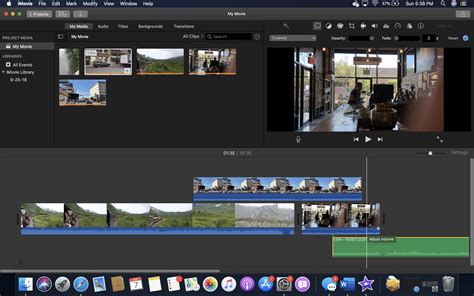
iMovie for iPhone is a user-friendly mobile video editing app from Apple that lets you create polished videos directly on your device. It combines simplified templates with powerful editing tools, enabling both beginners and casual creators to craft stories with confidence.
Magic Movie: letting the app do the heavy lifting
Make movies magically with Magic Movie: choose video clips and photos, then let iMovie create your movie, complete with a soundtrack, transitions between clips, and more. Add titles, apply filters, and edit the clips to completely customize your movie. The one-step process is designed for speed and ease, especially when you’re short on time or editing know-how.
Storyboarding: guided templates to kickstart your project
Storyboard your movie by choosing from a selection of storyboards to help you get started. Each storyboard includes a flexible shot list that provides a step-by-step guide to the clips you need to capture to make your video, as well as titles, transitions, and music to match. Storyboards are designed to simplify the planning stage and ensure a cohesive narrative.
Advanced tools for precise control
When you want control over every detail, use advanced tools to edit your clips together, then add animated titles, music, filters, and effects. It’s possible to fine-tune cuts, adjust audio, apply color corrections, and layer elements to achieve a more professional look. iMovie maintains a focus on drag-and-drop interactions and intuitive gestures, making complex edits accessible on a mobile form factor.
Compatibility, setup, and performance
iMovie comes pre-installed on many iOS devices, but you can also download it from the App Store. The app supports 4K video and integrates seamlessly with other Apple devices, enabling projects to be started on iPhone, continued on iPad, and finished on Mac if desired. System requirements evolve with updates, and newer iPhone models typically deliver the best performance for editing, playback, and effects.
Key features you’ll likely use
- Trailer and Storyboard templates for quick, themed edits
- Magic Movie for fast, automated movie creation
- Green screen (chroma key) to replace backgrounds
- Picture-in-picture and split-screen for creative storytelling
- Over 100 smart soundtracks that adjust to your movie length
- Extensive title and background options for polished openings and credits
- 4K video support for high-resolution output
- Seamless sharing options across platforms
Working with Magic Movie and Storyboards
Magic Movie identifies the best parts of your footage and automatically creates an edit, with optional rearrangement or replacement of clips. Storyboards guide you through shot types and sequences, offering templates based on genres such as cooking, product reviews, or science experiments. Both modes are designed to help you produce engaging videos quickly, with minimal manual editing.
Editing workflow on iPhone
You can start with a simple movie project by adding clips from your library, then trim and arrange them in the timeline. Transitions can be customized, including the option to adjust duration and direction. You’ll also find a range of animated titles, audio controls, color effects, and green-screen capabilities to enhance your footage. The interface emphasizes drag-and-drop editing and touch gestures for a smooth mobile workflow.
Cross-device workflow and ecosystem
iMovie for iPhone is part of a broader Apple workflow: you can AirDrop or iCloud Drive projects to iPad or Mac, and, in some cases, open iMovie projects in Final Cut Pro for more advanced editing. This ecosystem supports continuity across devices, enabling more complex refinements when you’re back at a computer.
Pros and cons
- Pros: Free for Apple users, intuitive interface, solid set of editing tools, supports 4K, integrates with other Apple devices, trailers and Magic Movie simplify rapid production.
- Cons: Lacks some advanced features found in professional editors, fewer multi-camera options, interface can hide some tools, updates have slowed in the past, limited to Apple devices.
How iMovie for iPhone compares to other options
iMovie remains a strong entry-level choice among free video editors, offering a blend of simplicity and capability that’s well-suited for beginners and quick-turn projects. While it doesn’t replace desktop-grade editors for complex workflows, its mobile-focused design and native integration with iOS make it a compelling tool for home videos, school projects, and social media content.
Practical tips for getting the most from iMovie on iPhone
- Leverage Magic Movie for rapid edits when you’re pressed for time.
- Experiment with Storyboards to learn sequence pacing and storytelling structure.
- Use green screen and picture-in-picture to add creative depth without extra equipment.
- Export in 4K for the sharpest output when the project will be viewed on large displays.