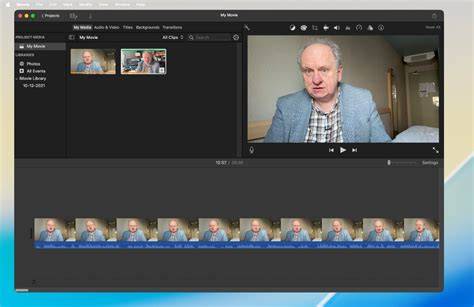
Apple iMovie is widely regarded as one of the best video editing tools for beginners, especially for users with a Mac or iOS device. It comes bundled with macOS, and updates are free via the Mac App Store. The software is designed to help you create short films, whether you’re capturing lasting holiday memories, preparing a presentation, or producing other content. Despite being free, iMovie includes a solid set of features, including several titling options that make adding text straightforward for quick on-screen information.
When you launch iMovie, you’ll see your existing projects, with the interface divided into three sections: the timeline at the bottom where you assemble your video, a large preview in the top-right, and the media library in the top-left. A small menu at the top of the media section provides access to different sections, and you can also reach them via the menubar or keyboard shortcuts. You’ll have access to at least 54 titles, ranging from standard titles to lower thirds and end credits, plus theme-specific titles that appear when you switch themes. You add a title by dragging it from the Titles section onto the timeline, and you can overlay it above clips or transitions, then adjust its duration by dragging its edges.
Choosing and customizing titles
Theme-specific titles provide cohesive aesthetics across titles and transitions, but you can mix titles from different themes as you like. After inserting a title, double-click it in the preview area to edit the text and use the tools above the preview to format: choose a font, adjust size, align, apply bold/italics/outline, and pick a color. You can also tweak individual words by selecting text and applying different styles, fonts, or colors. Note that titles tied to specific themes cannot be fully customized beyond wording.
On a Mac, the standard workflow to add text is straightforward: select the clip in the timeline, open the Titles area (top-right), preview styles, then drag a title onto the timeline above the video. Double-click the text to edit, and adjust duration by dragging the clip edges. iMovie’s font options include a “Show Fonts” command for accessing all installed typefaces. This enables a balance between simple titles and more unique branding, though the app remains limited in full typographic control compared with professional tools.
Text editing and practical tips
Once a title is in place, you can alter font, color, size, alignment, and duration. You can place titles over multiple clips or over transitions, or insert a title so that it sits in the main timeline without covering video if desired. For Mac users, the practical workflow is to drag a title onto the timeline and then use the preview area to edit the text and length, making sure the title aligns with your intended pacing. If you want multiple lines or more complex wording, you can split your text across several title clips to maintain readability and placement accuracy.
iMovie’s text tool offers both freedom and restriction: you have a wide latitude to customize individual words and lines within a title, but you cannot freely move text to any position on the screen. The built-in template-first design and limited placement options often feel restrictive for text-heavy or brand-consistent videos. To achieve cleaner subtitles or static text without motion, many creators resort to external workarounds such as creating static text overlays in Keynote or Pages and importing them as transparent assets, then layering them over your video in iMovie.
Workarounds for cleaner static text
A common workaround for plain text is to design the text in Keynote or Pages, export it as a transparent PNG, and import it into iMovie as an overlay. This approach lets you bypass iMovie’s animated title constraints and place crisp, static text over your footage. You would export a transparent PNG, then layer it using picture-in-picture or another overlay method. Other advanced approaches involve building text treatments in external design apps and importing them as graphics, or using green screen text clips if you already have motion graphics with text ready.
Text on iPhone and iPad: mobile editing considerations
Mobile iMovie (iPhone and iPad) introduces touch-based editing, which changes how you position and duration text. Alignment is the biggest challenge on mobile, as your finger can obscure the preview or disrupt precise placement. To improve results on mobile, split the clip around the exact section where text should appear, leave breathing room near the edges to avoid covering faces or on-screen UI, and favor shorter lines for legibility on small screens. In practice, mobile text editing tends to be rougher than desktop, so it’s often best for rough-in text rather than final polish.
Advanced tricks and best practices
When you need multiple text boxes within a single clip, you can split the clip into parts and add separate titles to each segment, then adjust durations accordingly. If you want a clean, non-animated appearance for subtitles or lower-thirds, consider static overlays created externally and imported as graphics. For further refinement, maintain consistency by choosing a repeatable font and color scheme and applying them across all titles to create a cohesive look.
Timing matters as much as style. Match text duration to speech and scene changes, ensuring lines do not feel rushed or linger past their relevance. Strong results in iMovie often come from subtraction: fewer words, fewer effects, and cleaner typography. If your project requires repeated, brand-consistent text, automation or external workflows might be more efficient than repeatedly tweaking presets in iMovie.
When iMovie alone isn’t enough
For occasional family videos or quick-class projects, iMovie remains accessible, familiar, and fast for basic titles. However, for regular short-form content with polished text overlays, the built-in text engine can feel limiting. In such cases, automation and dedicated text workflows-such as subtitle-specific tools or external design integrations-can help you publish consistent, professional results more efficiently. The broader landscape of text-on-video tools offers paths beyond manual iMovie editing when long-form or high-volume projects demand repeatable text systems.
In iMovie, you can add text to any video clip, photo, or background and customize the text in the inspector. The process is largely consistent across devices: on Mac, open Titles, choose a style, drag onto the timeline, then edit text; on iPhone or iPad, tap the text in the viewer, edit, and reposition or resize as needed. If you need to add multiple text boxes to a single clip on iPhone, note that iMovie’s mobile version may not support multiple simultaneous text overlays on the same frame, so splitting into parts helps achieve the same result.
Summary of practical steps
Mac workflow: Select clip > Open Titles > Preview styles > Drag title onto timeline > Double-click to edit > Drag edges to adjust duration. You can adjust font, size, color, and alignment, and mix titles from different themes as needed. If you want plain, non-animated text, consider external graphics and import them as overlays.
iPhone/iPad workflow: Tap the text in the viewer > Edit > Type new text > Reposition with your finger > Resize by pinching > Change font and color in the inspector. Keep in mind that complex multi-line text and precise placement can be more challenging on mobile, so plan ahead by splitting clips and using shorter lines.