In this tutorial, you’ll learn how to export files in Final Cut Pro. Exporting is a simple process of figuring out which resolutions and file sizes will be right for your final video. One familiar issue editors face is rendering a clear video in 1080p, then uploading the video and seeing that the hosting platform has degraded its quality. You can avoid this issue by learning how to export files in Final Cut Pro directly. No more cheating yourself out of high resolutions, clear frame rates, and visual quality!
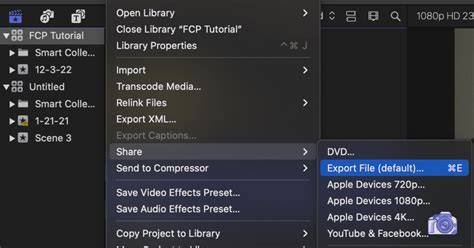
Final Cut Pro can export videos for a variety of platforms and uses. You can find out more in Motion Array’s Final Cut Pro basics tutorial. Knowing where you want to use your video is key to finding the best export settings and smoothest render possible. Before starting your export, select your video project. If you’re struggling to import into Final Cut Pro, this link will help. Finalize your timeline and select the File tab. From there, select Share or Cmd+E. You’ll likely want to export using the Master File option. If that doesn’t match your needs, some alternatives are listed below so you can get extra specific or just plain adventurous.
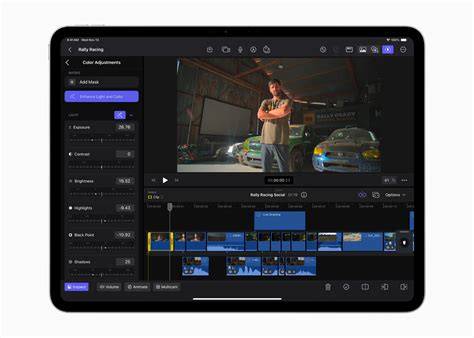
When you export files in Final Cut Pro, you choose the resolution you want for your video. This depends on the destination and the video’s existing dimensions. However, it all starts with how your video was shot. You can’t upsize a resolution higher than the footage and get a crisp, clear video. After opening Final Cut Pro, you can choose a project resolution that matches your footage. For vertical videos like for Instagram, here are some extra tips.
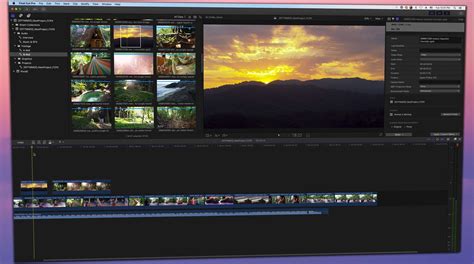
Codecs tell your device how to render the video. Codecs are nearly as crucial to the exported video file as the resolution. The standard codec for videos to be uploaded online is H.264. H.264 offers a compressed file with minimal loss in quality. But if your video requires extra visual clarity or the subjects are lit poorly, the Source - Apple ProRes 422 codec is highly recommended. Now that your Final Cut Pro video export is underway, how long will it take? You can monitor your progress easily by simply clicking Cmd+9.
1. If you don’t have time to render an entire project and need to preview just a portion, blade the sections of the clip you want to render. Use the shortcut Cmd+B. Highlight the rest of the project and Delete it using the backspace or delete key. 2. If a particular setting works for your video, it’s recommended that you keep that preset saved. Presets can be applied to future projects to keep things consistent. 3. Render times can be a hassle, especially for longer projects. The larger your video’s dimensions, the longer you’ll likely have to wait for the output file to render. If you’re willing to compromise visual quality for a lesser wait time, you may want to consider settling for a lower-resolution video. Using Final Cut Pro to export smaller file sizes will always be faster.
Best Final Cut Pro Export Settings in 2026
Final Cut Pro is one of the more user-friendly editing softwares available. Although some of its functions may seem confusing initially, they are quite simple to master. Motion Array hopes this tutorial has helped you learn how to export video from Final Cut Pro with ease. You can use the Export File command to export your completed project as a high-quality file that can be used as the source media for the final stages of professional post-production or broadcast and distribution. Your project is exported as a QuickTime movie. You can also use the Export File option to export an MXF file. You can monitor the progress of the transcode in the Background Tasks window, and you can continue to work in Final Cut Pro while the file is transcoded. When transcoding is complete, a notification appears. You can view and locate shared projects in the Share inspector. See View the status of shared items. Note: If you added chapter markers to your project, chapter marker thumbnails are placed at the appropriate location in the exported media.
Apple’s Final Cut Pro is often cited as one of the best video editors out there. But is it easy to export from, and how do you get your finished projects just right? Exporting in Final Cut Pro: Your step-by-step guide. Now that you've heard from Meredith, let’s walk through a step-by-step guide on how to export your videos from Final Cut Pro.
1. Once you’ve finished editing your Final Cut Pro project, no you haven’t. Double-check it, and if you have the time and energy, triple-check it. Performing multiple exports can be a time-suck, so it’s best to nail it on the first attempt. 2. Start the export process. Now that you've ironed out any creases, it’s time to export. Head to the top right corner, where you should see a small ‘Share’ icon. The first option should say ‘Export File (default)’. If you want to customize your export and save it locally, this is where you need to go. 3. Once you’ve clicked ‘Export File (default)’, you’ll find yourself in a new export window with three tabs. The first is the ‘Info’ tab. This contains all the behind-the-scenes metadata, which can help your Mac sort your file. With that in mind, the title, description, and tags are all free to edit. Remember to keep it relevant to the topic - ideally, the file name matches the name you eventually use when you post the video online. There’s a preview window to the left, which you can use to check your file again if needed. Across the bottom of the window, you’ll find a bunch of key video details, too. You can’t change them here - they’re displayed for reference at this stage. They include: Resolution, Frame rate, Audio channel, Video length, Export format, Estimated file size. If you want to change these settings, don’t worry. Just hit the ‘Settings’ button within the window.
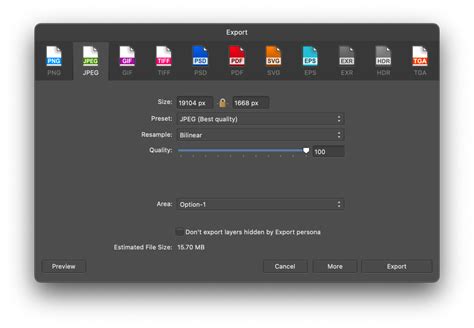
4. Edit and confirm your export settings. You should now find yourself in the ‘Settings’ tab. This lets you edit and confirm all the nitty-gritty encoding information for your export. Which video format is the most popular in Final Cut Pro? The ‘Format’ option changes the file type of your Final Cut Pro export. You can choose the most popular format, MP4, alongside a couple of other options. Apple Devices: This exports your Final Cut Pro video as an M4V, which is Apple’s bespoke format. If you’re exporting for further use on an Apple device, this is the option to go for. Web Hosting: This turns your file into a MOV file. This is also an Apple-developed format, mainly for QuickTime Player. Computer: This exports your Final Cut Pro project as an MP4, which is a super common video format. In this example, let’s stick with the MP4 ‘Computer’ option. Under the ‘Video Code’ section, you can select ‘H.264 Better Quality’. This will take longer to export, but will give you a better-quality video overall, rather than something that will encode faster. So, unless you need to export from Final Cut Pro on a strict time limit, we’d suggest sticking with ‘H.264 Better Quality’.
Best Final Cut Pro Export Settings in 2026
How do you change the export resolution in Final Cut Pro? Unless you’re going for something specific, keep the ‘Resolution’ tab checked at ‘1920 x 1080’. These are the standard dimensions for YouTube and other video-hosting platforms. If you shot and edited your footage in 4K, you should have more options here. You can’t change the ‘Color Space’ and ‘Audio Format’ options when exporting from Final Cut Pro as an MP4, but you can take a look at them for reference. If you’ve added chapter markers to your content, then feel free to check the ‘Chapter Markers’ box. This will let viewers skip to specific sections within your video, like you can on a YouTube video or a DVD. Under the ‘Action’ option, click ‘Save Only’. This will save your file locally, and gives you full control over what happens next.
5. If you’re planning to share your project with someone else, or if it’s part of a larger project, you might need to export the different media separately from Final Cut Pro. To do this, click the ‘Roles’ tab, then confirm the different elements. If you’re just uploading your video to YouTube, though, you probably don’t need to worry about this. 6. Export your file from Final Cut Pro. Once you’ve fiddled with all the different options, complete the export for your Final Cut Pro project. Hit the ‘Next’ button in the bottom right of the window, and you’ll be prompted to name and save your file locally. Once you’ve done this, you’ll return to the Final Cut Pro project area. Check your export status with the handy ‘Status’ icon, which looks like a circle slowly filling up. Click here to visualize the complete export details, and hit one of those ‘X’ buttons if you realize that you’ve made a mistake and need to pull the plug. After your project’s finished exporting from Final Cut Pro, simply find it where you saved it. Check it through once more - better safe than sorry! - then share it to your heart’s content. And there you go. You just learned how to export a video from Final Cut Pro!
Need some music for your videos, but don’t know where to look? We’ve got it covered. Our catalog is high-quality, affordable, and safe. An Epidemic Sound subscription goes beyond royalty-free music, removing the headache of licensing and freeing you up to do what you do best. You can enjoy the safety of our license hand-in-hand with our massive catalog of 50,000 tracks, covering just about every genre you can think of. It’s better than royalty-free. It’s worry-free. Filmmakers, look this way!