Adobe will begin discontinuation on February 1, 2024 Read the details here. This article explains what Creative Cloud Synced Files are, how they differ from Cloud Documents and CC Libraries, and what changes to expect for local folders on Windows and macOS.
What are Creative Cloud Synced Files?
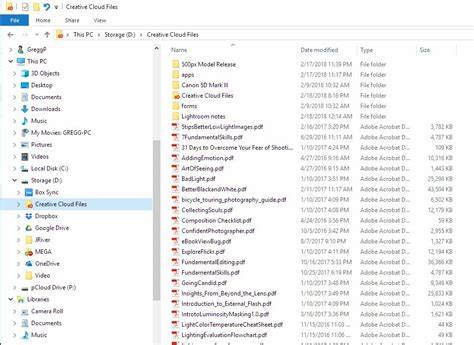
Creative Cloud Synced Files are Adobe’s answer to cloud storage similar to Dropbox. Adobe places a folder on your system named “Creative Cloud Files” where you can place files and share them with others. ⚠️This does not include Cloud Documents and CC Libraries⚠️ which are special files saved from your apps like iPad and desktop Illustrator (.aic) or Photoshop and Fresco (.psdc) or Libraries (.cclibs). Cloud Documents and CC Libraries are not going away.
Key distinctions: Synced Files vs Cloud Documents and CC Libraries
Synced Files refer to the local folder that inputs content for cloud synchronization. In contrast, Cloud Documents are live documents saved from Creative Cloud-enabled apps and stored in the cloud, accessible across devices. CC Libraries are collections of design assets (colors, fonts, graphics) saved to the cloud for use across apps and devices; they are also not impacted by the discontinuation of the syncing folder.
Why the distinction matters
Understanding the differences helps you plan: you can still rely on Cloud Documents and CC Libraries for ongoing work, while Synced Files will see changes as the local folder is renamed or removed in the cloud workflow. This separation minimizes disruption to active projects that depend on libraries and cloud documents.
How do I find my Creative Cloud Synced Files?
- Windows: C:\Users\
\Creative Cloud Files - macOS: Mac HD/Users/
/Creative Cloud Files
These paths point to the local folder created by Creative Cloud for file synchronization. The folder itself is separate from your cloud-stored assets, which remain in your Creative Cloud account.
Will files be removed from my system?
No. Adobe has said they will only remove the cloud version. The local folder will remain on your system and will be renamed. See the article linked above for details. Practically, you will not lose local files, but you may notice changes to how and where they sync with the cloud.
Practical steps to manage the transition
- Review which projects live in the Creative Cloud Files folder and which rely on Cloud Documents or CC Libraries.
- Back up critical work from the Creative Cloud Files folder to an additional storage location if needed.
- Keep an eye on Adobe's official updates about the discontinuation and any required changes to your workflow.
- If you rely heavily on cloud-based collaboration, consider alternatives for sharing large datasets outside of the Synced Files folder until a new workflow is established.
Impact on workflow and collaboration
The change primarily affects the local syncing folder rather than the cloud-backed assets (Cloud Documents and CC Libraries). Teams should adapt by preferentially using Cloud Documents for ongoing projects and CC Libraries for shared design assets, while treating Synced Files as a transitional or legacy element.
Potential alternatives and recommendations
To maintain smooth collaboration, use Cloud Documents for live, multi-device work and CC Libraries for asset reuse across Adobe apps. For file sharing outside the Creative Cloud ecosystem, maintain external backups and consider approved file-sharing services for large projects while monitoring Adobe’s migration guidance.