Maybe you’re a designer tasked with layering images, adding effects, or combining elements for eye-catching compositions. Whatever your role, being able to easily and quickly remove backgrounds is a game-changer. A few reasons why removing backgrounds is so helpful range from being able to create visual consistency to faster content creation and more. Adobe Express makes it super simple to remove backgrounds from images, thanks to AI. You can essentially remove a background in just one click.
How the background removal works in Adobe Express
For best results, use a png file or jpg image with a clear subject and minimal overlapping elements. Adobe Express uses AI to instantly remove the background. You can replace the background after removal with a solid color, gradient, or another image. The tool detects edges and facilitates quick refinement with the Erase tool in the Editor to manually refine cutouts.
To remove a background: upload your image to Adobe Express, select the image, and use the “Remove Background” tool found in the editing panel. Once the background is removed, you can add a new background and continue designing. Adobe Express supports common image formats like JPEG, PNG, and GIF, making the workflow accessible across different assets.
Practical use cases and workflow
After removing the background, you might want to place the subject on a new scene. Drag and drop a new background onto the canvas, then use the Transform tool to resize it to fit your desired dimensions. Move it to the back to create a composed scene. You can also create a new background from scratch, add text, and more to tailor the final design.
In addition to image editing, Adobe Express also offers video background removal. Upload your video to the background remover and watch the background vanish from each frame. Remove backgrounds from videos up to two minutes long and continue editing with filters, text, or animations. This keeps all work within a single app, accessible on desktop and mobile without downloads or steep learning curves.
Removing backgrounds is faster and more automatic than manually erasing with traditional tools. The tool works best on images with high contrast between subject and background and aims to produce clean cutouts suitable for overlays, collages, flyers, and social posts.

Quality, formats, and plan considerations
Adobe Express removes backgrounds from JPG, PNG, and WebP images and saves results as a clean, transparent PNG. The process is designed to be quick, with no extra tools to adjust; you upload, let the tool work, and download your transparent PNG in seconds.
There is a free plan available that includes many Quick Action tools, thousands of templates, photo editing features, and more. For ongoing needs or premium features, Express Premium offers additional capabilities such as enhanced background removal for videos and greater flexibility in workflows.
After removing a background, you can place your subject on a new background to create a cohesive look across your visual content. You’ll also be able to add text, graphics, and animations to enhance the composition and deliver a polished result rapidly.
Edge refinement and best practices
Double-check the edges of the cutout, especially around intricate areas like hair or fur, to ensure a clean result. If needed, use the Erase tool to manually refine the cutouts. When changing backgrounds, consider contrast, color harmony, and brand consistency to maintain a cohesive design language across assets.
For best outcomes with video background removal, ensure the subject remains distinct from the background and leverage gentle color grading or backgrounds that enhance visibility. The tool’s ability to isolate the subject facilitates creating engaging shorts, thumbnails, and promotional clips without specialized video editing software.
Fastest way to Remove Backgrounds from Videos easily in Adobe Express
Using backgrounds strategically to boost visuals
Removing a background enables visual consistency across a campaign, simplifies rapid content creation, and supports dynamic reuse of assets in multiple formats. You can turn a single edited image into a flyer, social post, album cover, profile photo, or product listing by placing it into templates and adjusting fonts, icons, and GIFs.
With the background changer, you can control the mood by applying filters, adjusting contrast, and layering additional elements. The built-in asset library and templates streamline production, allowing marketers and designers to maintain a cohesive brand look across various channels.

Open questions and capabilities
Can you use Adobe Express for free? Yes, with a free plan that includes many features. You can also upgrade to Express Premium for additional tools and higher-capacity edits. The tool is designed to be approachable with a quick learning curve, enabling users with varying design experience to produce high-quality results rapidly.
Whether you’re removing a background from a photo or a video, the process is streamlined: upload, remove, refine if needed, and export. This enables fast iteration, A/B testing of visuals, and easier collaboration across teams working on social media, marketing materials, or digital content.
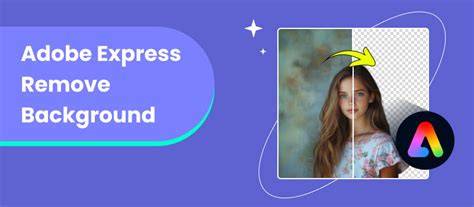
Table: quick-reference checklist
| Item | Guidance |
|---|---|
| File types | JPEG, PNG, WebP for images; video supported formats for background removal |
| Best image type | Clear subject with minimal overlap; high contrast between subject and background |
| Output | Transparent PNG for images; video with edited background for clips |
| Refinement | Use Erase tool to touch edges; refine around hair/fur |
| Background options | Solid color, gradient, or another image |
| Platform | Desktop and mobile; no download required |
In short, Adobe Express offers a fast, AI-powered background removal workflow for both images and videos, with straightforward editing and publishing options that fit into a single, versatile app. You can remove backgrounds in seconds, replace them with suitable backdrops, and use the result across a wide range of designs and formats.
tags: #adobe #express #background #removal #tool