Modern phone cameras are able to produce superior-quality images. However, it doesn't stop people from trying to find good photo editing applications. The reasons go beyond adding beautifying filters but also about adding personalities. Snapchat's photo editing features go beyond filters and color tweaks - you can also access its full-blown photo manipulation tools for free. In addition, there is nothing complex about its powerful editing features.
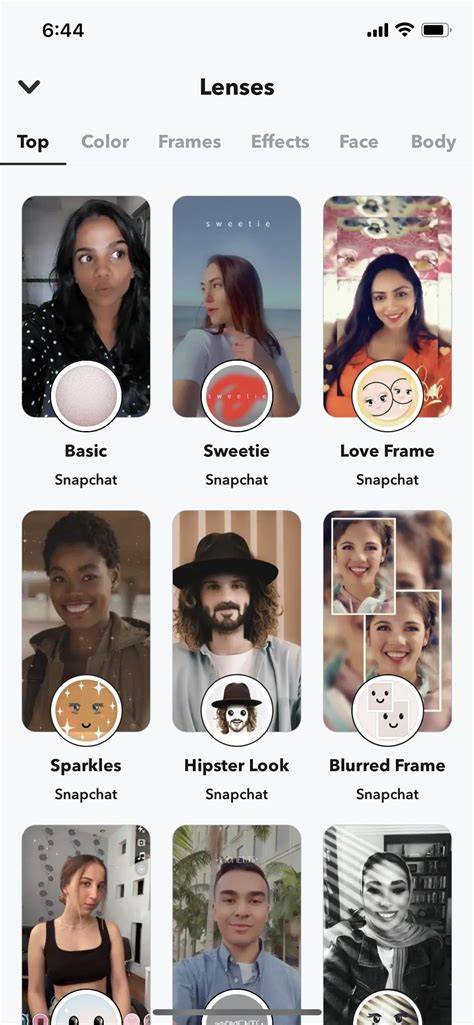
When you first open Snapchat, the app will open straight to the camera view where you can take a picture right away. If you do that, Snapchat will take you to its editing page where you can find many tools. Now that you are familiar with the tools, you can start taking your Snapchat photos. As we mentioned, you can access the editing view directly after snapping a picture from the app. You can also add a lens, which is a premade photo filter when you take the pictures. You can access the robust filter library by clicking the emoji icon next to the capture button. All recommended filters will appear as circles next to the capture button.
Once you're happy with the snap, you can add more elements, such as text. The tool will allow you to type in words, change the font, and swap the colors. To adjust placement and size, you can easily drag the text and pinch it using your two fingers at once. After you are satisfied with each change, click on the blue tick button on the bottom left to save it. To save the picture to your device gallery, click save. Alternatively, you can also edit photos from your camera roll. To load an existing image, tap the Memories button - this looks like two overlapping rectangles next to the capture button. Tap on the picture you want to edit, then tap on the pencil icon on the bottom left of the app. Once you are pleased with the edits you made, you can tap Done in the upper right corner and save your image. You can also click Export and tap on the Download option to save the picture to your phone.
Now that you have fully navigated the editing suite, you might also notice that Snapchat allows you to also share videos. Having a good sidekick next to this fantastic app would enable you to produce videos faster. Wondershare UniConverter allows you to edit your videos professionally. Video editing on a mobile phone can be tiring if you want to add subtitles, adjust speed and length, or crop pictures differently scene by scene. Security Verified. Wondershare UniConverter understands the modern need for vertical videos and provides preset ratios that you can easily use when cropping your video. After it is loaded into the software, you can start tinkering with the video. When you use the crop feature, you can pick the ratio and a guide will appear on the video. Slide it left or right to get the maximum angle that you aim for. You can easily edit and share customized photos and videos on Snapchat. Its editing suite is rich, but editing with a phone can take a toll.
I always thought that editing a picture in Snapchat just feels wrong, and feels like it can't be done right. That was before I learned how to edit a photo in Snapchat and properly utilize all the editing tools that Snapchat has to offer. It's not that difficult once you get the hang of it, and in this article, I'll be guiding you on how to do it properly and have your image looking excellent.
Guide to Edit a Photo in Snapchat
What is Snapchat? Snapchat isn’t just the app for making videos and having secure conversations that we usually attribute it to, but it also provides a surprisingly powerful photo editor behind all those goofy filters. It’s not as apparent as it should be, which is why I have detailed below the features that it offers, and how to edit photos on Snapchat to make them look spectacular.
The editing interface automatically opens up after you take or select a photo. Along the right-hand side of your screen, you’ll see eight editing icons: Text, Pen, Stickers, Cutout, Audio, Lenses, Link, Crop, Time Limit. You no longer have to wonder how to edit snapchat photos, because we are going to look at how to edit pictures on Snapchat, starting with the basic tools so that you can get the hang of it, and then we will look into the more advanced features to make your Snapchat edited pictures look like they were edited by a professional photo editor.
Use Built-In Filters and Stickers
Snapchat offers a very wide range of built-in filters that you can choose from and apply to your image, and the sticker feature works amazingly as well. You have a quite varied choice of stickers to choose from, and you can even create your own stickers to use in your pictures. Let’s go over how to use them:
- Open the Snapchat app, and you’ll be taken directly to its camera. Then, tap the capture button to take a photo, or upload one from the gallery.
- Browse through the filters that you see at the bottom of the screen. There is a lot of variety to choose from and add to your picture.
- Tap the "sticker icon" at the top-right of the screen. A sticker panel will pop up with all sorts of options, and you can tap it to add it to the image, and then resize it accordingly.
- Once you’re happy with your edits, tap the "Export" button to save the picture directly to your gallery.
These steps form a core workflow: capture or load an image, apply filters, add stickers, and export the result for sharing or storage.
Explore Advanced Editing Tools
Now this is where the real magic happens. There are a lot of tools that you can choose from, ranging from cropping the picture to adding songs to it. It can feel quite overwhelming because there are a bunch of different things you can do, which is why below is a step-by-step guide on how to use those tools:
- Open the Snapchat app to the camera, then take a photo or upload one from the gallery.
- Look to the right of your screen and tap on any of the editing icons. These are the main things that will enable us to edit our pictures.
- Tap the "Pen Icon" to select the pen and draw on your picture. You can select the color and the thickness of the pen.
- Tap the "Text Icon" to add some text to your photo. You have a bunch of different fonts to choose from, and you can resize the text as well.
- To create a sticker from the picture, tap on the “Cutout” option on the right. Then, just select an area by drawing around it to create a sticker.
- Tap the "Crop Icon" to trim or resize your photo.
- You can also add music by clicking on the “Music Icon” and searching for a song that you want to add.
- Now, you just have to tap on the “Export” button to save your picture to your phone.
Toolsmart's Image Enhancer is mentioned as a powerful addition for improving image quality beyond Snapchat's native capabilities. This can help achieve higher-quality results when you want to push the boundaries of what you can edit directly in the app.
Practical Tips and Considerations
Editing a picture in Snapchat can be really useful, especially if you know how to utilize all of its tools properly and effectively. It’s a very powerful editor that is surprisingly underrated. And when you combine it with Toolsmart’s Image Enhancer, your picture is definitely going to be looking 10 times better than it was before. Discover the power of the Snapchat photo editor to transform your everyday snaps into stunning visual stories. With advanced filters, real-time effects, and easy-to-use tools, you can quickly enhance selfies, add creative text or stickers, and correct photo imperfections in just a few taps. Whether you're sharing moments with friends or building your personal brand, the Snapchat photo editor provides intuitive features that make photo editing fun and accessible for everyone.
Perfect for social media users, content creators, and anyone wanting to stand out online, this editor allows for instant customization and professional-quality results without needing complex software.

In short, Snapchat's built-in editing tools enable a full workflow-from basic crops and filters to precise text placement, cutouts, and stickers-without leaving the app. The additional option to export and share directly or save to device memory makes it convenient for daily use and experimentation.
Tables and data-driven notes
Key steps to edit efficiently in Snapchat:
| Stage | Tools | Outcome |
|---|---|---|
| Capture | Camera, Memories | Base image ready for editing |
| Basic edits | Filters, Text, Stickers | Quick cosmetic changes |
| Advanced edits | Pen, Cutout, Crop, Music | Creative enhancements |
| Export/Share | Export, Save, Download | New image ready for use |