Adobe InDesign is one of the most popular desktop publishing software products for graphic designers, publishers, marketing professionals, artists, and more. This industry-standard publishing app provides tools to design and publish high-quality, single- and multi-page documents like flyers, brochures, books, posters, magazines, and pamphlets. The InDesign file extension (INDD) is the standard format for InDesign; however, you can convert to more favorable image file types, such as PNG, JPG, and TIFF. Users can easily use other Adobe tools, such as Photoshop and Illustrator, with InDesign to integrate artwork and photography. Also, importing text from word processors, such as Microsoft Word and Adobe InCopy, into InDesign is effortless.
Learn to use Adobe InDesign, a comprehensive page layout software, in conjunction with Adobe Photoshop and Illustrator to create various kinds of publications and documents for print and onscreen viewing. This course includes easy-to-follow exercises and several projects which will be reviewed and evaluated by your instructor throughout the course. You will use InDesign to learn about three primary disciplines: type, images, and color. Required Materials: Adobe Creative Cloud (Photoshop, Illustrator, and InDesign) is required for this course. Students are eligible for an Adobe Creative Cloud student discount.
Become an Adobe Certified Professional in Print & Digital Media Publication Using Adobe InDesign. Validate your knowledge of Adobe InDesign, the industry-leading page design and layout app that lets you create, preflight, and publish beautiful documents for print and digital media. Review the available versions and languages. Explore learning resources. Becoming an Adobe Certified Professional typically requires 150 hours of hands-on experience and instruction. Explore the resources below to gear up and get inspired. Exam guide and resources include: objective outlines, practice tests, tutorials, and courses.
Key topics and objectives covered in the InDesign class
- Working in the Design Industry - Identify terminology and interpret communication related to the purpose, audience, and audience needs for preparing publications; determine content relevance; export to various document types (PDF, JPG, PNG); communicate design plans; basic project management concepts; accessibility standards and best practices for publications.
- Resources & Tutorials - Access to guide materials, tutorials, and references to navigate copyright, licensing, permissions, and best practices for using third-party content; understand when and how to obtain permission for assets.
- Publication Terminology and Design Principles - Learn publication and graphic design terminology; understand color management, color spaces (CMYK, RGB, grayscale), and layouts terminology; typography adjustments for contrast, hierarchy, and readability.
- Project Setup and Interface - Configure documents for print or digital publication; customize workspace; import assets; manage colors, swatches, and gradients.
- Organizing Documents - Use layers and pages, create parent pages, and manage document structure for multi-page projects.
- Text and Tables - Add and manipulate text, apply character and paragraph styles, manage text wrap and flow, and create/edit tables with proper formatting.
- Visual Elements - Layout visual elements with core tools, place and manipulate graphics, transform frames, apply effects, create object styles, and add interactivity (hyperlinks, QR codes).
- AI Features and Graphics - Explore InDesign’s AI-assisted capabilities to generate and modify graphics (text-to-image techniques) and related prompts.
- Publishing Documents - Prepare documents for publishing, preflight and resolve errors, export/save formats (INDD, IDML), and package projects for asset management.
Working with documents, layers, and pages
Create a document by configuring document settings for printed or digital publications and using document presets. Organize the workspace by manipulating the interface, panels, and preferences to streamline workflows. Use non-printing design tools to navigate a document, work with rulers, guides, and grids, and switch views and modes for efficient editing. Import assets by embedding or linking, and manage colors, swatches, and gradients with various color libraries.
Use layers to manage design elements and organize content across pages or spreads. Create, edit, and arrange pages, and apply parent pages for consistent layout across the document. This structure supports multi-page projects such as magazines, books, and catalogs, ensuring a cohesive visual system throughout the publication.
Text, typography, and tables
Add and manipulate text using text frames and the Type tool; adjust character settings (font, size, kerning, tracking, leading) and paragraph settings (alignment, indentation, spacing). Manage text flow with threading and overset control, and apply drop caps, hyphenation, and lists. Create and apply paragraph and character styles to maintain consistent typography. Use editing tools to refine content and, when needed, revise with search/replace and spell check. Create and edit tables, including rows, columns, borders, and cell styling, and import tabular data when appropriate.
Visual elements and interactivity
Lay out visual elements by creating, selecting, and modifying frames, and place graphics into documents with frame fitting options. Transform frames and their content, rotate, scale, and align objects, and apply effects such as drop shadows or transparency. Save and reuse object styles, and add interactivity through hyperlinks and QR codes to enhance digital publications. InDesign’s AI features allow for generating and modifying graphics using text prompts and contextual prompts to streamline design workflows.
Publishing and packaging
Prepare documents for publishing by running preflight checks and resolving issues related to color space, bleed, resolution, and document size. Save in the native InDesign format (.indd), or export to appropriate formats, including PDF and image formats, while considering accessibility options and page ranges. Package a project to collect fonts and assets for reliable sharing and printing. Printing proofs before final publication helps ensure accuracy and quality across output forms.
Certification and practice resources include CertPREP practice tests, GMetrix-powered simulations, and Adobe Press textbooks and tutorials. These resources help learners become proficient InDesign users and prepare for certification exams in print and digital media publication.
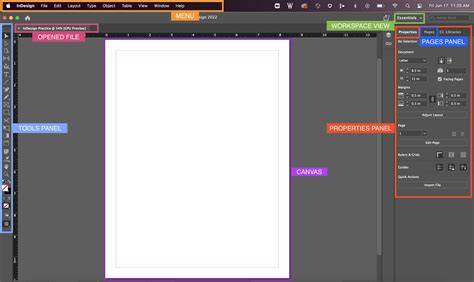
Day 1 - Intro and Document Setup in Adobe InDesign
Practical workflow tips for InDesign learners
- Set up a document with the correct page size, margins, columns, and bleed to match your print or digital output.
- Organize content with layers and parent pages to keep design elements consistent across sections.
- Import text and images with appropriate links or embeds, and apply styles to ensure coherent typography and visual hierarchy.
- Use preflight to catch issues early, such as missing fonts, linked assets, or color profile mismatches.
- Package the project before sending it to print or collaborators to preserve fonts and assets.
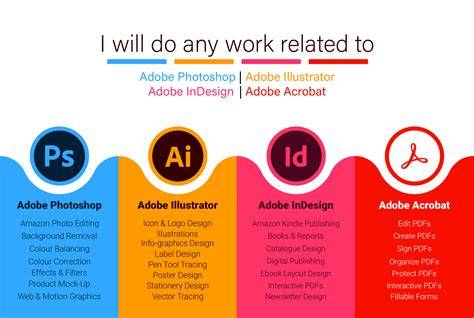
Exploring the related Adobe tools like Photoshop and Illustrator can enhance artwork and photography within InDesign projects, while using InCopy can simplify importing and editing large bodies of text. The course emphasizes three core disciplines-type, images, and color-and guides students through practical exercises and projects with instructor feedback.
Assessment and certification
Certification typically involves hands-on experience, practice tests, and an exam that validates proficiency in layout, preflight, and publishing for print and digital media. The objective-driven exam guide outlines the major topics and serves as a study map for learners. Practice tests and tutorials help build confidence in using InDesign for real-world publishing tasks.