Ever wish your photos could really show what makes a moment special? Adobe Lightroom is a free photo and video editor that helps you do just that. From your dog’s goofy grin to that sunset that took your breath away, Lightroom makes it simple to bring those moments to life, just the way you see them.
Whether you’re snapping pics on the go or curating your social feed, Lightroom puts powerful AI photo tools in your pocket to make quick edits easy and fun. The Adobe Lightroom photo editor app is here to help you create photos you’re proud to share.
AI Photo Editor & Film Filter Presets That Set Your Picture Apart
Want brighter colors? Softer, blurry backgrounds? A quick touch-up to crop and resize a photo? Lightroom’s one-tap features like Quick Actions and Adaptive Presets let you enhance photo quality in seconds. Try our new film filter presets to match your vintage aesthetic. Our AI photo editor tools suggest the best edits for your images. Perfect for quick fixes or adding a unique vibe, no experience required. Use it as your go-to picture editor.
Edit Photos, Remove Distractions, & Blur Background
Adobe Lightroom photo editor gives you access to tools that feel professional but stay approachable. Blur the photo background for a polished look, adjust the finer details, or use Generative Remove as an AI photo editor to erase objects within your photos.
Powerful Edits with Zero Hassle
Edit photos easily by tweaking exposure, highlights, and shadows. Fix photos with new film filter presets, unique photo effects, color grading, hue, saturation, or add a blurry bokeh effect to nail the perfect vibe. Edit photos with your creative control while keeping it simple.
Inspiration from the Community
Not sure where to start? Browse photo presets shared by creators around the world. From vintage film filter photo effects to applying a retro photo filter, Lightroom has the presets to match your aesthetic. Whether you’re looking to make bold edits with AI photo editor tools or subtle tweaks for polished portrait edits, find a look that matches your style - or create your own. Save your favorites and make every photo feel like you.
Edit Once, Apply Everywhere
Snapped a whole concert, travel day, or family gathering? Use Lightroom’s AI photo editor tools to fix photos in batches to keep your photo edits looking consistent.
Why Adobe Lightroom?
- Edit photos for every moment: whether editing photos for fun, capturing memories, gaining confidence, or sharing on social media.
- Flexible picture editor: beginner-friendly and grows with you to strengthen your editing skills. Fix photos, crop and resize images, blur background elements, or remove distractions.
- User-friendly AI photo editor designed to help build confidence, spark creativity, and showcase your authentic style.
Picture Editor Tools You’ll Love
Quick Action photo editor: Fix photos with suggested edits tailored to your pics. Preset Edits: Discover filters or make your own signature look. Try our NEW film filter presets to match your cinematic style. Background Blur: Create depth with a blurry background effortlessly. Generative Remove Edits: Take out the things you didn’t want with this AI photo eraser. Video Editing: Bring the same creative energy to your clips with tools for light, color, and presets.
For Every Kind of Photographer
Photo editing has never been easier. Lightroom is here to empower you - to capture sunsets, family moments, or your latest foodie find. If you’re using an iPhone 16 Pro or newer, you’ll likely go through a trial-and-error process to figure out which third-party app works best as a companion-because at the end of the day, we all want full control over the Exposure Triangle.
Why Lightroom Mobile Won Me Over: I’ve still got three or four manual camera apps lingering on my phone-deleting them is on today’s to-do list. There are already many side-by-side comparisons, but most end up being neutral and generic. I had to take these apps into the field and figure it out for myself. I’m not here to convince anyone to use Lightroom Mobile; it just happens to be the best companion camera app for me.
Cloud Storage & Workflow: The cloud storage feature is worth highlighting, especially for those who edit on a desktop. As long as images are synced to the cloud, they’ll be ready when you get home to edit in Lightroom Web or Photoshop. Lightroom Web is useful for culling and downloading for deeper edits, but the practical workflow often remains on mobile or desktop depending on space and speed.
Lightroom Camera Usability: Lightroom Mobile doesn’t give perfect access to the Exposure Triangle. You get control over shutter speed and ISO, but aperture isn’t adjustable. You’ll navigate three focal length options (Wide, Ultra Wide, Telephoto) while composing shots, which is a trade-off for using a third-party camera app on modern iPhones. The fix is to use Lightroom as a companion to the native camera app, switching back with a dedicated button when you need a specific focal length.
In the end, the decision comes down to your workflow: Adobe Photography Plan, cloud syncing, and desktop editing capabilities all influence how you use Lightroom Mobile. It’s not perfect-no third-party app is-but it provides the control you need without interrupting your process. Your perfect tool depends on your own needs and trial-and-error experience.
Subscription and Availability Notes
- Yes, a qualifying Adobe Photoshop Lightroom subscription is required for full features like cloud storage, sync across devices, healing brush, masking, geometry tools, batch editing, RAW editing, and Sensei-powered search.
- Premium features include: Healing Brush, Selective Adjustments, Geometry Tools, Raw Editing, Premium Presets, Cloud Storage, Sensei Search, and Batch Editing.
- Syncing across Lightroom mobile, desktop, and web is available with Creative Cloud membership; some limitations apply if you have a perpetual license.
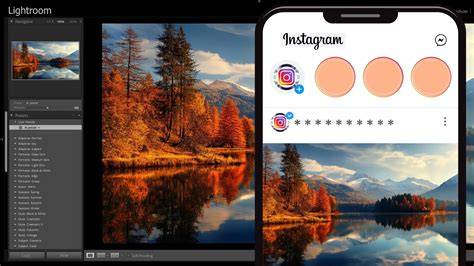
Key Workflows and Practical Tips
- Start with Quick Actions and Adaptive Presets to rapidly enhance photos in seconds.
- Use Background Blur to create depth and focus attention on subjects.
- Experiment with Generative Remove to clean up images by erasing unwanted objects.
- Leverage Preset Edits to establish a consistent, signature look across a batch of photos.
- When shooting, balance shutter speed and ISO to capture mood while maintaining detail.
9 Lightroom Mobile Tricks to TAKE Your Editing to the Next Level
Practical Considerations for Workflow
Cloud storage and cross-device editing are central to Lightroom’s appeal. If you often edit on desktop, Lightroom Web helps with culling and moving projects to Photoshop for deeper work. Decide where editing primarily happens and tailor your setup accordingly. For many, Lightroom Mobile serves as a powerful companion to the desktop workflow rather than a full replacement.
Table: Quick Reference of Highlights
| Feature | What It Does | Best For |
|---|---|---|
| Quick Actions | One-tap suggested edits | Speedy improvements |
| Adaptive Presets | AI-driven presets that match your image | Consistent styling |
| Background Blur | Depth with a blurred backdrop | Portrait-like effects |
| Generative Remove | AI eraser for objects | Clean compositions |
| RAW Editing | Non-destructive edits on RAW files | High-quality post-processing |
| Cloud Sync | Syncs photos across devices | Unified workflow |