Adobe Photoshop remains the industry standard for photo editing, retouching, and creative design. This course outlines essential techniques for beginners, focusing on practical skills that accelerate workflows, build confidence, and enable high-quality results across personal projects and professional campaigns.
What you will learn in a beginner course
Foundational tools and concepts provide a solid base for more advanced techniques. Topics include navigating the interface, understanding layers, using masks, and applying basic adjustments to color, exposure, and sharpness. You will also learn non-destructive editing workflows that preserve original imagery for future revisions.
Practical exercises reinforce skill development. Projects commonly cover skin retouching basics, product enhancements, and simple composites, enabling you to experiment with layering, blending modes, and selection tools. By practicing with real-world images, you gain confidence to tackle more complex retouching and design tasks.
Workflow efficiency is a core focus. Shortcuts, panel organization, and batch processing help you complete tasks faster while maintaining quality. You’ll learn how to structure projects for collaboration, manage assets, and export files for various deliverables such as print and digital media.
Key tools and techniques for beginners
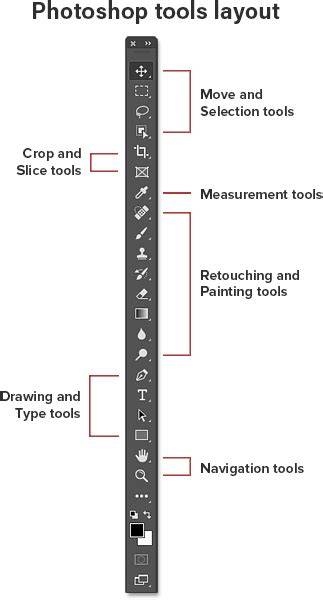
Photoshop’s fundamental tools empower beginners to achieve professional results. You will get hands-on experience with the Move tool for positioning, the Marquee tools for selections, and the Brush tool for detailed edits. Layer management, adjustment layers, and masks form the backbone of non-destructive editing workflows.
Color and tone adjustments shape mood and consistency. Techniques such as Curves, Levels, Hue/Saturation, and Color Balance allow precise control over highlights, shadows, midtones, and color harmony. Understanding blending modes helps in creating seamless composites and subtle enhancements.
Retouching basics establish a clean, natural look. You will learn to smooth skin with gentle frequency separation concepts, dodge and burn for depth, and reduce distractions using the Clone Stamp and Healing Brush tools. The emphasis is on maintaining texture and realism while achieving polished results.
Selections and masking are core competencies. Mastery of Quick Selection, Select and Mask, and refining edge details enables precise isolation of subjects, sky, or product elements. These skills are essential for composite work and targeted edits without affecting the entire image.
From stills to animations: bridging retouching and motion
Advanced beginners often explore how still-image retouching connects to motion graphics. Simple frame-by-frame edits, timeline tricks, and basic animation principles can help you envision multi-frame campaigns. This course introduces the conceptual bridge between retouching stills and creating motion for digital displays and advertising.
Practical projects you can start today
Project 1: Skin retouching basics on a portrait. Adjust exposure and color, apply subtle healing, and refine texture while preserving natural detail.
Project 2: Product image enhancement. Improve clarity, color accuracy, and punch with selective sharpening and clean backgrounds for ecommerce or catalog use.
Project 3: Simple composite. Combine two or more images using masks and blending modes to create a cohesive, believable scene.
Project 4: Quick color grading. Apply a consistent look across a set of images using adjustment layers and grouped color corrections for batching in a campaign workflow.
Tips for effective learning and practice
Start with a clear goal for each session. Practice non-destructive editing by using adjustment layers and masks from the outset. Build a personal color and workflow library to maintain consistency across projects. Regularly critique your work or seek feedback from peers to identify areas for improvement.
Develop a routine that balances theory with hands-on practice. Work on small, time-bound tasks to build speed, then gradually tackle more complex edits. Keep organized project folders, rename layers descriptively, and document your process to facilitate collaboration.
Resources and next steps
Adobe offers official tutorials and help documents that complement this beginner’s course. Practice files and starter templates can accelerate your initial experiments, while community forums provide diverse perspectives and problem-solving strategies.
As you progress, you may explore more specialized areas such as advanced retouching, color science, and motion graphics to expand your capabilities beyond the basics. A solid foundation in these core skills will prepare you for professional work in advertising, fashion, and creative industries.
Photoshop for Complete Beginners | Lesson 1
| Skill area | Key techniques | Beginner practice ideas |
|---|---|---|
| Interface and workflow | Layers, panels, workspace setup | Organize a project with descriptive layer names |
| Selection and masking | Quick Selection, Select and Mask, refining edge | Isolate a subject from a busy background |
| Basic retouching | Healing Brush, Clone Stamp, dodge/burn | Subtle skin texture enhancement on portrait |
| Color and tone | Curves, Levels, Hue/Saturation | Create a consistent look across a small set |
| Export and formats | Export as PNG/JPEG, save for web, print specs | Prepare assets for online gallery and a flyer |
Whether you’re aiming to retouch stills for large-scale campaigns or to craft compelling designs, this course equips you with essential tools and practical exercises to start confidently in Adobe Photoshop.