Final Cut Pro multicam editing lets you sync, cut, and switch between multiple camera angles in real time, helping you create polished, dynamic videos with efficiency. This guide compiles the key steps and practical tips for preparing, creating, and refining multicam clips, drawn from the provided draft.
Step 1 - Shoot with multiple cameras and capture sync information
A multicamera shoot uses multiple cameras to record the same subject or event from different angles and distances. For multicam projects, it’s a good idea to set the date, the time, and the time zone on your camcorder or recording device before you shoot footage. This provides useful information to Final Cut Pro during the automatic multicam clip creation process. In professional multicamera shoots, each camcorder or video recorder receives the same timecode from a central timecode generator, or you can jam sync the timecode generator of each camera at the beginning of the shoot. If you’re using consumer camcorders, which can’t accept external timecode, you need to record a visible or audible cue, such as a clapboard closing or a camera flash, on all cameras. You can use this cue to sync the angles in your multicam clips. Because you can use the sophisticated automatic audio sync feature in Final Cut Pro to help ensure multicam sync accuracy, it makes sense to record audio on every camcorder and recording device in your multicam production. (Clear audio recordings provide the best results.)
Step 2 - Import media into Final Cut Pro for a multicam edit
Although importing media for multicam projects is the same as importing for any other project, there are steps you can take during importing to help streamline the multicam workflow.
Step 3 - Assign camera names and multicam angles
You can use the Camera Name and Camera Angle metadata tags to automate and organize your multicam workflow. It’s recommended (but not required) to apply these tags to your event clips before you create an actual multicam clip.
Step 4 - Create multicam clips
You create multicam clips from selected event clips (similar to the way you create auditions and compound clips in the browser). Whether you do it manually or have Final Cut Pro do it for you automatically, creating a multicam clip involves three fundamental steps:
- Create angles (containing one or more clips each).
- Arrange the order of clips within each angle.
- Sync the angles using a common sync point.
If you know what kind of metadata your source media has, you can create multicam clips using manual methods even faster than with the automatic methods. See Add camera names and angles and Create multicam clips.
Step 5 - Cut and switch between angles in the angle viewer
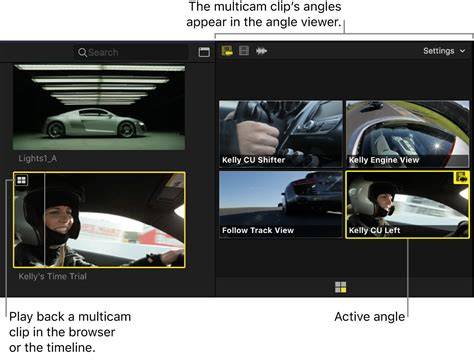
After you create a multicam clip, you can watch all angles simultaneously in the angle viewer while switching or cutting to different angles in real time. You can cut and switch video and audio at the same time or independently. For example, you can use the audio from angle 1 while switching the video between angles 1 to 4.
Step 6 - Sync and adjust angles in the angle editor
You can open multicam clips in the angle editor to adjust the sync and the angle order or to add or delete angles.
Workflow overview: editing multicam in Final Cut Pro
Some say it’s all about perspective-multicam editing in Final Cut Pro gives you the tools to create slick, professional videos that stand out. It allows you to sync, cut, and switch between multiple camera angles without clutter. For those looking to enhance their content creation for YouTube, multicam editing is a game-changer. If you’ve got footage from several cameras, manually syncing clips sounds like a nightmare. That’s where multicam editing in Final Cut Pro comes in. It lines up multiple angles, lets you switch between them seamlessly, and helps create a polished final product.
This technique is particularly useful for vlog editing workflows, allowing creators to easily switch between different camera angles and create more dynamic content. Before you start shooting, a little prep work can save you hours on set and in the editing room:
- Sync Your Cameras: Make sure all your cameras have the correct date, time, and time zone. This helps Final Cut Pro sync everything up later.
- Timecode or Sync Markers: If you’re using pro-level equipment, sync your cameras with a common timecode for all. If not, use a slate, camera flash, or a sharp noise to create a sync and level reference that you can easily match-frame with video in post.
- Capture Audio Everywhere: Record audio on every camera. Even if you only use one audio source in your final edit, having reference audio on all your angles will make syncing easier.
Transferring multicam footage into Final Cut Pro follows a straightforward workflow: organize into a Library, Event, and Project; import media; rename clips with clear labels; select clips to include in the multicam clip; and use the Multicam Clip creation tool with optional automatic synchronization.
When you create a multicam clip, you can rely on Final Cut Pro to automatically create angles, sync them, and place them into the Angle Editor for precise adjustments. If you need to tweak timing, use the Angle Editor to align audio or visual cues and re-check synchronization by enabling audio on all angles and playing back.
In the Angle Viewer, you can switch between angles in real time, and in the Angle Editor you can adjust the sync, reorder angles, or apply effects to individual clips. If performance lags, enabling optimized media for multicam clips can improve playback, and duplicating your multicam clips before major edits preserves the original layout.
Common troubleshooting includes manual sync when automatic syncing fails due to missing or unclear audio. In that case, identify a guide clip with a clear sync point, align other clips to match, and verify synchronization by playing with audio on both tracks. With practice, you’ll be able to manage even complex multicam productions efficiently.
Pro tips and practical notes
- Use metadata tags (Camera Name and Camera Angle) before creating the multicam clip to stay organized during switching.
- Enable optimized media if your project lags; this creates lower-resolution copies for smoother editing.
- Duplicate the multicam clip before major edits to preserve the original setup.
- If automatic syncing fails, rely on manual sync by aligning a loud sound or visible cue across angles.
- Include audio on all cameras during capture to maximize the effectiveness of audio-based synchronization.
Whether you’re editing a wedding ceremony, a music performance, or a vlog, the multicam workflow in Final Cut Pro offers robust tools to create cohesive, engaging content by aligning multiple angles and audio sources efficiently. The approach scales from small setups to large productions, provided you plan synchronization cues and metadata from the outset.