Shoot RAW on iPhone and you hand over control of developing to the camera app, including noise reduction. This tutorial walks you through Lightroom Mobile’s noise reduction adjustments and offers practical tips to balance detail and smoothness across different images.
Why noise appears in iPhone RAW shots
Smartphones have small image sensors, and smaller pixels collect less light, which can lead to color noise from neighboring pixels. To capture more light in low-light conditions, you may raise ISO, making pixels more light-sensitive, but this also increases interference between pixels. When shooting RAW, the photo is stored without behind‑the‑scenes processing or automatic noise reduction, so you must learn to manage noise yourself. The sample photo shows two common noise types: color noise (speckles in different colors) and luminance noise (grainy brightness variations).
Starting with Color Noise in Lightroom Mobile
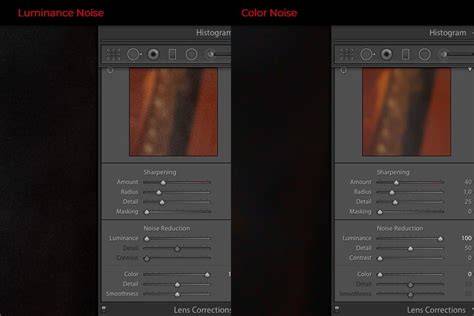
Begin with color noise, often the most visible. In Lightroom’s noise reduction sliders, the default values are not zero; each slider has a small grey area. To fix color noise, double tap the slider knob to reset to 25-the default value. This often fixes color noise. The two additional sliders (Detail and Smoothness) relate to color noise reduction and work with the main Color Noise Reduction slider: Detail protects fine edges, and Smoothness reduces color mottling. Moving these sliders can preserve texture but may reduce overall noise reduction. There is always a tradeoff between preserving detail and reducing noise. Usually, the default 25 suffices; moving beyond rarely helps unless there is significant color noise.
Reducing Luminance Noise in Lightroom Mobile
Left to right movement of the luminance de-noise slider reduces noise but can erase detail. For this example, a value around 35 is a good starting point. Zoom in while adjusting to evaluate results on a small screen, and zoom out to assess the overall image. Returning some details is the job of the Details slider; however, increasing Details may reveal noise again. The Contrast slider helps preserve edge contrast but also reduces noise suppression. Constantly zoom in and out to verify detail retention across the frame. If noise suppression causes loss of detail in any area, adjust the Details and Contrast sliders accordingly. Be mindful of sharpening after denoising, as sharpening can emphasize residual noise. Don’t obsess over noise; in some cases JPEG shooting is preferable and can minimize post-processing needs.
Practical workflow tips for Lightroom Mobile noise reduction
For smoother results with AI-powered noise reduction, Lightroom offers an AI denoise option within Edit > Detail > Denoise (or AI Denoise). The default Amount is a solid starting point for many files; you can push further for cleaner results or pull back to retain texture. You can compare the edited image with the original by clicking in the preview, and you can apply the denoise to a DNG file. AI denoise works well on RAW files, balancing noise reduction with natural texture when used judiciously.
If you’re not using RAW or you want more manual control, you can switch to Manual Noise Reduction to adjust Noise (luminance), Color Noise, and corresponding Detail and Smoothness values. Manual tweaks can reduce noise while preserving essential image texture. A few taps to toggle between original and edited views (Space or other shortcuts on some devices) help assess the result. It’s common to find a balance where you reduce noise without making the image look painterly or overly soft.
Going beyond Lightroom: complementary tools and workflow
Historical comparisons show AI denoise improvements in Lightroom can be strong enough to reduce dependence on external plugins for many shots, especially in medium to high ISO scenarios. However, specialized tools like Topaz AI or DxO can excel at extracting fine details in critical images, albeit with slower batch processing and file-size considerations. A practical workflow often assigns Lightroom AI NR for the bulk of shots, while reserving Topaz/DxO for a small percentage of “hero” images requiring maximum detail preservation. This combination helps maintain a fast workflow during travel or event coverage while still enabling selective, meticulous retouching.
A modern workflow also benefits from optimal exposure planning: keeping ISO as low as feasible and using longer exposure times when needed can reduce noise at the source. In ProCamera or similar apps, manual ISO control paired with longer exposures can help maintain detail while leveraging Lightroom AI NR for post-processing. The key takeaway is that contemporary sensors and AI denoise reduce the fear of high ISO, enabling better exposure decisions in challenging lighting.
Practical tips for batch and real-world usage
- Cull first, denoise later: apply NR to keepers rather than the entire set.
- Use Auto-Mask with AI NR to isolate subject and background for targeted sharpening and denoising.
- Batch by ISO level: apply consistent NR settings to shots with similar ISO values.
- Let it run overnight for large batches if needed, especially on devices with slower processing power.
- Keep alternative tools in your toolkit for selective, higher-detail images when needed.
There are ongoing updates and features in Lightroom and related Adobe tools, including AI-driven enhancements for masking, selective adjustments, and adaptive presets. The mobile ecosystem continues to evolve, and cross-device synchronicity improves, though some users report challenges with syncing denoise settings across Lightroom cloud workflows or exporting as DNG. Solutions often involve updating apps, creator presets, or carefully choosing RAW/DNG workflow paths and cloud synchronization settings to preserve edit steps across devices.
How to Denoise in the Lightroom Mobile App [2026 Full Guide]
Summary of best practices for AI denoise in Lightroom Mobile
- Start with Color Noise reductions set around 25; adjust only if necessary.
- For luminance noise, begin around 25-35 and refine with Details and Contrast.
- Zoom in while adjusting to verify results on a small screen, then zoom out to assess overall impact.
- Use AI Denoise for RAW files to leverage native improvements, then fine-tune with manual sliders if needed.
- Retain some texture to avoid a too-soft look; consider adding a touch of grain if the image looks too flat.
- Balance noise reduction with sharpening to prevent halos and preserve edge clarity.