Adobe Photoshop Lightroom is a powerful and versatile photo editor and organizer for Windows users. In the world of digital photography, Lightroom is the go-to software for professionals and photographers of all levels. The program offers several editing tools, along with helpful tips to make enhancing images an easy task. Available as a cloud-based software thanks to the Creative Cloud suite, Lightroom gives you access to all your photographs and projects across multiple devices as well as the rest of Adobe’s tools.
What is Adobe Photoshop Lightroom?
Adobe Photoshop Lightroom CC is an indispensable tool in any photographer's arsenal. It allows you to edit and manage all your pictures, streamlining the process of turning a good shot into an amazing masterpiece. Lightroom is popular for its ability to work directly with RAW files (the format used by digital cameras), giving you complete control in setting adjustments such as the exposure and color of any captured image.
Lightroom features a wide array of features to edit and enhance all your photographs. Image Editing- Lightroom provides all the necessary tools to edit your image, adjusting its exposure, contrast, sharpness, saturation, white balance, etc. Non-destructive Editing- Any edits you make with Lightroom will not affect the original file, so you never have to worry about losing a photo due to an unexpected change or error. RAW Edition- Lightroom allows you to edit your RAW images without the need to convert their format. Library Module and Organization- Import and organize all your images and photos using its metadata, tags, and keywords system. Creating Presentations- Create professional-looking slideshows and digital albums in seconds. Integration with Photoshop- Since it is included in the Creative Cloud suite, you can use Photoshop when needed and take advantage of its advanced editing tools.
Does Lightroom have a simple interface?
Lightroom features a streamlined and clean interface, which becomes easier to navigate the more you use it. The app’s primary window is divided into four segments - Home, Discover, My Photos, and Learn. In terms of editing tools and menus, the program provides icons and tabs that appear to be quite small. Any icon that you select turns a lighter shade of grey against a charcoal grey background. Adobe Photoshop Lightroom also features sliders to help you make adjustments, along with presets that you can use to quickly optimize an image.
How do I organize images using Lightroom?
One of the best parts about downloading Photoshop Lightroom free trial is that it lets you catalog all the photos saved on your Windows device. You can upload all images to the cloud and organize them using keywords and star ratings. Moreover, you don’t need to open pictures in Edit mode to apply the cataloging process. Instead, you can add tags directly to the image thumbnails that appear in the My Photos tab.
What is the difference between Adobe Lightroom vs Photoshop?
The difference between Photoshop and Lightroom is quite simple. Both are photo and image editing programs but while Photoshop is aimed at digital artists of all kinds, Lightroom has been designed for photographers, lacking the former’s advanced editing tools. With Lightroom, you can directly edit images in RAW format, organize and manage them, and even treat them in bulk to increase your productivity. Therefore, it is an essential software for anyone involved in the world of digital photography.
Is Lightroom better than Photoshop? Whether Lightroom is better than Photoshop depends on your needs and what type of editing you’re aiming for. Adobe Photoshop is a versatile tool that can be used for a wide range of tasks. It's Adobe's flagship program, and millions of professionals worldwide turn to it for tasks like drawing and image retouching. Lightroom, on the other hand, is more focused on photography itself; that is its primary field of expertise. If you need to adjust color, exposure, and other options after loading your RAW file, Lightroom is the perfect tool for the job.
Another difference between the two programs is that Photoshop has a more robust and complex interface, which can be challenging for beginners. It has a steeper learning curve, and even experienced users may find it somewhat difficult to navigate. Lightroom, on the other hand, has a more straightforward and user-friendly interface. This doesn't mean it's inferior for editing; it simply presents the essential options directly. All the typical information values for a photograph are displayed on the screen without unnecessary complications. It's more accessible for photo editing, making each parameter more user-friendly.
Is Lightroom good for beginners?
While Adobe Photoshop Lightroom download for PC may seem intimidating at first, the program offers several learning tools to make things easier. Lightroom presets, tutorials, interactive edits, and a comprehensive FAQs section are just some of the tools that Adobe provides to help you learn Lightroom. As a beginner, you can head to the Discover tab to follow the editing process used by professionals. You will also be able to use Adobe Sensei, an amazing AI that will guide you while you edit any of your image files.
Adobe Lightroom's popularity stems from its comprehensive suite of editing tools tailored specifically for photographers. These tools enable photographers to effortlessly enhance their images from raw files to stunning masterpieces. Lightroom's seamless integration with RAW files, non-destructive editing capabilities, and efficient organization system make it indispensable for professionals and amateurs alike. Moreover, its availability as a cloud-based software within the Adobe Creative Cloud suite ensures accessibility across multiple devices, facilitating seamless workflow management. With a user-friendly interface and continuous updates, Adobe Lightroom remains the go-to choice for photographers seeking precision, efficiency, and versatility in their editing process, solidifying its status as an essential tool in the digital photography world.
What is the difference between Adobe Lightroom CC vs Adobe Lightroom Classic?
Lightroom has two main versions: Lightroom Classic and Lightroom Ecosystem. What are the differences between the two? Let's start with Lightroom Classic. This application is the original or "classic" version of Adobe's software and is considered the older of them two. It is designed for professional photographers who either have or would like to start a photography business. It includes the main tools found in both versions of the program and allows you to share your photos in portfolios as well as use third-party plugins like Smugmug, Wordpress, or Costco. However, Lightroom Classic does not include cloud services, so you will need to organize and store all your photos on a local hard drive.
Then we find the Lightroom ecosystem, also known as Adobe Lightroom CC. This is a family of applications that include all the Creative Cloud services and apps as well as Lightroom for mobile devices, web, and Apple TV. The Lightroom ecosystem is designed for both professionals and beginners who want to learn how to use the program step by step. Unlike its Classic version, Lightroom CC includes the assistance of Adobe Sensei, an AI designed to help users navigate the program, guiding them through all its functions. While it does not allow the use of third-party plugins, Lightroom CC benefits from its cloud service, allowing you to synchronize your photo collection and projects across all devices.
Is Lightroom free and what about portable variants?
Adobe Photoshop Lightroom CC is not entirely free, however, Adobe offers different plans and pricings as well as a 7 days trial to explore all the features and capabilities of the program. Amongst its subscription plans, you can opt for Lightroom CC as a standalone program or pay for a monthly or annual subscription to Adobe Creative Cloud, including access to the rest of Adobe's programs such as Photoshop.
There are mentions in user discussions about “Lightroom Portable.” It is important to note that Lightroom Portable is not an official Adobe product. The article emphasizes that Adobe has never released a portable version labeled Portable for Windows 7 or macOS. Using pirated or unofficial portable builds carries significant risks, including malware, lack of updates, data loss, and lack of official support. The text argues for using legitimate installations and cloud-based workflows or a properly configured portable catalog on an external drive, but only with official software.
Portable workflow and catalog portability
Lightroom CC Mobile offers the same image editing options as a desktop version including RAW-file editing, color correction, etc., as well as portability. If the need arises to work across two computers, some guides describe using a single catalog stored on an external SSD across two computers to maintain continuity of edits, metadata, and file paths. A portable setup typically involves one catalog, one photo archive, one portable drive, and two calibrated machines, with careful synchronization and a robust backup strategy to prevent data loss and catalog corruption.
For professional photographers, workflow continuity is not a luxury - it is operational infrastructure. Whether you are splitting time between a desktop editing station and a field laptop, or moving between office and home studio, maintaining a single synchronized Lightroom environment is essential for consistency, efficiency, and file integrity. This guide explains how to create a stable, portable Adobe Lightroom Classic setup using one catalog and an external hard drive across two computers. The goal is to eliminate catalog duplication, prevent missing file errors, and preserve metadata, previews, and edits without relying on cloud synchronization.
Practical guidelines for a portable catalog setup
- Choose the right external hard drive: SSD, USB-C or Thunderbolt, formatted exFAT for cross-platform compatibility.
- Store the catalog (.lrcat), its preview folder, and all image folders on the external drive.
- Keep two machines synchronized with identical Lightroom Classic versions and matching preferences.
- Back up the external drive regularly and consider cloud/offsite backups as an extra layer.
- Import directly to the external drive to preserve path integrity and simplify portability.
Recent developments highlight AI-powered masking and generative editing within Lightroom, as well as enhanced cloud synchronization for cross-device workflows. However, for high-volume RAW workflows and professional studios, a robust external-drive-based catalog workflow remains a practical choice, offering stable performance and independence from continuous cloud connectivity.
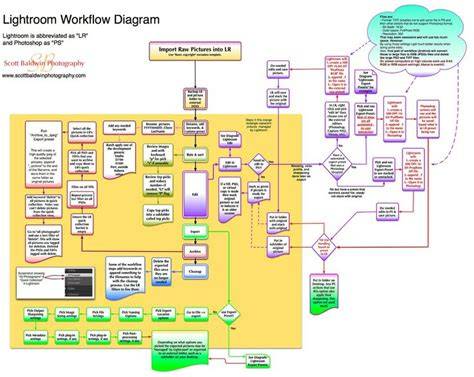
Is a portable catalog the best approach for you? It is ideal if you work on two fixed computers, maintain disciplined backup habits, and prioritize metadata continuity. It is less suitable if you frequently forget drives, require simultaneous multi-user editing, or your archive exceeds practical SSD portability limits. The strategic advantage lies in having one catalog, one photo archive, one portable drive, two calibrated machines, and no fragmentation, making transitions between devices seamless and editing uninterrupted.
START To FINISH! Simple Lightroom Workflow That Changes Everything!
In the broader ecosystem, Lightroom Classic continues to offer powerful desktop editing with robust catalog management, while Lightroom CC provides cloud-based synchronization and mobile-centric workflows. The best choice depends on how you prioritize local control, cloud access, and mobility. Regardless of version, the core strengths-non-destructive editing, RAW workflow support, and organized asset management-remain central to Lightroom’s value proposition for photographers.
Additional notes on safety and legality
Adobe Lightroom Portable, as a legitimate product, does not exist as an official portable edition. Using unofficial portable builds can lead to malware infections, missing updates, and data loss. Always obtain software through official channels and consider a portable catalog strategy only with legitimate Lightroom software and properly prepared external storage.
Table: Key differences at a glance
| Aspect | Lightroom Classic | Lightroom CC / Ecosystem |
|---|---|---|
| Editing style | Desktop-focused, comprehensive toolset | Cloud-enabled, mobile-friendly |
| Cloud services | Limited or optional | Integrated cloud storage |
| External drive workflow | Supported with local storage | |
| Third-party plugins | Yes | No |
| AI features | Limited | Adobe Sensei integrated |
In summary, Lightroom remains a central tool for photographers seeking precise color, exposure control, and organized asset management. While there is no official Lightroom Portable, you can design a robust portable workflow using an external drive, one catalog, and careful synchronization across two computers, ensuring a seamless editing experience without cloud dependency.