One of my least favorite things about editing is trying to find the perfect song for a project because I'll find something that sounds really good, but it will have that one annoying noise throughout, or it will have vocals when I don't want them. And yeah, I know that a lot of music sites will now let you download individual stems, but sometimes I don't know which sound I'm looking to get rid of, and I find it to be more of a hassle to do that than to just try and find another song. But now we don't have to worry about that because DaVinci Resolve 19, the beta version, has just come out with an amazing music tool. Let's check it out.
Okay, so we're in the edit page with this music track. Let's have a quick listen before we start doing things like removing the vocals. Just going to create an outpoint here and an inpoint here and turn loop on so that it plays over and over as we make changes. And while this tool is absolutely incredible, this one particular thing is a massive oversight from Resolve. It's just confusing, and I hope they address it.
So, you have to click here on the track, like right over here, to be able to access and see Music Remixer. Now we can turn it on and check this out. You can mute the vocals, the drums, guitar, and so on, and you can use these sliders to increase or decrease the volume of them. Let's have a listen.
There was a lot in this town. It had a really nice sparkle. It was a lot.
If you want a different view to work with this, you can click over here to open this window up, make any adjustments you'd like. And just an FYI, since we used Music Remixer on this audio one track, any other audio that we bring on this track will also be affected.
Now, this is just one of the many new amazing tools in DaVinci Resolve 19. If you want to know some of the other best new features, check this video out next. And coming up, Will and I are going to be releasing more tutorials looking at some of our favorite new features and how to use them. So, to stay in the loop, subscribe. I hope you have a lovely day, and we'll see you in the next video. OUR VIDEOS ARE EDITED IN ADOBE PREMIERE PRO.
Key takeaways and practical tips
- DaVinci Resolve 19 introduces Music Remixer as a prominent tool in the edit page for muting and balancing instrument tracks.
- Access to Music Remixer requires selecting the track to reveal the control panel, which users may find unintuitive at first.
- Sliders allow precise control over vocal, drum, guitar, and other instrument levels, enabling cleaner mixes without separate stems.
- Changes to one track’s remixer settings can affect other audio on the same track, so plan your session layout accordingly.
What it does well
- Efficiently attenuates or boosts elements like vocals to achieve the desired mix without sourcing new audio.
- Provides an integrated workflow within DaVinci Resolve, reducing dependency on external tools.
Potential drawbacks and considerations
- The user interface for accessing Music Remixer can be confusing, and the placement of the control under the track requires extra clicks.
- Broader changes on the track may have unintended effects on other audio elements, so it’s important to test with loops and preview playback.
Practical workflow tips
- Set in-point and out-point, enable loop, and audition muting configurations before deep editing.
- Explore the alternate view window to tailor adjustments for your project’s unique audio profile.
- Document the exact settings you use for vocals, drums, and guitars to reproduce the effect on similar clips.
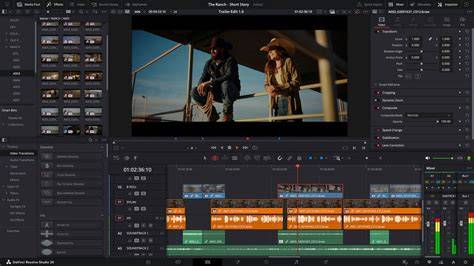
Using the Music Remixer in DaVinci Resolve
For further exploration, you may want to compare how this integrated approach stacks against using individual stems or relying on external audio separation tools, since the best choice often depends on project needs and target sound.