The fastest, easiest, most comprehensive way to learn Adobe Photoshop Lightroom Classic is through Classroom in a Book. This hands-on training workbook offers 11 lessons that cover the basics and beyond, with real-world, project-based learning to help you become more productive with the program.
What the book delivers
Classroom in a Book provides an official training series from Adobe, developed with the support of Adobe product experts. Purchasing this book includes valuable online extras, including a Web Edition with interactive quizzes and videos, and downloadable lesson files you need to work through the projects in the book.
Don't Miss Out! Use BOTH Lightroom CC AND Lightroom Classic Together!
You can follow the book from start to finish or choose only those lessons that interest you. Learn to use proven methods to organize your photography, leverage tools in each module to reduce the amount of time you spend working on images, and make precise color changes with Point Color to pull the best out of all the elements in your images.
Key features and capabilities
The guide covers a wide range of capabilities, including:
- Organizing photographs with efficient workflow techniques
- AI-based masking and the new Lens Blur panel to quickly change depth of field
- Color adjustments and enhanced tonality for better image quality
- Creating stylish books, print layouts, dynamic slideshows, and interactive web galleries
- Accessing collections and presets on desktop, mobile, or the web
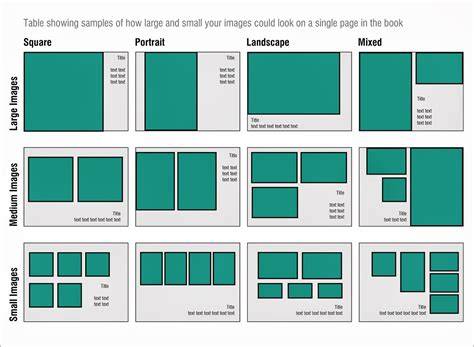
In addition, the book explains how to specify default book-layout behaviors, automate layout with presets, and manage pages, guides, and paddings for consistent design across layouts.
Book layouts and construction
Specify default book-layout behaviors. When photos are added to a cell, they can automatically zoom to fill, or zoom to fit. Layouts that include text boxes can automatically fill with the photo's Title, Caption, or File Name metadata. The Page Bleed guide appears as a wide gray border around the edges of the page, indicating the parts of photos beyond the page boundary. The Text Safe Area guide appears as a thin gray line inside the page perimeter. Photo cell guides appear as gray boxes with a cross hair in the middle.
Drag the Padding slider to add space, in points, around an image or text in its cell. Padding is an effective way to customize the appearance of an image in its cell, therefore, to customize individual page templates as well. By default, padding is applied uniformly to all sides. You can select multiple cells and apply padding to all of them at once.
You can add text fields to individual photos and to entire pages. When you click a photo, a transparent button Add Photo Text is displayed. The caption for the photo can be positioned above, below, or over the selected image cell or cells. The caption for the page can be positioned at the top or the bottom of the page. Adjusting the Offset amount moves the caption up or down on the page, relative to where you’ve anchored it (Top or Bottom).
Choose a font, style, color, size, and opacity. Additional typographic options include tracking, baseline shift, leading, kerning, columns, and gutter. You can apply a photographic, graphic, or colored background to the pages of your book. Drag a photo from the Filmstrip onto the Drop Photo Here placeholder in the Background panel and select a graphic background.
Page editing and customization
To edit a page in the preview area, you can add a new cell, resize or move cells, and arrange a cell to the front or back. Save your page modifications as a custom page, name the book in the Create Book dialog, and choose options such as saving inside a collection set. The software can render a paginated PDF of your book and save it to a location you specify, and it connects you to Blurb for printing with a 300 ppi standard. If an image is less than 300 ppi, a warning icon appears in the preview area to indicate print resolution limits.
Project-based learning and online extras
The book emphasizes real-world projects and practical workflows, providing countless tips and techniques to improve productivity. The Web Edition contains the complete text, interactive quizzes, and videos that walk you through the lessons step by step. Follow the Getting Started instructions to unlock access to downloadable lesson files and the Web Edition with interactive features.
Whether you are using Windows or macOS, the 2024 Release version supports modern workflows across devices, including desktop, mobile, and web access. The combination of hands-on lessons and online interactivity makes it easier to learn, apply, and retain Lightroom Classic techniques for photo organization, editing, and presentation.
Additional practical notes
Layouts and automation help streamline publishing to Blurb, with auto-layout capabilities constrained to books of up to 240 pages in some presets. Page numbers can be shown on selected pages, and their location can be adjusted for left, right, or both sides. You can print or export a customized, professional-looking photo book with consistent typography and visual balance.
- Follow the structured lessons for a solid foundation in Lightroom Classic.
- Experiment with the included online extras to reinforce learning.
- Apply layout automation and padding to optimize page composition.