Creating art traditionally is fun (seriously, we love it), but it often means dealing with messy supplies and cleanup. More and more people are switching to digital art for the convenience. One of the BEST digital drawing apps out there is Procreate. But the truth is, you don’t need to spend money on a premium app to start drawing digitally. A good drawing app needs to balance ease of use with powerful tools. Procreate is often considered the premier paid app for drawing. It’s fairly intuitive to use, has a huge range of realistic brushes and advanced settings, and has all the tools you need for simple sketching or professional digital painting.
Procreate is popular, but it isn’t free. Yes, you can absolutely use colouring pages in drawing apps. If you need pages to get you started, I have a collection of free colouring pages you can use, which you can find in my ‘65+ Free Coloring Pages for Adults’ blog. And if you’re after a simpler colouring experience, you can skip the drawing apps completely and find an app specifically designed for adult colouring.
Adobe Fresco actually used to be a paid app with certain features locked behind a subscription, but in late 2024, Adobe made the full version completely free, with no paywalls and nothing hidden behind a subscription. Adobe Fresco is very generous for a free app. It has full pressure sensitivity, support for layers, and a huge selection of brushes, including vector and texture brush effects. Sketchbook is a polished and intuitive workspace with everything you need for digital drawing or colouring, and it’s free. It offers pressure sensitivity, unlimited layers with opacity and blending options, a wide range of brushes and pens, and handy extras like symmetry tools, geometric shapes, and timelapse recording.
HiPaint is one of the closest alternatives to Procreate on Android and iOS, offering a clean layout that should feel instantly familiar to artists who are used to Procreate. It features layer support, pressure-sensitive brushes, blending tools, and two-finger gestures that make navigation and actions like undoing feel quick and natural. It also includes canvas rotation, selection tools, and a one-click flat-colour fill for things like casual comic work. HiPaint is free to install and use, with an optional subscription or one-time feature unlocks for extra brushes and advanced tools. You can pay a small one-time fee to remove ads, but this won’t unlock the other premium features. Quick note: One of us actually broke a stylus nib while testing HiPaint because it takes quite a bit of pressure to reach full opacity by default. Like HiPaint, you can watch a 30-second ad to unlock all premium brushes for 4 hours.
Medibang Paint is designed with comic artists and illustration in mind, offering pressure-sensitive brushes, comic panel tools, layers, cloud sync, and cross-platform support. Just like Ibis Paint X, you can unlock over 900 premium brushes by watching ads. Krita is a completely free and open-source app designed for digital painting and animation. Krita was originally designed for Windows, and this comes through in the style of its interface, especially the menus. Vector art, if you’re wondering, uses shapes and lines defined by math instead of pixels, so it stays crisp no matter how much you resize it. Linearity Curve gives you all the core design tools for free and now allows you to save your work locally, which wasn’t possible in the past.
PenUp is designed for Samsung tablets and the Samsung stylus, but it still works well on other Android devices. It is completely free to use, but lacks layer control and advanced brushes, and it doesn’t support masks, blending modes, or large canvases. Because it’s a lighter app focused on community sharing, it doesn’t have as many features or advanced tools, which can actually be a good thing for complete beginners who want to test the waters. While recent updates have improved the brushes and interface, PenUp is still best for beginners who want to try digital drawing in a relaxed, social space. Kleki is a completely free, web-based drawing app that works on any device with a web browser, including Android tablets and phones, Apple devices, and desktops. None of its features are gated behind any paywalls or subscriptions, making it truly free to use.
ArtFlow is a beginner-friendly Android drawing app with a clean, intuitive interface. It includes pressure sensitivity support, although it doesn’t always respond well for sketching with a light touch. The app also includes a brush creator, which users describe as ‘okay’, and inking tools that many find enjoyable. However, if you’re working on a piece with these unlocked features, you’ll need to watch another ad to continue editing once the premium period ends. ArtFlow is also very lightweight compared to some of the other apps on this list. If you’re using an iPad and Apple Pencil, Adobe Fresco is your best bet. It offers live brushes, full pressure sensitivity, and professional-level tools with no paywalls. Sketchbook is a solid runner-up. It’s easy to use, gives you a complete set of tools, and works well for both quick sketches and more detailed work. Sketchbook takes the podium again, but this time in the top spot for Android. HiPaint offers a Procreate-like experience on Android, with layers, pressure sensitivity, blending tools, and offline use. It’s free to install with optional upgrades and includes some pop-up ads in the free version. Try a few, see what feels good, and if you find one you love, you might even consider upgrading down the track.
If you’re interested in seeing my personal drawing journey, check out my video ‘Learning How to Draw (in 50 Days)’, or my blog ‘Re-Learning to Draw in 50 Days’. Here are the most popular Procreate alternatives for Android among the artists. The common two-finger undo and pinch to zoom gestures are implemented smoothly, though an ad banner at the top can be distracting on the canvas unless you remove it with a purchase. There is an extensive brush library with nicely calibrated options perfect for inking manga illustrations, but the huge brush selection can make it hard to remember favorites. Stabilizer helps smooth out strokes. Infinite Painter is a one-time $9.99, similarly priced to Procreate, with a minimalist interface focused on the drawing experience. It surfaces only relevant tools while drawing, avoiding on-screen clutter, though it may not run smoothly on all tablets due to device fragmentation. The brushes and painting engine mimic real artistic media, feeling very natural and responsive, but it can freeze up or crash in complex projects with many layers. Infinite Painter includes many tutorials built into the app, and you can share artwork with others through the app, though there can be compatibility issues with PSD exports. Concepts app is vector-based, so lines stay sharp when zooming in, unlike pixelated raster apps like Procreate. It offers an infinite canvas and easy coloring, but lacks certain shading modes and can require manual work for shadows. Complex illustrations with many layers take up little storage since it’s vector, but there are fewer brushes than Procreate. Concepts can open files across Windows, Android, and iPad with some limitations.
For iPad users, Adobe Fresco remains the strongest free option, offering live brushes, vector and raster layers, and a generous toolset. Sketchbook is a reliable runner-up with a complete toolset and strong performance for quick sketches and detailed work. HiPaint provides a Procreate-like experience on Android, with an emphasis on offline use and a free-to-install model supported by optional upgrades and ads. If you want to see a broader workflow story, you can explore my personal journey in a video or blog post linked above.
Drawing program FAQs: Procreate is not available on Windows or Android and is exclusive to iPadOS with Apple Pencil. Procreate’s price is a one-time purchase, typically around $12.99, but feature breadth depends on the app. The best Procreate alternative for Windows is Adobe Fresco, which is free and supports both raster and vector work. Microsoft Paint is far less capable; for a richer experience, look to Fresco or Photoshop. If you want vector capabilities, Adobe Illustrator is a standard choice but requires a subscription. Clip Studio Paint Pro is a strong option for comics and manga, with 3D model integration and one-time purchase. Affinity Designer 2 and Affinity Photo 2 offer powerful alternatives with a one-time cost and strong performance. Krita remains a robust, open-source option with strong brush systems and animation features, ideal for beginners and enthusiasts alike.
Part 1. Top Procreate Alternatives for Windows/Android
- Krita: Robust, open-source, with custom brushes and built-in animation support. Free and easy for beginners.
- Clip Studio Paint: One-time purchase, excellent for comic and manga work; strong 3D model integration.
- Adobe Fresco: Live brushes, cloud sync, vector and raster support; great on Windows with no paywalls.
- Rebelle 7: Realistic watercolor and oil simulations, strong for traditional-media emulation.
Part 2. Transitioning Smoothly to Procreate Alternatives
Export your Procreate files to PSD to preserve layers. Recreate your go-to brushes by importing or tweaking settings, and adapt to keyboard shortcuts and workflow tweaks to fit desktop apps. For example, rotate the canvas in Clip Studio Paint with a shortcut, or zoom with Krita using Ctrl+Alt+Scroll. These adjustments help maintain a fluid workflow when using larger displays and more multitasking space.
Part 3. Switching from iPad to a Large Pen Display
The ugee UE16, a 15.4-inch pen display, offers a budget-friendly price and delivers vibrant colors with four display modes. It provides full compatibility across Windows, macOS, Chrome OS, Android, and Linux, 16K pressure sensitivity, and a 15.6-inch anti-glare display with wide color profiles. Its ergonomic stand and customizable shortcuts help replicate Procreate-like workflows on a larger screen, making it a practical bridge for artists moving from iPad to a desktop setup.
Part 5. Final Recommendation
For students: Pair Krita with the ugee UE16 for an affordable yet powerful solution that mirrors Procreate’s feel with precise input and adjustable shortcuts. For hobbyists or animation work: Combine Clip Studio Paint or Adobe Fresco with the UE16 to meet higher demands and leverage ergonomic benefits for longer sessions.
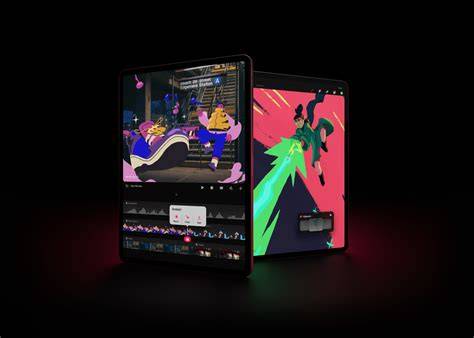
Someone Made Procreate for Windows - StylusX
Таблица (данные из черновика):
| App | Platform | Key Features | Pricing | Notes |
|---|---|---|---|---|
| Krita | Windows, macOS, Linux | Open-source, brushes, animation | Free | Great for beginners; community support |
| Clip Studio Paint Pro | Windows, macOS | Comic/manga tools, 3D models | One-time | Excellent for panels and inking |
| Adobe Fresco | Windows, iPad | Live brushes, vector/raster, cloud sync | Free (premium features free) | Strong on touch devices |
| Rebelle 7 | Windows, macOS | Watercolor, oil simulations | Paid | Great traditional media feel |
Для пользователей iPad: Procreate остается лидером, но Adobe Fresco и Clip Studio Paint представляют достойные альтернативы с расширенными возможностями работы с векторами, слоями и 3D элементами. Krita, Affinity Designer 2 и Krita остаются сильными свободными и платными опциями для разных задач и бюджетов.