Тired of spending hours blending colors and still not getting the perfect tone?
If you read the rest of the blog, we probably make that pretty clear by giving you tons of how-to-gradient-guides and driving home the “this is why gradients are great” point.
Because of that, we’d be remiss if we failed to point out that there are a few other ways you can implement gradients into your daily design life.
Can you say Photoshop?
We can, and we’re about to show you how to create your own gradients in programs like Photoshop.
Stay tuned for another awesome how-to- guide on more gradient fun!
Photoshop: Step by Step Break Down
Photoshop gets a rep for being a touch complicated if you’re not used to working with it - luckily, the gradient function is relatively simple, and we’re going to walk you through it to make sure you understand the process.
The Breakdown
Once in Photoshop, select the gradient tool from the panel entitled “Tools.”
Click the “Edit” button on the Options Bar (luckily, this button looks just like a gradient swatch!)
You’ll be given a few options at the top of this menu as “Presets.”
Choose one of these as the basis for your new gradient
Then, you’ll choose your gradient type. You’ll be given these options: solid & noise
Solid: this is as it sounds, a consistent, solid gradient with your exact color choices
Noise: this option is a bit different - it will implement a few random colors into your gradient to give it a fuzzier, louder pattern.
This will change every time you create a different noise gradient
Adjust your smoothness percentage to determine the transparency and seamlessness of your selected colors progression and transition
Now, you can select your color stops.
Select the sliding tool that has the black triangle at the top, this indicates you’re working with the first color stop.
Click your starting color by double-clicking the left color stop and then picking from the color picker that appears.
Continue this process with other color stops.
Next, you can pick the percentages of each color.
Click the midpoint slider, the diamond icon, to where you’d like your colors to mix.
You are also able to adjust this by typing in a value in the “location” box.
To adjust transparency on your gradient, click the “opacity slider” and select an opacity stop.
If you don’t adjust, it will default to 100 percent opaque.
If you want to add in opacity stops, you can do this the same way you did with your color stops.
Name your custom gradient for future use!
See? Not quite as complicated as you thought, right?
You can apply the gradient fill into almost any shape you’re using on Photoshop, you can even implement it as your background, and thanks to the transparency tool, layer it over images and shapes to make unique, cool designs!
We hope our step by step guide has been helpful and has furthered your gradient-craze!
Want to learn more about gradients and how you apply them to your design life?
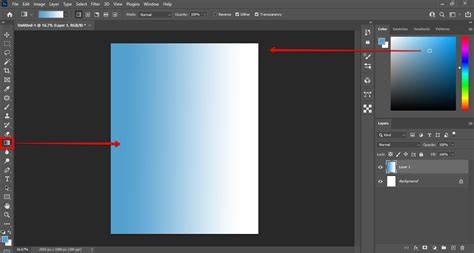
How to Create Gradient Background in Adobe Photoshop
tags: #best #gradient #background #photoshop