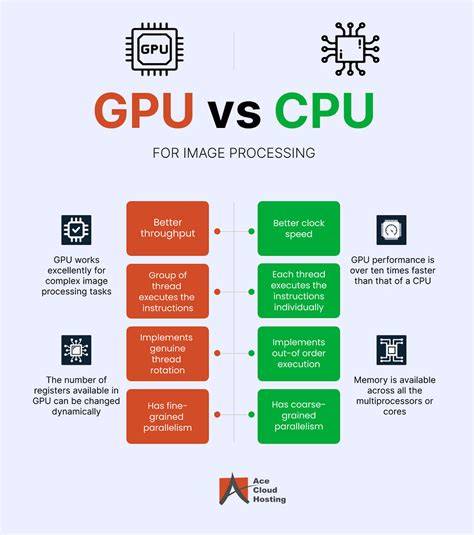
Benchmarking software helps you assess and compare the performance of your CPU, GPU, memory, and storage. A benchmark is a standardized test you run on your hardware to get a score that lets you compare against others or your own past results. A high benchmark score does not guarantee a balanced system; a bottleneck can exist when a powerful GPU is paired with a weak CPU, leading to lower real-world frame rates.
Always monitor temperatures during benchmarking. Keep a tool like HWiNFO64 open in the background to spot thermal throttling, and run tests multiple times to capture the best representative result. The goal is to understand capabilities and potential bottlenecks, not to chase a single, potentially misleading number.
CPU-focused benchmarks
- Cinebench by Maxon is the tool every professional reviewer uses, which makes it the gold standard for CPU benchmarking. It works by rendering a complex 3D image using your processor, then scoring how fast it finished. The current version is Cinebench 2024, which tests both single-core and multi-core performance separately and finally added a GPU test too. It is completely free, runs in a few minutes, and the score is dead simple to read. If you only download one CPU tool, make it this one.
- Geekbench 6 is the tool to reach for when you want to compare wildly different devices. It tests single-core and multi-core CPU performance plus a GPU compute score, and it finishes fast. The results upload to a public browser database so you can compare against millions of other devices. It is free to use for the standard test.
- Notes on usage: Close background apps before testing, update your graphics drivers before GPU tests, and let the system idle before starting. Run tests two or three times and take the best result; monitor temperatures to avoid throttling. A benchmark is only useful if the run is clean.
GPU-focused and gaming benchmarks
- 3DMark by UL remains the most respected gaming benchmark. It runs demanding 3D scenes to hammer the graphics card like a real game would, then provides a score plus average FPS. The free version covers core tests; paid versions unlock extra runs and stress testing. If your 3DMark score is far below others with the same card, you likely have a GPU bottleneck or a thermal problem. 3DMark also includes a suite of tests tailored to modern features like ray tracing and features tests for DirectX 12 Ultimate.
- Unigine Heaven and Unigine Superposition are classic free benchmarks for graphics stability and endurance. Heaven is the older, reliable option, while Superposition offers a heavier modern workload. Use them after overclocking or repasting to ensure the GPU remains stable under extended load. Run for about fifteen to twenty minutes while monitoring temperatures.
- FurMark is the brutal stress test for GPUs, often nicknamed the donut due to its distinctive shape. It pushes your GPU cooler and power supply to near-worst-case heat scenarios. Use it carefully and watch temperatures closely, as FurMark can push GPUs beyond comfortable limits. It is not representative of typical gaming workloads but is valuable for stability testing under extreme heat.
- Novabench offers a friendly all-rounder approach, testing CPU, GPU, RAM, and disk in a single quick run for a broad health check. It finishes in under five minutes and provides a single, easy-to-read score. However, its combined score can hide detailed bottlenecks, so it’s not the tool for hardcore overclockers.
Storage and cross-platform benchmarks
- CrystalDiskMark is the standard free tool for testing storage drives. It measures read and write speeds in different patterns to verify whether an SSD or NVMe drive performs up to its rated numbers. It’s especially helpful when NVMe feels slower than expected.
- Cross-platform and cross-device comparison tools like GeekBench 6 can be used to compare a PC against a phone or MacBook on the same scoring scale, making it useful for broader hardware comparisons across ecosystems.
How to choose benchmarks for your goals
Not all benchmarks are created equal. For CPU-focused evaluation, Cinebench is the industry standard; for gaming and GPU performance, 3DMark provides a comprehensive suite including Time Spy, Port Royal, and other tests that reflect modern APIs and features. For cross-device comparisons, Geekbench 6 offers a unified score across platforms. For a quick overall health check, Novabench is handy, while CrystalDiskMark isolates storage performance. When stability is the goal after overclocking or hardware changes, Unigine and FurMark offer valuable insights, with FurMark serving as a stress test rather than a real-world workload.
Best practice tips for reliable results include updating drivers, closing background applications, warming up the system, running multiple iterations, and keeping temperatures in check to avoid throttling. A single score rarely tells the full story; look for consistency across multiple tests and compare against similarly specced hardware.
Practical benchmarking workflow
- Pick CPU-focused tests: Cinebench 2024 for CPU, Geekbench 6 for cross-device comparison if needed.
- Assess gaming and GPU power: 3DMark (free version sufficient for many checks) plus Unigine Heaven or Superposition for stability under longer runs.
- Use storage benchmarks when performance of drives matters: CrystalDiskMark.
- For quick overall health or a broad snapshot: Novabench.
- Run stress tests with caution: FurMark only with strong cooling and temperature monitoring.