Do you want us to print your documents borderless? We advise you to submit your file with bleed. Bleed is an extra border around your design, which enables us to cut your prints 'clean'. Note: Submitting your files with bleed is not necessary if you choose the option "borderless printing". We can increase files without bleed by one percent. This way we create bleed, so we can also cut your prints 'clean'.
Bleed settings in InDesign
Open InDesign and create a new document (Ctrl + N / cmd + n). Choose the desired size in millimeters (for example A4 format). Do you already have an InDesign file? Then go to 'Document Setup' via 'File'. Then save your document as a PDF including bleed and possibly crop marks. Go to 'File', click on 'Adobe PDF Presets' and choose 'PDF / X-1a; 2001'. Enter a file name and choose a folder on your computer where you want to save your file. Then choose 'Marks and Bleeds' in the left column and check 'Use Document Bleed Settings'. You can also check 'Crop marks' if you want to save your file with cropmarks. Placing cropmarks without bleed is not recommended.
If you’re preparing any document for professional printing, it’s a given that you’ll need to allow for a Bleed in your InDesign document. A Bleed is the area just extending past the edge of the page, past the trim edge. A Bleed acts as a margin of error when the document is trimmed, after it’s been printed. So, if you have any content that will cross the edge of the page, such as a coloured background or maybe an image, you should extend it into the bleed to avoid any white lines appearing around the edge of your document. Printers are human after all - trimming errors can happen, and they are just an inevitable part of the print process. A Bleed is essential to include if you’re creating any document for print.
But if you’re creating a document with facing pages, that’s going to be bound, like a book, you don’t need to include a bleed on the inside edge. This magazine spread was mistakenly set up with a 5 mm bleed on the Inside Edge, but on exporting the spread as a PDF, it becomes apparent that the content of the inside bleed has spilled onto each opposing page. If you’re creating a document made up of facing pages, that you’re intending to bind, be sure to set the bleed on the Top, Bottom and Outside edges only. It’s best to set up your InDesign document with a bleed before you start working on your document. The best place to start is right at the beginning of the process, in the New Document window.
In this example, I want to create the inside pages for a paperback book. I type in 3 mm into the Top Bleed text box, then click the chain icon at the far right of the Outside text box to break the uniform values, and get rid of the bleed on the Inside edge, reducing it to 0 mm.
The best way to prepare a print-ready file is to export the document as a PDF. Click Export at the bottom right corner of the window to create your PDF file. Adding a bleed to your InDesign documents is essential when creating documents that will be printed professionally. Avoid unsightly trim errors (or even worse a lecture from your disgruntled printer!) by being sure to include a bleed in all your InDesign work. To find out more about setting up documents in InDesign, check out our detailed look at the New Document panel here.
transición: For practical workflow, ensure you configure bleed at the project start and verify all critical elements extend beyond the trim line to guarantee clean cuts and professional results.
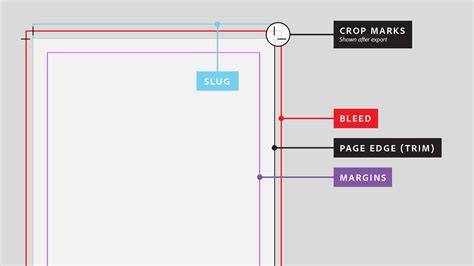
Practical steps to set up bleed in InDesign
- Start with a new document: Use the New Document window to define page size and margins.
- Enable bleed values: Enter bleed measurements for Top, Bottom, Left, and Right as needed. Break uniform values for inside/outside edges when necessary.
- Place critical content inside bleed: Extend backgrounds and images beyond page edges to eliminate white gaps after trimming.
- Export with bleed: Use PDF presets like PDF/X-1a:2001 and check Use Document Bleed Settings, optionally Crop Marks.
- Avoid inside-edge bleed with binding: For facing pages bound documents, apply bleed to Top, Bottom and Outside edges only.
Common pitfalls and tips
- Avoid placing crop marks without bleed; this can misrepresent trimmed edges.
- Always verify bleed values in the New Document panel before laying out content.
- When exporting, ensure the chosen preset matches professional printing requirements.
Bleed is essential for any print-ready document, and understanding its proper application helps prevent delays and reprints. If you’re unsure about the required bleed specifications for a printer, consult their guidelines and set up your document accordingly from the outset.