In the UK and many other places, there’s a growing expectation that cancelling a subscription should be at least as simple as signing up. This article examines user experiences, common pain points, and practical steps to cancel a Figma plan, drawing on real-world feedback and documented paths within the product.
Perceived difficulty and user sentiment
Many users report that subscribing to Figma is quick, while cancellation feels intentionally hidden and complicated. This contrast fuels frustration, with phrases like “Why is it so easy to subscribe, but so difficult to unsubscribe” appearing frequently across discussions. Some describe the practice as deceptive or reminiscent of dark UX patterns and call for regulators to scrutinize such design choices.
Feedback highlights that a clear, consistently accessible cancellation option should be visible within key areas such as Settings, Plan & Billing, or a dedicated Subscription page. Users expect straightforward language, unambiguous options, and immediate confirmation of cancellation to avoid unwanted charges.
Where to look for cancellation options
The official guidance indicates a path inside Figma: Team Settings > Plan & Billing, locate your plan, and click “Cancel plan.” However, many users report finding the option only after navigating through Admin or Settings menus, sometimes under submenus like “Settings” in Admin, “Dashboard,” or “Manage.” The recurring theme is that the cancel option is elusive and not located in a single, dedicated section.
Some users have found a practical route by downgrading to a free seat type, which can reduce ongoing charges, though this may not always fully stop billing depending on the current term and plan. Others report that the cancellation banner appears only at certain times or after contacting support, which compounds confusion and delays.
In conversations with support teams, moderators emphasize that cancellations typically downgrade at the end of the current billing period and that refunds or final charges may depend on the terms of the subscription and whether the user is on Annual or Monthly terms. Still, the user experience often diverges from these formal steps in practice, contributing to dissatisfaction.
Practical steps to cancel a Figma plan
1) Open the Figma Admin dashboard or Team Settings. Look for Plan & Billing or a similarly named section. If you cannot locate it, proceed to Settings and Admin areas and inspect subsections labeled Settings, Admin, or Manage.
2) Identify your current plan and select Cancel plan or Downgrade to Starter/Free seat as an interim measure. If a dedicated “Cancel plan” button is not prominently visible, downgrading seats may reduce ongoing charges, though it may not immediately stop all billing in every case.
3) Confirm cancellation when prompted and note the effective date of cancellation. Keep an eye on billing statements and look for confirmation emails or in-dashboard updates that reflect the end of the current billing period. If you’re seeking a refund, initiate a support request and provide context about the unwanted charge.
4) If you experience continued charges after cancellation, contact Product Support or use the help widget within Figma. Provide case numbers and request verification of cancellation status and refunds where applicable. Support teams often reference account activity, renewal terms, and prorating rules to resolve billing discrepancies.
Common pitfalls and user strategies
Some users report that charges continue after cancellation due to annual term renewals or misapplied downgrades, emphasizing the importance of verifying renewal dates, end-of-term consequences, and whether refunds are offered for unused time. Others describe the cancellation flow as segmented across multiple areas (Billing, Admin, Settings), which increases cognitive load and the risk of missing the cancellation action.
To minimize risk, keep a record of the cancellation steps you took, screenshots of the final confirmation, and confirmation emails. If you encounter a discrepancy, reach out to support promptly with your case number and the dates involved. Documentation can help resolve disputes over refunds or credits more efficiently.
Comparative perspective: canceling vs subscribing UX
Users note that subscribing often requires minimal friction-a single click-whereas unsubscribing can involve multiple steps, hidden menus, and delayed responses. This disparity can erode trust and user loyalty, particularly for individuals who rely on timely access to services in their professional workflows.
Constructive improvements proposed by users include a clearly labeled “Subscription” section in the main Settings, a single-click Cancel option within Plan & Billing, explicit confirmation messages, and upfront communication about when charges will stop after cancellation.
What regulators and communities say
There is growing scrutiny in digital subscription contexts about the ease of cancellation. Discussions frequently call for transparent, user-centered cancellation flows and for companies to avoid opaque or fragmented processes that obscure the ability to end a subscription. Community feedback often accompanies requests for better UX patterns and more accessible billing controls.
Table: key considerations for cancellation decisions
| Aspect | Impact on user experience | Recommended practice |
|---|---|---|
| Where to cancel | Often unclear, varying by account | Provide a clearly labeled Subscription section in Settings with a visible Cancel button |
| Timing of cancellation | End of current billing period; potential proration | Clear notice about end date and any refunds; confirm immediately |
| Downgrading vs cancellation | Could still incur charges if not handled correctly | Offer immediate downgrade to a free tier and confirm no further charges |
| Support response | Critical for resolving disputes and refunds | Provide timely, case-numbered follow-ups and transparent status updates |
Visual aids
Infographics or screenshots illustrating common cancellation paths, and decision trees for whether to cancel or downgrade, can enhance understanding.
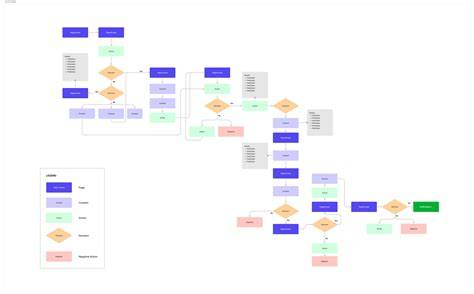
For deeper context, a short explainer video on where to find the cancellation option and how downgrading affects billing could be helpful.
How to Cancel Figma Subscription [2026 Full Guide]
Notes on data and terms
Subscription start dates, automatic renewals, and prorated charges are governed by the Software Services Agreement and the specific order forms associated with Enterprise or Organization plans. If a cancellation occurs, you may retain access to Pro features until the end of the current period, after which the account downgrades to Starter. Payment methods may be stored by Figma for ongoing management of billing, and missed payments can lead to suspension of services until resolved.
If you’re facing billing issues or uncertain about the status of a cancellation, coordinated communications with Support are essential. Providing a concise timeline and including any case numbers helps expedite resolution and prevents future charges from recurring unexpectedly.
tags: #cancel #figma #subscription