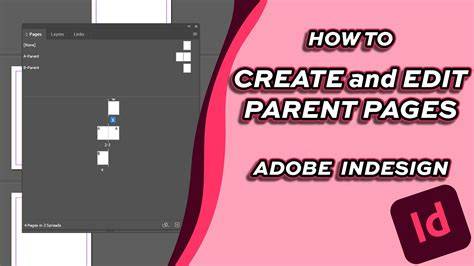
Parent pages in InDesign document serve as the base pages for document pages. Whenever you create a new document in InDesign, by default InDesign creates a couple of those pages - [None] and A-Parent or A-Master depending on the version of InDesign. Parent page, previously known as Master page, is the literal meaning of ‘parent’. Just like children inherit some of their parent’s characteristics, document pages inherit features of those parent pages in InDesign. The document pages are the main pages in documents and are displayed in the lower panel of the Pages panel.
These parents often include footers, headers, backgrounds, page numbers, logos, and items that should be repeated on every document page. When you apply those parents to document pages, only the content of parent pages will be displayed on document pages. The parents serve as the background layers for document pages. If you are from a programming background, you can consider parent concepts similar to the idea of classes in an object-oriented programming (OOP) language. Parent pages can be inherited from other parents, and you can create multiple parents in a single document. The parents can have multiple layers, and the parent items cannot be selected or altered in document pages unless overridden.
Creating and inheriting parent pages
Specifically, there are 3 methods for creating parent pages in InDesign. 1. Among the options, Prefix is the maximum four-character prefix for the parent Name option. Based on the Parent option, it is for inheriting from an existing parent. In addition, the Number of Pages option is for parent spreads, which are the rows of parent pages. 2. As we know, the spread is the row of pages in the Pages panel. To create a parent page from a document spread, select one particular document spread and drag that spread to the parent page panel. When you choose entire document spreads and drag those spreads into the parent page panel, parents equal to the number of document spreads are created. 3. You can create a parent from another parent, called Parent Parent. In such cases, any updates or alterations of Parent Parent items are automatically applied to Child Parent. Whenever you edit parent items, they are automatically changed on all pages applying that parent.
Creating parents just does not work at all. The parents should be applied on the pages to display the content of these parent pages. In the Page panel, drag the parent page icon over the document page. Alternatively, select the document pages to apply parent. On the To Pages option, conform the page range to apply the parent. Whenever you want to unassign parent items to document pages, you just need to drag the [None] parent page icon to the desired document page. Doing so will remove all the parent items on the document page.
Managing parent items and overrides
Parent items are the objects contained in parent pages. By default, parent items are not selectable in document pages. When a parent item is overridden, a local copy of that parent item is created on the document page while maintaining its association with the parent page. Unchecking the Allow Parent Item Overrides On Selection prevents parent items from being overridden in the document pages. In the document pages, parent items are shown in the dotted bounding box only if they are enabled for override.
Detaching and restoring parent items
What is Detaching Parent Item? As we know, overriding creates a local copy of the parent item but maintains the association with the parent page. Unlike overriding, detaching a parent item breaks that association created by overriding the parent items on document pages. This prevents automatic update of parent items on document pages even when you reapply parent items. That means you cannot restore detached parent items of document pages. The objects or parent items on document pages should be overridden to detach them. That means you can only detach the overridden objects on document pages. When you restore, attributes of parent items in document pages will revert to the state of original parent items. In this situation, the local copy of parent items is removed from document pages, and updates on parent items reapply automatically to document pages. Note that if you have detached objects on document pages, restoration of overrides does not work.
You can use the parent on one document to another as a starting point for designing a new parent page. This will help you pick the existing design from another document, reducing the extra work you need to do to design a new layout. For this, you can copy or move parent from one document to another if both the destination and source documents are opened. First way, go to Window>Arrange>Tile All Vertically, which will make all active document windows visible at once. Now, go to the source document’s Pages panel, then click and drag a spread to destination document’s window. Second way, select the parent on source document. Go to Layout > Pages >Move Parent or Pages panel menu > Move Parent. You can choose Replace Parent Pages option if you want to replace the parent pages of destination document with the same name as parent pages of source document.
Chapter and page numbers in documents are mainly generated using master or parent pages in InDesign.