As a YouTube filmmaker and digital creator I have been editing my travel films and clients' work using Final Cut Pro X for over seven years now. After switching from Adobe Premiere Pro, I experienced a massive performance boost-no more crashes, a more intuitive and faster workflow and just overall the workflow felt more "stable". In 2022, I even got myself a new maxed-out Mac Studio that cost me $7,000. No matter if I edited 1080p, 4K or 8K footage: FCPX still felt laggy. Not because it could not handle the large resolution files but because of the software itself. Sure, a maxed out Mac Studio could handle it all, including color grading on several adjustment layers and effects but the overall experience wasn't satisfying. There's still that "millisecond" response time on every click that drove me nuts as the impatient creator that I am. Then I tried out CapCut's desktop version for the first time, and my workflow completely changed. You think I'm kidding you? I initially downloaded CapCut for its auto-captioning feature to test out an instagram ad idea but ended up sticking with it because it felt so much more responsive while editing. Apple, seriously? You can argue that FCPX / Davinci / Premiere Pro all have way more capabilities and features that you might need for extremely complex edits, key frame animations and the ability to use third-party-plugins. CapCut's features may be limited, but to be honest, they're all I need. Auto-captioning entire videos in seconds (yes, even in German) and adding in-and-out animations for objects/text used to take so much time in Final Cut Pro X, even with third-party plugins from MotionVFX or others. In 2023 it's all about short form content. After editing numerous ad sets and short-form content, I realized I don't even open up FCPX anymore. CapCut just works. Another pro is that you can use it on mobile devices, which isn't possible with FCPX. Even if you are working as a professional editor and you might think "Go away with these amateur programs..." I want to inspire you to try it out. So, if you haven't already, give CapCut a download and start exploring its desktop version. You might just find that CapCut for filmmakers is the game-changer you've been waiting for. Final Cut Pro is a high-end video editor developed by Apple and designed specifically for Mac and iOS users. It provides a variety of powerful tools, such as multi-camera editing, a magnetic timeline, and real-time effects. These features make it ideal for both basic video editing tasks and more intricate film production projects. It has integration with other Apple products and services to enhance the overall user experience. With regular updates, Final Cut Pro stays ahead in video editing technology to meet the evolving needs of content creators across different industries.Now that you're familiar with the basics, let’s explore some key features in Final Cut Pro that make editing easier and more efficient. Understanding these tools will help you create smooth, professional videos with ease.
Key features of Final Cut Pro that boost efficiency
Magnetic timeline
The Magnetic timeline automatically snaps clips together to eliminate gaps and maintain synchronization as you edit. It helps with easy rearranging and trimming of clips to streamline your workflow. This feature makes editing faster and reduces the chances of errors, like accidental gaps between scenes.
Advanced color grading
Final Cut Pro provides an advanced color grading tool to give you full control over the look and feel of your video. You can fine-tune colors, adjust exposure, and add creative color effects to enhance the visual quality. With precision controls, even beginners can achieve professional-grade color correction.
Multicam editing
Multicam editing in Final Cut Pro lets you sync and edit video from multiple camera angles simultaneously. You can switch between different angles in real time, which makes it ideal for projects like interviews or live performances. This functionality speeds up editing while ensuring efficient transitions between camera shots.
Smart conform
The Smart Conform tool automatically adjusts the aspect ratio of your video to fit different formats like square, vertical, or wide. This is especially useful for creating content tailored to social media platforms. It ensures your subject stays centered without distorting or cropping important parts of the video.
Motion graphics integration
Final Cut Pro integrates with Motion, Apple’s motion graphics software, to enable you to add stunning visual effects and animations to your projects. You can create dynamic titles, transitions, and 3D animations that upgrade your videos. The integration makes adding professional-level graphics easier for beginners.
Follow this step-by-step Final Cut tutorial to get started with video editing and create your first project with ease:
- STEP 1 Create a new project and import media
- Open Final Cut Pro, then select "File" > "New" > "Project" or press Cmd+N. Name your project and use "Automatic Settings" for easier setup. To import media, go to File > Import > Media (or use Cmd+I) and select the video, audio, or image files you want to include. These files will appear in the "Library" for easy access throughout your project.
- STEP 2 Incorporate text or titles
- Click the "Titles and Generators icon" (or press Option+Cmd+1) to access pre-designed title options. Choose a title template and drag it to the timeline, placing it above your video clips. To personalize it, double-click the title text and use the "Title Inspector" to adjust the font, size, and color. Titles add structure and enhance the narrative of your video.
- STEP 3 Add transitions to the video
- Transitions create smooth shifts between clips. Open the "Transitions browser" (Ctrl+Cmd+5) and drag a transition between two clips on the timeline. Adjust the transition’s duration by dragging its edges inward or outward. Use them carefully to enhance storytelling, especially when showing a time-lapse or change in scene.
- STEP 4 Explore different effects
- Use "Cmd+5" to open the "Effects browser," where you can browse through built-in effects like filters and overlays. Drag an effect onto a clip to preview it in real-time in the "Viewer." Fine-tune the effect using the "Inspector" for more control, helping you add visual flair or correct any issues in the footage.
- STEP 5 Incorporate music or audio
- Import audio tracks just like video clips by going to "File" > "Import" > "Media". Alternatively, explore built-in sound effects under "Photos and Audio" (Shift+Cmd+1). Drag the audio file to the timeline below your video clips. Adjust volume levels using the "Inspector" and fade the audio at the end by pulling the "Fade Handle." Well-timed music makes your video more engaging.
- STEP 6 Employ color correction
- Select all video clips in the timeline and click the "Enhancements icon" below the Viewer. Choose "Balance Color" (Option+Cmd+B) to correct any color inconsistencies automatically. This ensures your footage looks polished and consistent and makes it visually appealing without requiring extensive manual adjustments.
- STEP 7 Share your movie
- When your project is complete, click "File" > "Share" > "Master File" to export your high-quality video. Choose a location on the device to save it and click "Next" to begin rendering. Keep track of progress by checking the "Background Tasks icon" at the top. Once rendered, the video can be shared across platforms or compressed if needed.
Although Final Cut Pro is one of the best video editing software options, it is limited to Apple users. For an alternative solution, consider using the CapCut desktop video editor. With its user-friendly design and a rich set of features, including effects and templates, CapCut simplifies the video creation process for both beginners and experienced editors. It also provides efficient integration of text animations and audio adjustments, which makes it a top choice for those looking to enhance their video projects.
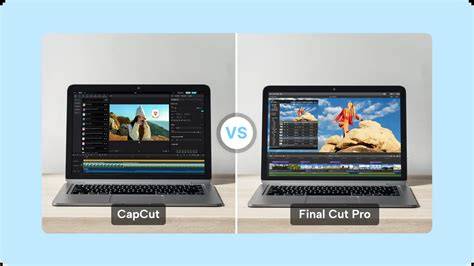
CapCut: speed, simplicity, and mobile flexibility
CapCut is a feature-rich video editor for creating videos on iOS or Android or Desktop devices. It is a free app that is easy to use and provides quick access to common features. CapCut is fantastic for editing videos without much hassle, and it has some unique features such as 3D Zoom that are not available on other apps. However, compared to full-featured, professional video editing programs like Final Cut Pro, CapCut still has a ways to go in terms of sophisticated tools and effects.
- Pros: Free to use, Easy to learn, Portable (mobile and desktop), Wide range of features including video trimming, cropping, and editing, as well as text, sticker, and music overlays
- Cons: Limited file format support, No integration with other software, Not as powerful as Final Cut Pro for professional video editing
What distinguishes CapCut for filmmakers is its speed and accessibility. It shines for short-form content, captions, automatic editing features, and the convenience of mobile editing and cloud collaboration. For professionals who need deep control, multi-cam, and advanced color grading, Final Cut Pro remains the robust, Mac-native powerhouse.
Side-by-side considerations and use cases
Key strengths of Final Cut Pro
- Optimized for Mac Creators: Final Cut Pro runs natively on Apple silicon (M1/M2), with magnetic timeline, background rendering, and proxy workflows.
- Precision for Long-Form Content: Deep control over editing, color grading, and audio mixing for complex projects.
- Lifetime Purchase: A one-time payment can be more cost-effective over the long term.
Key strengths of CapCut
- Built for Speed: Intuitive, fast-paced editing designed for mobile-first workflows and quick output.
- Mobile and Cloud Flexibility: Edit on the go across devices and publish rapidly.
- AI-Powered Features: Auto captions, background removal, noise reduction, text-to-speech, and more to accelerate production.
Which one should you use? If you are a professional editor demanding extensive features and long-form production power, Final Cut Pro is a strong choice. If you’re a creator focused on fast turnaround, social media content, or a beginner seeking approachable tools, CapCut offers compelling speed and efficiency. For many small businesses and solo creators, CapCut provides a cost-effective, template-driven path to high-quality social videos, while Final Cut Pro serves as the premium option for more demanding productions.
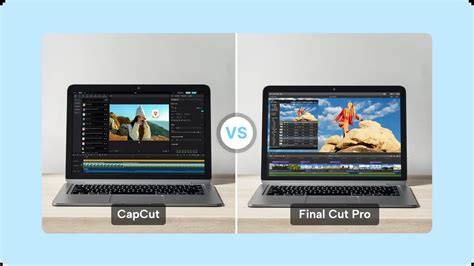
Practical table: quick comparison snapshot
| Category | Final Cut Pro | CapCut |
|---|---|---|
| Platform | Mac + iOS | Mac, Windows (via desktop) and mobile |
| Learning curve | Steeper, professional tools | Low, beginner-friendly |
| Performance | Excellent on Apple hardware | Very fast, optimized for quick edits |
| Pricing model | One-time purchase | Free with optional in-app purchases |
| Core strengths | Precision, multicam, color, audio | Speed, captions, templates, accessibility |
Small business perspective: The choice often hinges on templates and output speed. For many shops, CapCut’s template-based output and automated captions can dramatically reduce production time and cost, while Final Cut Pro remains preferable for in-depth brand films and client projects that require meticulous control and high-end finishing. Final Cut Pro’s ecosystem, including ProRes support and Motion integration, offers a professional-grade, scalable pipeline for long-form storytelling. CapCut’s AI-powered features, multi-layer editing, and cross-device editing address the demand for fast, consistent social content.
If you’re torn between Final Cut Pro and CapCut, you're not alone. These two video editors cater to very different creators - one is a powerhouse for filmmakers, the other a speed tool for social media content. Ultimately, the best choice depends on your editing goals, workflow preferences, and budget.