Since the recent updates, many users have reported that Lightroom Classic can no longer open images directly in Photoshop when using Edit In > Edit in Adobe Photoshop. The Photoshop window may open, but nothing further happens. This article compiles the most relevant observations and practical fixes drawn from user experiences and common troubleshooting steps to help you restore the seamless edit-in workflow between Lightroom Classic and Photoshop.
Preliminary checks: understanding the problem and its scope
The issue can occur on Windows and macOS, across Lightroom Classic and Photoshop versions, and may involve missing editor links, grayed-out commands, or silent failures when initiating Edit in Photoshop. Common triggers include updated software builds, catalog state (Smart Previews vs. originals), file formats, and inter-application communication problems.
Key symptoms to identify
- The Edit In Photoshop command is selected but Photoshop does not launch or apply edits back to Lightroom.
- The Edit In Photoshop option is greyed out or missing from the context menu.
- Lightroom opens a photo in Photoshop, but the expected edit workflow stalls or nothing happens.
- Edits made in Photoshop do not propagate back into Lightroom, or the edited copy isn’t re-imported automatically.
Initial fixes: resetting, reinstalling, and verifying editor mappings
Several practical steps frequently resolve the most common failures. These should be attempted in order, as they address core linkage and configuration problems.
- Use the Adobe Creative Cloud app to uninstall both Photoshop and Lightroom Classic, then reinstall them. When prompted, choose to keep preferences to minimize data loss and conflicts.
- Verify the external editor settings in Lightroom Classic: ensure that Photoshop is selected as the external editor and that the correct version (for example, Photoshop 2023 or 2026 depending on your installation) is configured. If needed, reselect the editor and apply changes.
- Test with a single photo in a fresh catalog or a new user account to rule out catalog-specific or account-specific issues.
- Check that you are not working with Smart Previews when attempting to Edit In Photoshop; the absence of the original file in the Lightroom catalog can disable the command.
If these steps do not resolve the problem, proceed to more targeted checks for file formats, synchronization, and system-level interferences.
File formats and smart objects: ensuring compatibility between Lightroom and Photoshop
Two common culprits are file formats and how Lightroom sends data to Photoshop. JPEG, TIFF, and RAW (via Smart Objects) can behave differently when transferred from Lightroom to Photoshop. In some cases, converting the image before sending to Photoshop or changing the format resolves the issue. Conversely, sending as a Smart Object can preserve the RAW data but may introduce compatibility problems in certain workflows.
Recommended actions:
- Attempt sending the image as a standard raster format (JPEG or TIFF) rather than as a Smart Object to see if Photoshop responds correctly.
- For RAW files, consider exporting an intermediate TIFF/PSD from Lightroom first, then opening that file in Photoshop for editing.
- If the file is corrupt or partially damaged, Lightroom may fail to hand off to Photoshop; in such cases, use a repair workflow or re-export from the original camera RAW as a fallback.
Catalog and file management: ensuring Lightroom can locate and transfer originals
A frequent cause of “Edit in Photoshop not working” is Lightroom’s inability to locate the original image or to access the associated sidecar files. This is especially true after catalog upgrades or moving files between drives. Key checks include:
- Confirm that the original photo exists in the Lightroom catalog and is not missing from the file system.
- Verify that the file is not offline and that Lightroom has full read/write access to the catalog and photo locations.
- Check for stacks and sort orders which can hide edited results; reset or adjust sort preferences to view edited copies if necessary.
System and compatibility considerations: OS, updates, and inter-app communication
New software builds can disrupt the bridge between Lightroom Classic and Photoshop. Users report that updating both Lightroom Classic and Photoshop can either fix or worsen the issue. Consider the following:
- Ensure that both Lightroom Classic and Photoshop are updated to compatible versions recommended by Adobe for your OS build.
- If you recently updated, test whether downgrading to a previous stable pair temporarily resolves the issue, then reattempt updates in a controlled sequence.
- On Windows, run the Creative Cloud Cleaner Tool if you suspect stale traces of old installations are interfering with communication between apps, followed by a clean reinstall.
- On macOS, ensure that the user library and relevant folders are not hidden in a way that interferes with Lightroom/Photoshop access; verify permissions for the Lightroom Catalog, Lightroom Preferences, and Photoshop executables.
Registry and path configurations: careful system edits when recommended
There are advanced scenarios where editing system settings or the Windows registry has been proposed as a fix. These steps are delicate and should only be attempted if you are comfortable with system administration. Always back up data and registry hives before making changes. The general idea is to ensure the path to Photoshop.exe is correctly registered and reachable by Lightroom’s external editor trigger.
Practical workflow tips: ensuring edits can return to Lightroom
- When you successfully open Photoshop from Lightroom, perform non-destructive edits and save back in a location Lightroom monitors for edits; avoid saving edits outside the Lightroom-managed workflow when possible.
- If the edited file is not showing up in Lightroom, try re-importing or synchronizing the folder containing the edited file, or use the “Edit In” command again to re-create the edit tree.
- Consider temporarily disabling antivirus or security software that might block inter-application communication during the edit handoff.
Additional considerations: troubleshooting edge cases
Beyond the common fixes, several edge cases can hinder the Edit In workflow. These include issues with smart previews, catalog corruption, and external backup processes that may lock files during the edit handoff. For persistent problems, isolate the issue by testing with a minimal workflow: a single photo, a clean catalog, and the default editor settings.
Visual and supplementary aids
Infographics and step-by-step diagrams can help illustrate the connection between Lightroom Classic and Photoshop, the edit handoff, and common failure points. The following visuals provide quick reference for users dealing with this topic.
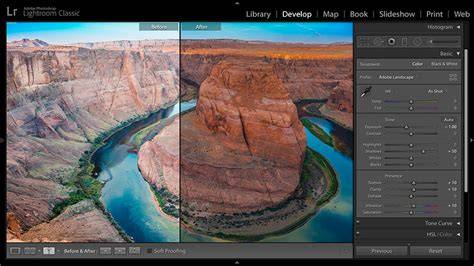
Integrating Lightroom and Photoshop - Day 23
Tabular reference: quick fixes at a glance
| Issue | Likely Cause | Recommended Fix |
|---|---|---|
| Edit in Photoshop is grayed out | Missing editor mapping or catalog issue | Reconfigure external editor in Lightroom; restart both apps |
| Photoshop opens but no edits apply | Communication break between apps | Reinstall apps; check permissions; test with a new catalog |
| Edited photo not back in Lightroom | File format or Smart Object handling | Try exporting to TIFF/PSD; re-sync or re-import |
| Photoshop not launching from Lightroom after update | Version incompatibility | Update both apps to compatible builds or revert to a stable pair |
Закрепляющее оформление: краткая памятка
Убедитесь, что версии Lightroom Classic и Photoshop совместимы; проверьте корректность привязки редактора в настройках Lightroom; попробуйте очистку и повторную установку, а также тест в новой базе данных/пользовательском аккаунте; при необходимости применяйте экспорт через TIFF/PSD или отправку как Smart Object, и сохраняйте изменения в Lightroom через повторную синхронизацию.