Editing text in Photoshop blends typography fundamentals with practical workflow tips. From creating and sizing type to replacing text on complex backgrounds, this guide consolidates common techniques and settings to help you achieve professional results.
Setting up and inserting text
When a new document is created, or an existing document without type layers opened, Photoshop calculates the default font size based on document resolution and zoom factor. Photoshop evaluates the default font size and the leading will be set to Auto. Previously, the default font size was always 12 pt, and sometimes this would be too small depending on resolution and zoom factor. You can insert text by choosing the Horizontal Type Tool (T) and clicking on the canvas to set the insertion point.
To change the font, size, or other type attributes, highlight the text and use the options in the Character panel or the options bar. For horizontal type, the text flows left to right; to switch to vertical text, choose Layer > Type > Vertical. The edges of the type can blend into the background if anti-aliasing or certain font features are misapplied, so you may need to adjust kerning, tracking, and anti-aliasing options for cleaner results.
In practical layouts, you might place guides to align text precisely. Create a New Guide Layout from View > New Guide Layout and define the columns and rows to suit your design. Guides help position the word or sentence in relation to the overall composition, such as aligning text with a circular element or a focal point.
Editing and refining text
To edit existing text, select the type layer and activate the Type Tool. You can edit the text directly in the canvas; to move the text, use the Move Tool (V) and nudge it for exact placement. If you need to rotate type, select the type layer and apply a rotate command or use Free Transform. The type can be rotated in 90-degree increments or any arbitrary angle depending on your design needs.
You can enhance text with blending modes to integrate it with imagery. Blend modes are available in the drop-down menu above the Layers panel and can help text conform to textures or adjust its visibility against complex backgrounds. For instance, overlay or soft-light modes can create a cohesive look between text and image.
Replacing or removing text
Replacing text in Photoshop involves removing the original text and adding new text. The main methods for removing text on a background include the Spot Healing Brush, the Clone Stamp Tool, and Content-Aware Fill. The Spot Healing Brush is useful for small text areas; select it (J) and brush over the text. For larger areas, use the Clone Stamp Tool (S) by sampling surrounding background with Alt+Click and painting over the text. Content-Aware Fill provides a broader approach: select the text with a selection tool, then Edit > Content Aware Fill to preview and apply a background fill.
When removing text that is within a text box object, the approach may involve deleting the text layer and creating a new Text layer with the desired content. If the text is part of an image, you’ll often perform a combination of removal techniques followed by inserting new text on a separate type layer for flexibility and editability.
Practical tips for typography and alignment
Choosing color and font requires consideration of how the text communicates its message. One tip is to use a text layer with a blend mode to integrate the typography with the image texture or color palette. When positioning text on guides, ensure you snap to the guides by enabling View > Snap or View > Snap To to achieve precise alignment.
Guidelines such as the Golden Ratio or the Rule of Thirds can help place text more professionally within a photograph. You can adjust the font characteristics-size, weight, and style-while the text remains on a dedicated type layer, allowing non-destructive edits and easy experimentation with different looks.
Working with language and spelling in Photoshop
Photoshop supports language dictionaries for hyphenation and spell-checking, which can be accessed through appropriate language settings in the Character panel. To ensure accuracy, you can set a specific language dictionary for your text, which helps with hyphenation and spelling across different language variants. The dictionary used for spelling checks can influence text editing workflows, especially when working with multilingual content.
Advanced workflows for text in images
Editing words and language in Photoshop CC enables a broad range of creative possibilities, from embedding messages to watermarking images or crafting advertisements. If you need to embed text in a photo, you can create a bold, high-contrast word like “Dream” using a strong font and clear color to stand out against the background. For more complex layouts, you may combine multiple type layers, alignment guides, and color treatments to achieve the desired hierarchy and readability.
When working with text on busy backgrounds, consider additional tools such as Content-Aware Fill, the Spot Healing Brush, or the Clone Stamp to ensure the underlying area blends smoothly with the new text layer. Remember to save your work in PSD format to preserve layers and editability for future adjustments.
Practical workflow examples
You might open an image, create a new Type layer with the Horizontal Type Tool, and place the word “Dream” along a circular element using guides for placement. Then you can adjust font size, weight, and color to achieve the intended impact. If you want to replace text on an object, you can remove the original text using Content-Aware Fill and insert new text on a fresh Type layer, ensuring the background remains natural and coherent with the surrounding pixels.
For consistent results across multiple images, you can replicate typography settings (font, size, color, and alignment) across layers by duplicating type layers or using Smart Objects to preserve edits as you scale or transform the text.
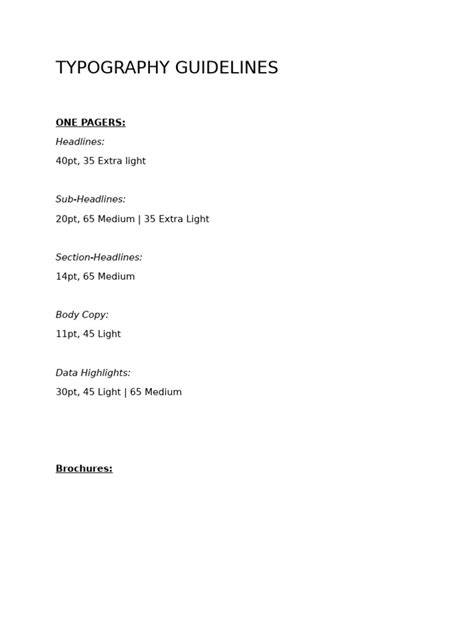
The ULTIMATE Guide To Typography For Beginners
Whether you’re working on branding, marketing materials, or artistic imagery, understanding these text editing techniques in Photoshop empowers you to craft clearer, more effective visuals. With practice, you’ll be able to place, style, replace, and refine text to meet your creative goals while maintaining non-destructive workflows and consistent typography.
| Tool | Use | Shortcut |
|---|---|---|
| Horizontal Type Tool | Insert and edit text | T |
| Move Tool | Position text precisely | V |
| Content-Aware Fill | Remove text from complex backgrounds | Edit > Content-Aware Fill |
| Spot Healing Brush | Fix small text areas | J |
| Clone Stamp Tool | Clone surrounding area to cover text | S |